Primo's MCP server: Your AI assistant can now talk to your IT operations
Primo now has an MCP server.
A device gets flagged. You need to know who it's assigned to, when it was last active, whether there's an open ticket on it, and what access that employee currently has.
You open Primo. You look up the device. You check the employee profile. You cross-reference the ticket queue. You piece it together.
That's four steps for a question that should take one.
Here's the same thing with Primo's MCP server connected to your AI assistant: you type "what's going on with this device?" and get back the device details, the assigned employee, their onboarding status, and any related tickets. One prompt. Full context. No tab-switching.
That's what we shipped.
MCP: Model Context Protocol
MCP (Model Context Protocol) is an open standard that lets AI assistants like Claude, ChatGPT, or Cursor connect directly to external tools. Instead of answering from training data, your AI queries your actual systems in real time.
With Primo's MCP server, that means your AI assistant can talk directly to your IT fleet. Devices, employees, accessories, tickets: all accessible from the AI tools you already have open.
Why it hits differently with Primo
Most IT tools that support MCP give you access to records. Primo gives you access to a connected data model.
Because Primo ties devices, employee lifecycle, SaaS access, and ticketing into one operational system, a single prompt can cross all of those layers at once. When you ask about a device, it comes back linked to an identity. When you ask about an employee, you get their full IT footprint: what they have, what they can access, what's pending.
That's the difference between querying isolated records and querying a unified IT operations platform.
It also means you can get a compliance-ready view of your entire fleet in one prompt. Preparing for an ISO 27001 audit and need to know which devices aren't enrolled or which employees still have active access after offboarding? That's a question your AI can now answer across your whole fleet, not just device by device.
A few things you can do from a single prompt today:
• Pull a device's full IT history (enrollment date, successive assignments) alongside the employee it's assigned to ;
• List all open tickets filtered by status, priority, or assignee ;
• Check which employees joined this month and whether their devices are provisioned ;
• Spot accessories that are unassigned or overdue for return ;
• Search across your entire fleet without opening a single filter.
And when you're ready to move beyond read-only, write access lets you create tickets, add comments, update status and assignee, and perform device actions like locking or wiping directly from your AI client.
What your AI can do in Primo
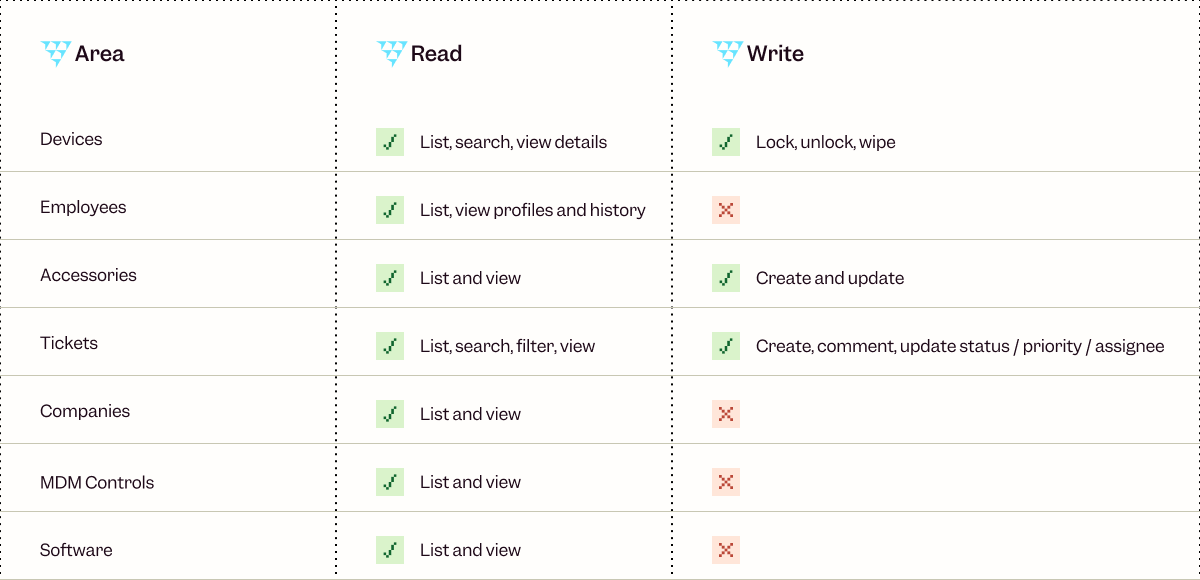
One note on device actions: locking and wiping are irreversible. Write mode is there for teams who want speed, but it's worth confirming before you act.
Getting connected
Authentication runs through OAuth. No API key to generate or manage, you sign in with your existing Primo account and you're done.
The server URL is https://api.getprimo.com/mcp. By default it runs in read-only mode. To enable write access, use https://api.getprimo.com/mcp?readOnly=false.
Setup is the same across clients: go to the MCP Servers section in your settings, add the URL, and complete the OAuth flow. Full instructions for Claude, ChatGPT, and Cursor are in the Primo help center.
A good place to start
Read-only prompts are the fastest way to build trust in the workflow before moving into writes. Try these:
"Show me all devices that haven't been active in the last 30 days."
"What open tickets are currently unassigned?"
"List employees who joined this month and check whether their devices have been provisioned."
Once that feels natural, write access opens up the rest.
The MCP server is live now. Get started at https://api.getprimo.com/mcp, or head to the help center if you want step-by-step setup instructions for your AI client.
Recommended articles
How to Create an Efficient IT Onboarding Process for New Employees
Starting a new job is equal parts exciting and nerve-wracking. No matter how many interviews and coffee chats a new team member did during the hiring process, they’re stepping into the unknown.
As a hiring manager or HR leader, your goal is to harness this energy and make them feel comfortable and fit in.
But very few experiences will burst their bubble like feeling forgotten about. Showing up for their first few days with no computer, no login, and nobody to help is immediately alienating. And it puts pressure on their new colleagues to help out.
Only 12% of employees believe their company does a good job of onboarding team members. And in our modern, digital-first work environments, this starts with IT.
This article explores the value of well-designed, efficient IT onboarding for new employees. And we also look at the keys to doing this well, without wasting time and effort.
What is IT onboarding?
IT onboarding is the process of getting new employees up and running with company information systems. These include computers, phones, and tablets, as well as user profiles, cybersecurity policies, and network access.
A fully onboarded employee:
• Has their own devices, including remote workers
• Can log in and use them safely
• Has access to the wi-fi network
• Can use communication channels like email, Slack, Microsoft Teams, and Zoom
• Knows where to look for more information should they need it
IT onboarding is arguably the very first thing a new employee needs to succeed. Before they can fully understand the company’s mission and cultural values, or even get to know their new team mates, they need IT access.
Typical challenges when onboarding new employees
For such a fundamental part of the hiring process, IT onboarding remains difficult. In fact, it may be harder today than in previous eras.
The cliché cubicle setup was simple. Everyone needed the same computer and phone on their desk, the same network access, with relatively few exceptions.
Today you have remote employees using a wide range of both hardware and software. A salesperson may need vastly different IT equipment from an engineer.
IT onboarding is challenging and often falls short for the following reasons:
• It’s time consuming: The average onboarding process involves around 50 administrative steps. IT setup alone can easily account for 20 or more of those, and will quickly become a bottleneck if your processes are inefficient.
• It’s increasingly personalized: Employees love to select their own hardware, and some have specific technical requirements. You may also have different nationalities, which means different keyboards and operating languages.
All of this means a one-size-fits-all IT setup won’t work.
• There are lots of moving parts: Between the devices themselves and the software setup required, you can have more than 10 IT vendors per employee. Which also means different timeframes—hardware orders may take days or weeks, while creating a user profile might only take a moment.
• Some technical skills are required: Corporate systems may not be as technical as they used to be, but HR and office managers may not feel well equipped to manage IT hardware. If you don’t have a dedicated IT expert on staff, you either need to lean on other skilled employees for support or bring in outside help to resolve issues. Both of which add time and complexity.
• Onboarding is cross-functional. Every employee needs onboarding, but it’s not always clear who should lead. The hiring manager, an HR person, the IT person, or someone else? This inbetween status can mean onboarding isn’t given the attention it deserves, and new employees are overlooked.
Whether you have a robust onboarding process or not, it’s a good time to look closely at your IT rollout. Ensure new employees get the smooth welcome they deserve.
8 IT onboarding best practices
A good employee onboarding process is the best way to overcome the common issues above. Here’s what should be in yours.
1. Prepare your pre-onboarding routine
Even if each onboarding may have its specificities, you want a repeatable, consistent approach for every new employee. Ideally, you’ll have a checklist to work through as soon as a work contract is signed.
This starts with hardware. Ensure all laptops, monitors, phones, and extras are delivered and ready to use before the person starts. That also means installing the necessary hardware and creating user permissions.
There’s a lot more work here than many admins anticipate. You have to order from several providers (such as Apple for the computer, Amazon for the hub and screen), and track to make sure everything arrives where and as intended.
You then have to configure these items by hand. Or ask your brand new employee to self-set up, which is not a great onboarding experience.
Your best option is to use a service like Primo with zero-touch deployment. Primo pre-configures devices to your specifications, so they arrive with new employees ready to use:

2. Provide secure access and credentials early
Start dates can shift and onboarding can throw up surprises, so it pays to prepare in advance. You can easily set up employee accounts and even share their email access ahead of time, so they’re ready to log in right away.
Send the new hire their login credentials for email and other key software prior to their start date. They don’t actually need to do anything with it, but it’s good to know it’s ready for them.
That includes security tools like password managers, and security protocols like two-factor authentication (2FA). Again, they don’t need to connect before day one, but they should have everything they need to get started right away.
Finally, ensure newcomers have access to all key business software: Google Suite or Microsoft Office, Notion or Asana, Slack, and more.
An IT operations system like Primo can also really help here. Primo lets you create new user profiles in just a few clicks, and automatically adds users to the tools they need in their specific role. The tools required can be job-dependent and vary hugely between users, so a one-size-fits-all software setup won’t work.
Done well, you don’t have to manually visit each individual platform. And you never forget anything important.

3. Document policies and create useful onboarding guides
Most young companies don’t have clearly-stated onboarding policies. This leaves it up to individual managers and admins to welcome employees on a case-by-case basis. That may work when you have the time to dedicate real attention to onboarding.
But as soon as your attention is elsewhere—or if you’re hiring very quickly—newcomers can be left behind. And more broadly, you want a consistent experience for all new employees. So a documented process and policy is best.
Include step-by-step guides for common tasks. Even better, prepare a 4-week onboarding template that any manager can quickly update and tailor to their roles.
That can start with IT. Provide easy-to-follow documentation, videos, or tutorials explaining how to use essential systems like email, project management tools, and key software.
Even if a new employee has used Notion, Slack, or Jira before, they may not use them your way.
4. Emphasize cybersecurity training
With the amount of digital connectivity and data access every company has today, security training is increasingly important. New hires need to know the importance of protecting customer data and avoiding scams.
Cybersecurity awareness and training should be one of the first steps in onboarding—as soon as possible after the employee has access to your systems. In fact, IT onboarding is now a core component of becoming compliant in many schemes. You must prove that employees know how to be safe and responsible with company data.
Train new employees on data protection policies, phishing risks, secure file sharing, and acceptable use of company systems.
Just as crucially, emphasize the cultural value you place on security (if indeed it is a value). Don’t assume that team members come from vigilant, security-conscious companies. Many will need to develop good habits, and it’s best to start immediately.
5. Use mobile device management systems
IT management involves so many different processes, hardware, and software. Teams are increasingly distributed, and your devices are traveling all over cities and countries every day.
This makes onboarding (and ongoing maintenance) really difficult. And it can be a major security risk.
Good mobile management brings all of your devices together into one system of record, accessible and manageable from anywhere in the world. You can access, lock, and wipe any device, no matter where it is. You can also create accounts, change passwords, and update software.
This software lets you confidently hand out devices on day one, including to remote employees. If they have any issues logging in or finding things, you can take control and help out.
This is obviously important for companies with remote staff. But even if your whole team is mostly on-site, in-office, modern employees have laptops and phones they take home with them. A centralized tool to track—and if necessary, access—these devices is paramount.
6. Automate key steps in the process
Even in small companies, employee onboarding is a major task. For fast-growing companies, it’s a major hurdle to scaling. And preparing the IT hardware and environment is often to blame for holdups.
Unless you automate. You shouldn’t have to manage onboarding on a 1:1 basis for each new employee. Good tools can manage the more manual, repetitive aspects.
Key steps to automate include:
• Ordering devices and having them delivered
• Pre-configuring the software and user profiles for these devices
• Creating accounts on all key tools, specific to each user’s role and responsibilities
• Guiding users to the right IT trainings for them
To do this, you need the right system.
7. Get feedback and ensure everything’s working
If possible, it pays to check in with new employees after a few days or weeks to make sure that everything’s working as they need. That could be a scheduled Slack message from the IT team, or a 10-minute Zoom call to show them a few advanced tips and tricks.
That’s also important for companies without dedicated IT support. Their onboarding manager or HR rep will doubtless schedule catch ups in the first few weeks. Make a specific point to check that they’re happy with their devices and aren’t getting lost in the company intranet or communication tools.
New employees are typically shy, and don’t want to admit when systems are confusing. But it’s perfectly normal to be confused, and a quick catch up should iron out any issues they’re having.
8. Streamline your IT onboarding process
Good onboarding can absolutely be the difference between companies with long-serving, happy teams, and those with high employee turnover. A negative onboarding experience is shown to cause employees to look for new opportunities in the near future.
And it doesn’t take a huge amount to deliver a good experience. While some companies offer extensive welcome packages and onboarding retreats, the most important is to make employees feel valued.
Show them that you’re excited to have them and have prepared for this moment. At the very least, that means having devices and accounts configured and ready to go.
And the best way to do this consistently is with good automation. For example, Primo helps companies manage IT onboarding in just minutes, without any team members specifically focused on this task. Devices are delivered anywhere pre-configured, and it only takes the IT or HR person responsible a few clicks. Which means every onboarding can be both easily personalized, and efficiently systematized.

That’s the beauty of automated solutions, they work every time and save countless hours.

The modern office has seen a significant transformation, with hybrid and remote work becoming the norm. Employees expect and thrive with the flexibility to work from anywhere—whether it’s the office, home, or the road.
But with this newfound freedom comes a critical challenge: ensuring that devices, data, and workflows remain secure and efficient across distributed teams.
That’s where mobile device management (MDM) tools are essential. These solutions let IT teams and HR managers manage devices, enforce security policies, and provide seamless support, all from a centralized platform.
In this article, we’ll explore six of the best MDM tools for SMBs, helping you unlock the full potential of a modern, flexible workforce.
Quick answer: the best MDM for an SMB in 2026
- All-in-one IT operations for a 50–500-employee SMB with a mixed Apple + Windows fleet → Primo. MDM plus device sourcing, onboarding and offboarding automation, and HRIS sync in one platform.
- All-Microsoft, enterprise-leaning environment → Microsoft Intune.
- Apple-only fleet → Jamf Pro as the Apple market leader, or Kandji for blueprint-driven Apple automation.
- Tight budget, basic multi-OS control → Miradore.
- Advanced in-house IT team that wants an open, customizable directory plus MDM → JumpCloud.
What is mobile device management (MDM)?
Mobile device management is a particular class of software that lets IT managers and admins connect and control company devices from anywhere. This is particularly important in modern, hybrid work environments where laptops, mobile phones, and tablets travel all over the world.
A good MDM tool enforces your security policies, configures devices, manages apps, and tracks device statuses across your entire fleet.
This is a crucial element of remote device management, the broader set of processes and philosophies a company uses to manage remote devices. MDM is perhaps the most important aspect of this process, and is usually the starting point.
In practice, companies use MDM to set password rules and security policies, keep devices updated, and have quick access should an administrator need to take control.
Why is MDM important for small businesses?
The modern workforce has changed fundamentally from even a few years ago. Desktop PCs have largely given way to laptops, most of which go home with employees at the end of each day.
Staff are also far more likely to work from home a few days each week, if not full time. And more employees travel between offices than in previous eras.
The result is more mobile devices, and less direct oversight over where they go. Meanwhile, cyber risks like phishing attacks and unwanted entry have exploded in recent years. With more devices connecting to insecure networks or simply stolen, SMBs have real reason to be wary.
A hack could expose personal customer information, your strategies, and even your company bank accounts.
To track mobile devices and keep a secure fleet, MDM software helps you:
• Increase security: You can ensure that devices are always updated with the required security systems, and are quickly retrieved if lost.
• Stay compliant: Particularly for certain industries and business models, you need to be extra vigilant over hacks and lost data. But there’s really never a good time for a data breach.
• Save money: It’s surprisingly common for devices to get misplaced or forgotten as employees come and go. As part of a robust remote device management plan, MDM keeps track of devices and ensures they’re returned when people leave.
• Work efficiently: Small businesses don’t have time to waste on manual device tracking. An MDM tool avoids the need for messy spreadsheets or endless back and forth between colleagues. All the information you need—and the ability to solve common issues—is available in one place.
• Allows flexibility: Some businesses use a one-size-fits-all IT approach for simplicity. But with the right tools and efficient processes, you can still have personalized hardware and software, without it becoming unwieldy.
Key MDM features to look for
There are a range of tools available, as well as broader remote device management platforms that include MDM. So it can be hard to know the specific features to look for when considering your mobile device management software.
While every platform has its strengths and weakness, good MDM software should include:
• Device tracking. Know where each company device is, and monitor performance where required.
• Remote control. If necessary, an admin can take over and “drive” a device, no matter where it is.
• System updates. Update individual devices on a case-by-case basis, and schedule company-wide updates to software and security protocols.
• Usage policies. If necessary, admins can restrict the use of certain websites, apps, or device features.
• Security monitoring. Spot security threats across the whole network, manage antivirus software, and roll out fixes to known security issues.
• Identity management. This is not actually a core MDM feature, but the best MDMs integrate with identity management providers. This lets you control user access with via single sign-on (SSO), multifactor authentication and role-based access.
With these features in mind, let’s look now at some of the best MDM systems available. All of these tools do the above essentials well, so we’ll focus on the aspects that set them apart.
6 best mobile device management systems
If you’re eager to implement mobile device management in your business, these are the tools we recommend.
1. Primo
Primo has all of the above features (and more) to track, update, and optimize remote devices. As an MDM tool, it gives you the security and control you need to manage distributed teams and modern work environments.
But Primo goes beyond mobile device management as an all-in-one IT operations platform. You can easily source and distribute new devices, create company-wide security protocols, deliver compliance training, and keep track of a growing hardware fleet.
This is ideal for busy IT teams who want to make all of their operational work efficient and smooth. But it’s also perfect for “accidental” IT managers, often in HR or office management, who may not have the time or technical expertise to manage devices effectively. Primo takes care of every time-consuming task they could have, so they can focus on what they were hired to do.
Primo works across brands, so you have good MDM tools whether you use Mac, Windows, or other operating systems. You can also source devices directly from Apple, Dell, Lenovo, and Backmarket, among others.
Ultimately, Primo lets you manage all key IT processes in one smooth system, and avoid the technical challenges that plague most businesses.
Key features
• Buy and ship new devices within five days
• Track, update, optimize, and wipe devices remotely
• High-level cybersecurity identifies ransomware and undoes any damage caused
• Integrate your HR system for automated onboarding and offboarding processes
Best fit for
• Growing SMBs (50-500 FTEs) that need lean, effective IT processes
• Companies which use both Apple and Windows devices, as Primo works across operating systems and hardware providers
Not a great fit for
• Large companies with existing IT processes that only need MDM solutions
2. Microsoft Intune
Intune is Microsoft’s MDM solution, for companies already using its networking products and suite of tools. It helps network admins manage user access and device settings, and is predominantly for enterprise-level companies. This includes mobile devices, desktops, and virtual endpoints.
As you would expect, Intune is a popular option among IT professionals who set up Microsoft environments for clients. These are often larger, more traditional office settings, where Outlook and Excel are commonplace. The platform lets you create and standardize specific security settings, zero-trust rules, and set the kinds of usage limits larger companies often require.
Windows Autopilot also promises to be increasingly useful in managing IT. Intune already uses this AI tool to help deploy operating systems and provision new devices, and the use cases are sure to expand quickly.
Key features
• Broad range of native Microsoft integrations
• Custom roles and policies for enhanced security
• Mobile threat detection and defense services
• Can be used for BYOD or company-owned devices
Best for
• Larger enterprise businesses already using and familiar with the Microsoft suite of tools
Not a great fit for
• SMBs or fast-growing companies that want to manage IT in house with minimal delays and setup costs
3. Jamf Pro
Jamf is known as perhaps the market leader in mobile device management for Apple devices. Whether your business uses iPhones, iPads, Mac computers, Mac OS devices, or Apple TVs, Jamf has the features to manage them centrally and keep them secure.
Jamf Pro offers zero touch deployment if you buy Apple devices through their B2B providers. It then makes it easy to find, monitor, and update those devices as required during their lifecycles.
Jamf has a few price points and packages to consider, including those for very small companies with no dedicated IT support. But Jamf Pro is its true MDM product, aimed at larger businesses and higher education providers, with a more complete feature set.
Jamf Pro is at the more expensive end of the pricing scale for MDM providers. Some SMBs don’t need a solution at this robust price point.
Customers love the fact that Jamf is so focused and committed to Apple products. This allows them to be at the cutting edge of innovation and adapt quickly to the slightest changes released by Apple.
Key features
• Application management and consolidation
• Remote wipe and device tracking
• Strong security features
• User-friendly experience for teams with limited technical expertise
Best fit for
• Larger companies and universities with a fleet of Apple devices
• SMBs that exclusively use Apple products
Not a great fit for
• SMBs with a significant mix of non-Apple and Apple devices
• Budget-conscious companies
4. Kandji
Kandji is another Apple specialist. In fact, it markets itself as “the Apple device management and security platform.” This focus gives you the confidence that these are dedicated experts who “know the Apple ecosystem inside and out.”
As an administrator, you create “blueprints” with all the common settings and apps every employee needs. The platform provides a library of 150+ ready-to-use apps, including all the most common tools most businesses use. This makes setting up your working environment simple and scalable.
Its support team is made up of experienced systems administrators who understand the common problems most IT managers face. They’re known for being particularly helpful in solving issues, which are already few and far between.
Customers include Allbirds, Demandbase, and Sisense, among a range of other tech-enabled growing businesses. For companies with Apple-heavy IT requirements, Kandji may be the perfect solution.
Key features
• Automated software updates to keep all devices on the same version
• AI assistant that delivers insights and tips for better device management
• Migration agent tool to switch easily from your current MDM provider
• Active and responsive support team, especially during setup
Best fit for
• Growing businesses with almost exclusively Apple devices
Not a great fit for
• SMBs with a significant mix of non-Apple and Apple devices
5. Miradore
Miradore is a low-cost MDM software that does the basics well. And that’s more than enough for some small businesses. The tool is particularly useful for companies with hundreds or even thousands of devices to monitor, but a small team and low IT budget.
You can monitor and manage your fleet easily, and enforce compliance and security protocols. You can also check that operating systems and software are up to date, when the device was last used, and where it is at any given time.
Miradore secures both company-owned and personal devices across Android, iOS, macOS, and Windows. And for many small businesses, there’s just the right level of security and control, without becoming overly complex.
Key features
• Device inventory management
• Application and patch management
• Configuration, restriction, and device tracking
• Automation for a range of IT tasks
Best fit for
• Companies with basic MDM needs and low budgets
Not a great fit for
• SMBs that need all-in-one IT management, including sourcing, onboarding and offboarding devices, or want MDM customization
6. JumpCloud
JumpCloud is perhaps the most technical platform on this list, best suited to advanced IT teams with high levels of expertise. It’s an incredibly open and customizable solution, which is exactly what some businesses need.
JumpCloud manages Windows, MacOS, Linux, Android, iOS and iPadOS devices, unlike the Apple-specific tools above. This lets IT managers create policies and protocols that apply across all of these devices, rather than managing them separately.
It also lets you limit the installation of unapproved software, also known as “shadow IT.” Coupled with zero-trust policies that protects users, devices, applications, files, and networks, it’s one of the best solutions for security-obsessed organizations.
It may not be the simplest platform on this list, but JumpCloud is a very powerful, dedicated MDM solution.
Key features
• JumpCloud Go provides strong multi-factor authentication and password settings
• Zero-trust policies for devices and networks
• Open directory platform that integrates with your existing IT stack
• SaaS management to oversee your tools and optimize licenses
Best fit for
• Companies with established IT teams and support that want to tailor MDM to their exact specifications
Not a great fit for
• SMBs that need user-friendly, ready-to-use tools
Find the ideal MDM for your SMB
Corporate devices have taken on an interesting status in recent years. For most employees, their phone or computer is theirs, with use extending far outside office hours. Of course, IT leaders have a different view, and (rightly) see devices as company property.
But just because devices go everywhere with employees, that doesn’t mean they can’t be secure and tracked efficiently. The platforms above make this a reality.
No matter what size your company is, or the industry you serve, you almost certainly need MDM software. The real question is: which is right for you?
Hopefully the breakdowns above help you make your choice. And for more help, talk to us. We’ll gladly help you figure out whether Primo or one of the other excellent providers on this list is right for you.
Quick answer: what is remote device management?
Remote device management (RDM) is managing, securing and supporting employee laptops, desktops and phones from anywhere — enrollment, configuration, updates, lock and wipe, and retrieval — without handling the device in person. For mixed fleets it works best when one tool covers every operating system and ties to identity.
- Multi-OS SMB (Mac, Windows, Linux, mobile) in one workflow: Primo — remote device management plus identity and procurement, with onboarding and offboarding driven by your HRIS.
- All-Apple at scale: Jamf or Kandji.
- All-Microsoft environments: Microsoft Intune.
Remote device management (RDM) is the practice of monitoring, configuring and securing devices from a central console without physical access. Lean IT teams use it to enroll laptops, phones and tablets across macOS, Windows, Linux, iOS and Android, push software and policies, automate patching, and lock or wipe devices remotely — all without sending an IT lead to a desk.
This is the operating model that makes distributed teams possible. Below: what RDM covers in 2026, how it relates to MDM, RMM and UEM, and how to evaluate a platform when you're running IT for a 50–2,000 employee company.
What remote device management covers
The six core pillars:
• Provisioning: enrolling a device and pushing a baseline configuration
• Telemetry: inventory, health and compliance data collected in the background
• Remote access: viewing or controlling a device, where the OS allows it, with the user's consent
• Patch management: keeping the OS and apps up to date on a defined cadence
• Policy enforcement: encryption, password rules, firewall, conditional access
• Lock and wipe: recovering or destroying data on a lost, stolen or returned device
A serious RDM platform delivers all six in one console, not split across three vendors. That single-console claim is what separates platforms built for the SMB operator from enterprise tools that scale down poorly.
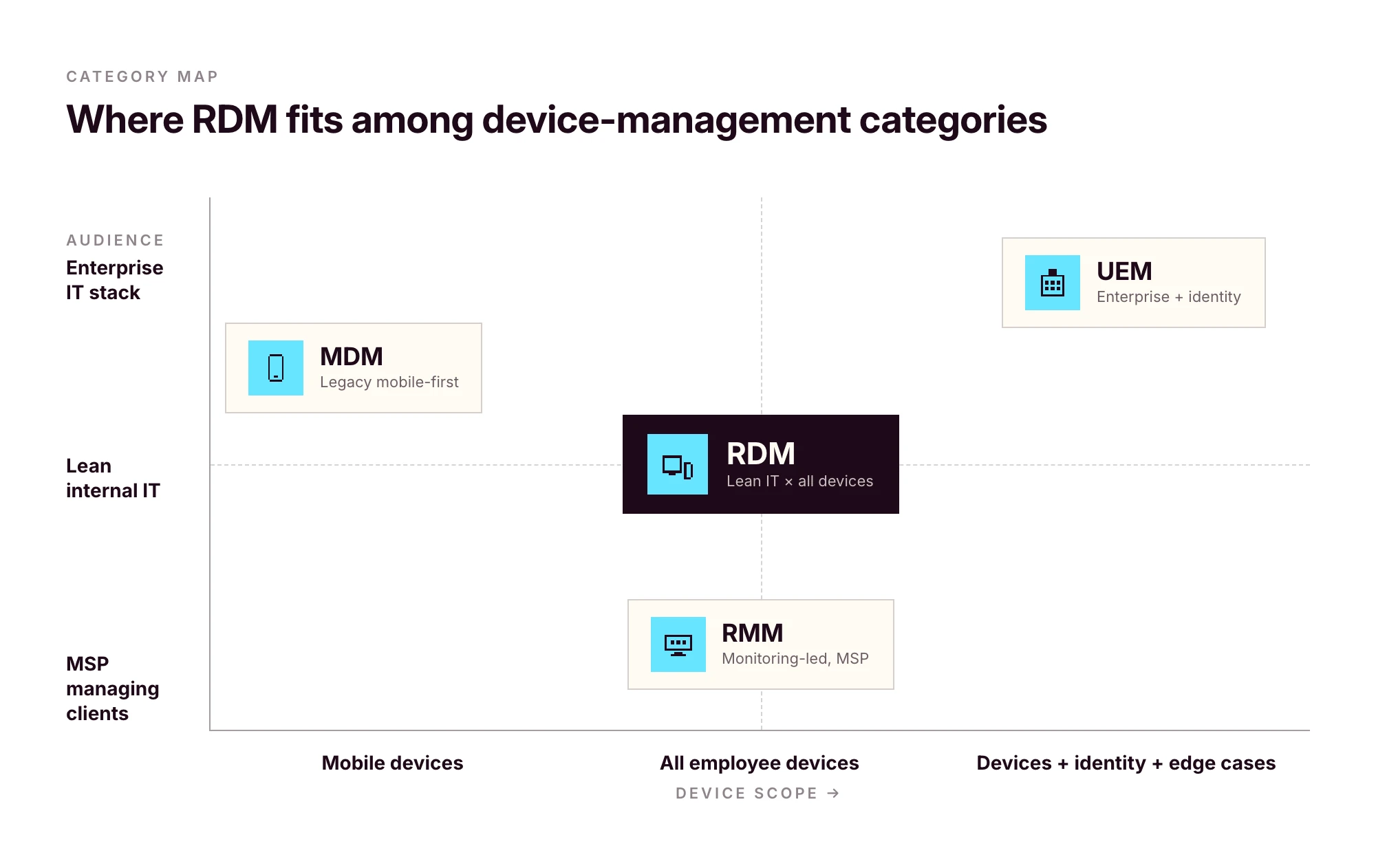
RDM vs MDM vs RMM vs UEM
The acronyms have drifted over the last decade. Vendors use them interchangeably; the original definitions still help.
In practice, most modern MDM platforms function as full RDM systems, and UEM has become a marketing label that often means "MDM plus identity." For an SMB, the practical question isn't the label — it's whether the platform covers every OS you run, integrates with your HRIS and identity provider, and handles the full device lifecycle.
If a vendor's "MDM" only covers Apple, it isn't RDM. If a vendor's "UEM" needs a six-month enterprise rollout, it isn't built for you.
What modern remote device management software actually does
A modern RDM platform should give you the following without third-party agents bolted on.
Remote view, with the user's consent
Screen sharing for support. Standard on macOS and Windows. Unattended remote control depends on OS permissions and consent prompts. iOS in particular restricts unattended control by design, and any platform claiming otherwise is overselling.
Remote scripting and terminal
Shell access (SSH on macOS/Linux, PowerShell on Windows) for diagnostics and remediation at scale. On Linux endpoints, this is also how most fleet management gets done in practice, scripts, inventory checks, configuration management, since GUI-driven control is OS-dependent.
Background telemetry
Hardware inventory, installed apps, OS version, encryption status, last seen, last user. Refreshed automatically. The first time a laptop goes missing or an auditor asks for an asset list, this data pays for itself.
Patch management
Automated OS and third-party app updates with deferral windows. A critical security patch can't be silently ignored. A non-critical update can't disrupt someone mid-customer-call.
Policy enforcement
Disk encryption (FileVault on macOS, BitLocker on Windows, LUKS on Linux), password complexity, idle-lock, firewall, USB restrictions. Pushed once, enforced everywhere.
Lock and wipe
Two flavours. Full wipe for company-owned devices being decommissioned. Selective approaches for BYOD: on macOS, Account-Driven User Enrollment cleans only managed data; on Windows, Intune App Protection Policies do similar work for managed apps; on Android, Work Profiles isolate corporate data so it can be removed without touching the personal side. The right pattern depends on ownership and OS — your RDM should support all of them.
Role-based access governance
A point most teams overlook until they hire their second IT admin. Strong RDM platforms enforce role-based access governance in two distinct places: across the SaaS apps the platform provisions, and on the management console itself. Primo states the first explicitly: "Role-Based Access Control (RBAC) across every app", with policies tied to roles instead of individuals. Confirm with any vendor that the same governance applies to who can wipe a device or run a remote script inside the admin console, not just to the apps the platform manages. SSO on the console matters for the same reason: when an admin leaves, their management access should die with their identity record.
Multi-OS coverage: the operating system matrix
This is where most vendors fall short. Apple-only platforms (Jamf, Mosyle) skip Windows and Linux. Windows-led platforms (Intune) treat Macs as second-class. The cost of stitching three tools together (three contracts, three consoles, policies that drift) stays invisible until you're the one keeping them in sync.
Sanity-check what's actually possible per OS before evaluating any platform.
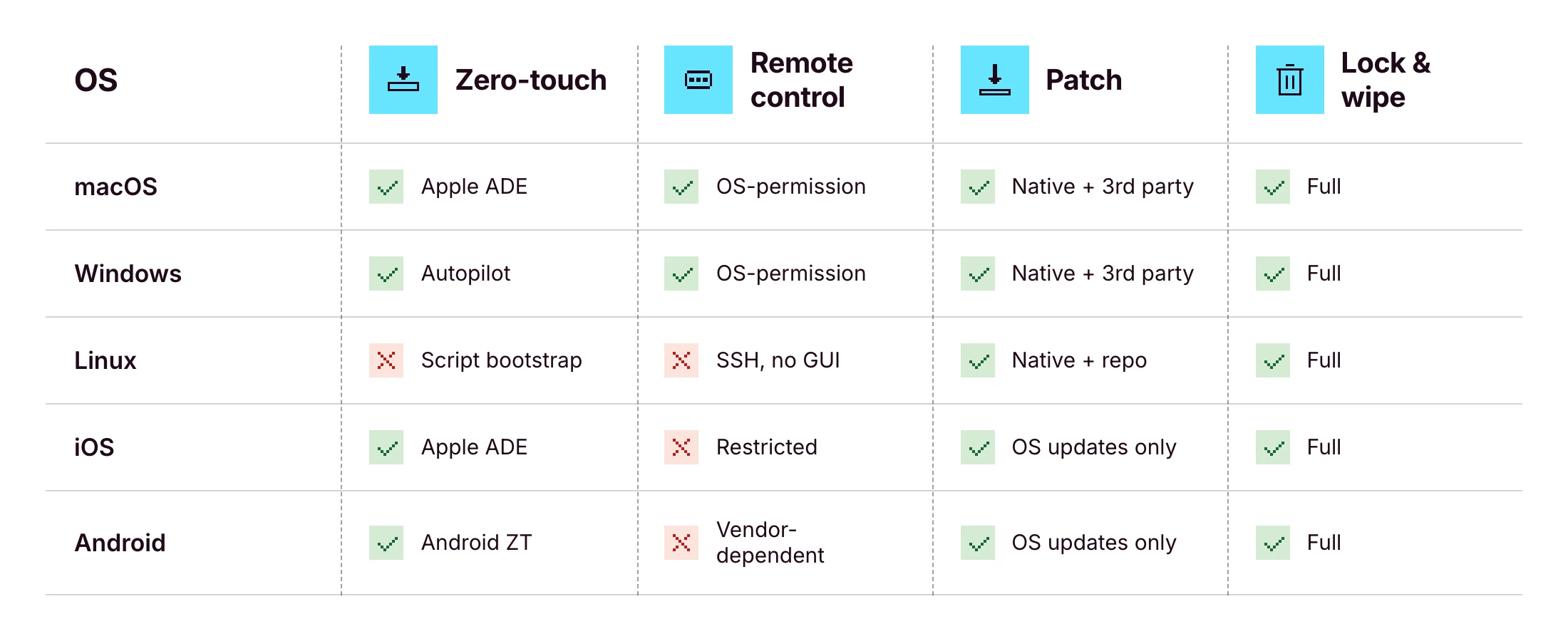
The honest answer: no platform delivers 100% of every cell. iOS unattended remote control is impossible by design. See the Apple Business Manager deployment guide for the underlying constraints, and Microsoft Intune device management docs for the Windows-side equivalents. What you should expect from a serious RDM platform is a unified console for all five operating systems, which Primo states as "Mac, Windows, Linux, iOS, and Android managed from a single interface" — and parity wherever the OS allows it.
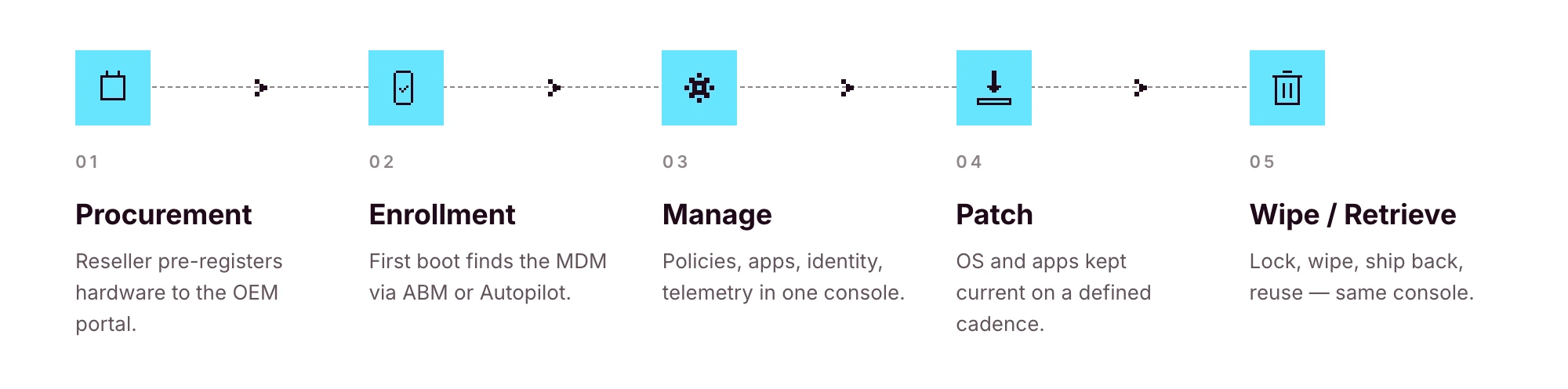
The full remote device lifecycle: from procurement to retrieval
Most RDM guides start at enrollment and end at wipe. That's the part of the lifecycle that touches the management console. It's also only half of what IT actually owns.
The full picture:
1. Source: purchase from an authorized reseller that can pre-register hardware to the OEM portal
2. Ship: direct-to-employee, ideally with zero IT handling in between
3. Enroll: first power-on, the device finds its MDM through Apple Business Manager or Windows Autopilot
4. Manage: policies, apps, identity, telemetry
5. Patch: OS and app updates on a defined cadence
6. Lock and wipe: on request, on loss, or on exit
7. Retrieve: return label or pickup, ideally triggered automatically
8. Reassign or retire: back into stock for the next hire, or recycled responsibly
If your RDM tool only covers steps 3–6, you're stitching together couriers, OEM portals, reseller order forms and spreadsheets to handle the rest. That stitching is where lean IT teams burn the most time.
Procurement integration is the part most teams don't realize they're missing until they've lived without it. Primo's procurement workflow covers 60+ countries with delivery in around 5 business days, ships devices with apps and security settings pre-configured, and triggers returns and wipes automatically from your HR workflows. That removes steps 1, 2, 7 and 8 from your hands.
Why remote device management breaks at the HR-IT handoff
A new hire is created in your HRIS on Monday. They start three weeks later. Between those two dates, four to seven separate things have to happen on the IT side: order the laptop, create the IdP account, provision the right SaaS apps, assign role-based policies, ship the device, prepare the Day One guide.
If your only trigger is a Slack message from HR, something will slip. Usually not the laptop — laptops are visible. It's the seventh-tier SaaS app the new hire needs in week two, which nobody remembers exists until they ask for access.
Modern RDM treats the HRIS event as the source of truth, then fires the entire downstream workflow:
• HRIS creates the employee record →
• IdP account is provisioned →
• Role-based SaaS access is granted →
• Device is ordered and pre-registered →
• Zero-touch enrollment routes it to the MDM on first power-on →
• Policies and apps deploy automatically
This is the operating model behind Primo's IAM page summary: "HR triggers it. Primo executes it." and "Native integrations with 60+ HRIS, identity providers, and SaaS tools." For lean IT teams, that changes the job description: less ticket execution, more workflow design.
For the practical version of this (phased, role-by-role) read the IT onboarding checklist for lean teams.
A device is offboarded only when access is offboarded too
Wiping the laptop is the easy part.
What about Slack? Google Workspace? HubSpot? Notion? The shared 1Password vault? The GitHub org? The shared admin email for the payments processor?
A device wipe doesn't reclaim SaaS access. The two have to be handled together — and on lean teams, they almost never are. That's the gap that turns into an audit finding six months later: a leaver who still has access to a customer dataset because nobody owned step 4 of the offboarding flow.
Modern RDM platforms treat SaaS access revocation as inseparable from device offboarding. The HRIS exit event that triggers a remote wipe should also revoke IdP access (which cascades through every SSO-connected app), deactivate accounts on apps not behind SSO, reclaim licenses for cost control, and archive shared resources to the right owner. Deprovisioning is a first-class control in NIST SP 800-53 AC-2 (Account Management), not an afterthought.
Primo states this explicitly: "Revoked automatically on their last day to prevent security breach." Identity and device live in the same console, fired from the same HRIS event, on the same schedule — not in two parallel workflows that drift over time.
How to choose a remote device management platform for an SMB
The 10-point checklist that separates platforms built for SMBs from platforms scaled down from the enterprise:
1. Multi-OS coverage: macOS, Windows, Linux, iOS and Android in one console
2. RBAC on the admin console: at least three roles out of the box
3. SSO on the admin console: your IT team's access should die when their identity does
4. HRIS integration: events from systems like BambooHR, HiBob, Factorial, Eurécia, Deel, Dayforce, Charlie, ADP or Gusto trigger downstream workflows
5. Open API and webhooks: anything standard one quarter becomes custom the next
6. Automated patch management: OS and third-party, with deferral windows
7. Procurement integration: sourcing and shipping inside the same operating model
8. Clear vendor jurisdiction and data handling: EU-based vendor for European fleets is a real signal; data-residency claims should be checked in writing
9. Pricing transparency: per-device, monthly, visible without a sales call
10. Time-to-deploy in days, not quarters: if onboarding takes a quarter, it isn't lean-team-fit
Answer "yes" to all ten with the same vendor and you've found your remote device management software. Answer "yes" to nine, and the tenth is the one to negotiate hardest on.
Frequently asked questions
What is remote device management?
Remote device management is the practice of monitoring, configuring, and securing devices from a central console without physical access. IT teams use it to enroll laptops, phones and tablets, push software, enforce security policies, and lock or wipe devices remotely. It applies across macOS, Windows, Linux, iOS and Android.
What is the difference between RDM and MDM?
MDM (mobile device management) historically refers to managing smartphones and tablets. Remote device management is broader and covers any endpoint (laptops, desktops, mobile devices and increasingly IoT) operated remotely. In 2026 the terms overlap, and most modern MDM platforms function as full RDM systems.
How does remote device management work?
A device enrolls into the management platform either manually or through zero-touch deployment. The platform then pushes configuration profiles, apps, and security policies over the air. Admins can remotely view, patch, lock or wipe the device, subject to OS-level permission models. HRIS or IdP integrations can automate enrollment and access changes.
Can one platform manage Mac, Windows, Linux, iPhone and Android?
Yes, but coverage varies by vendor. Apple-only platforms (Jamf, Mosyle) skip Windows and Linux. Cross-platform vendors (Primo, JumpCloud, Intune, Hexnode) support multiple OSes from one console. Verify on the vendor's product page that all five OSes are managed natively, not via third-party agents.
How do you offboard a remote device securely?
Trigger the offboarding workflow from the HRIS. Lock the device, wipe corporate data (full wipe for company-owned, selective approaches for BYOD depending on OS), revoke SaaS and IdP access, send a return label or schedule pickup, then mark the asset for reassignment or retirement in inventory.
What should small businesses look for in remote device management software?
Multi-OS coverage, transparent SMB pricing, HRIS and IdP integrations, RBAC on the admin console, zero-touch deployment support, automated patch management, procurement and shipping integration, clear vendor jurisdiction and data-handling posture, and a time-to-deploy measured in days rather than months.
Is remote device management the same as MDM?
Not exactly. MDM is a subset of remote device management focused historically on mobile. RDM is the broader operational discipline that includes mobile, laptops, desktops, and the workflows around procurement and offboarding. Most modern platforms (UEM, MDM, RDM) functionally overlap.