Remote Device Management for SMBs: Every OS, One Workflow
Remote device management (RDM) is the practice of monitoring, configuring and securing devices from a central console without physical access. Lean IT teams use it to enroll laptops, phones and tablets across macOS, Windows, Linux, iOS and Android, push software and policies, automate patching, and lock or wipe devices remotely — all without sending an IT lead to a desk.
This is the operating model that makes distributed teams possible. Below: what RDM covers in 2026, how it relates to MDM, RMM and UEM, and how to evaluate a platform when you're running IT for a 50–2,000 employee company.
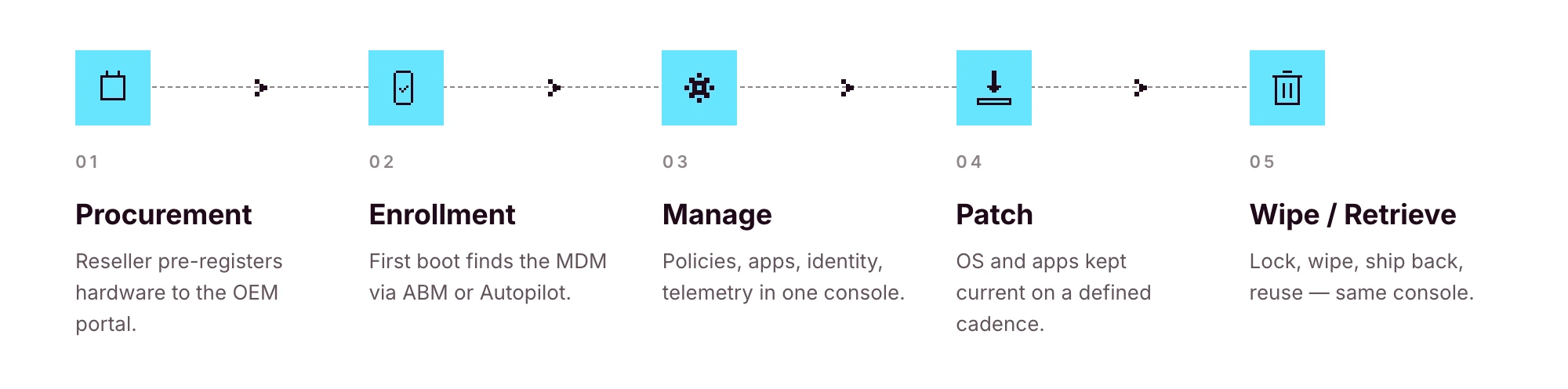
What remote device management covers
The six core pillars:
• Provisioning: enrolling a device and pushing a baseline configuration
• Telemetry: inventory, health and compliance data collected in the background
• Remote access: viewing or controlling a device, where the OS allows it, with the user's consent
• Patch management: keeping the OS and apps up to date on a defined cadence
• Policy enforcement: encryption, password rules, firewall, conditional access
• Lock and wipe: recovering or destroying data on a lost, stolen or returned device
A serious RDM platform delivers all six in one console, not split across three vendors. That single-console claim is what separates platforms built for the SMB operator from enterprise tools that scale down poorly.
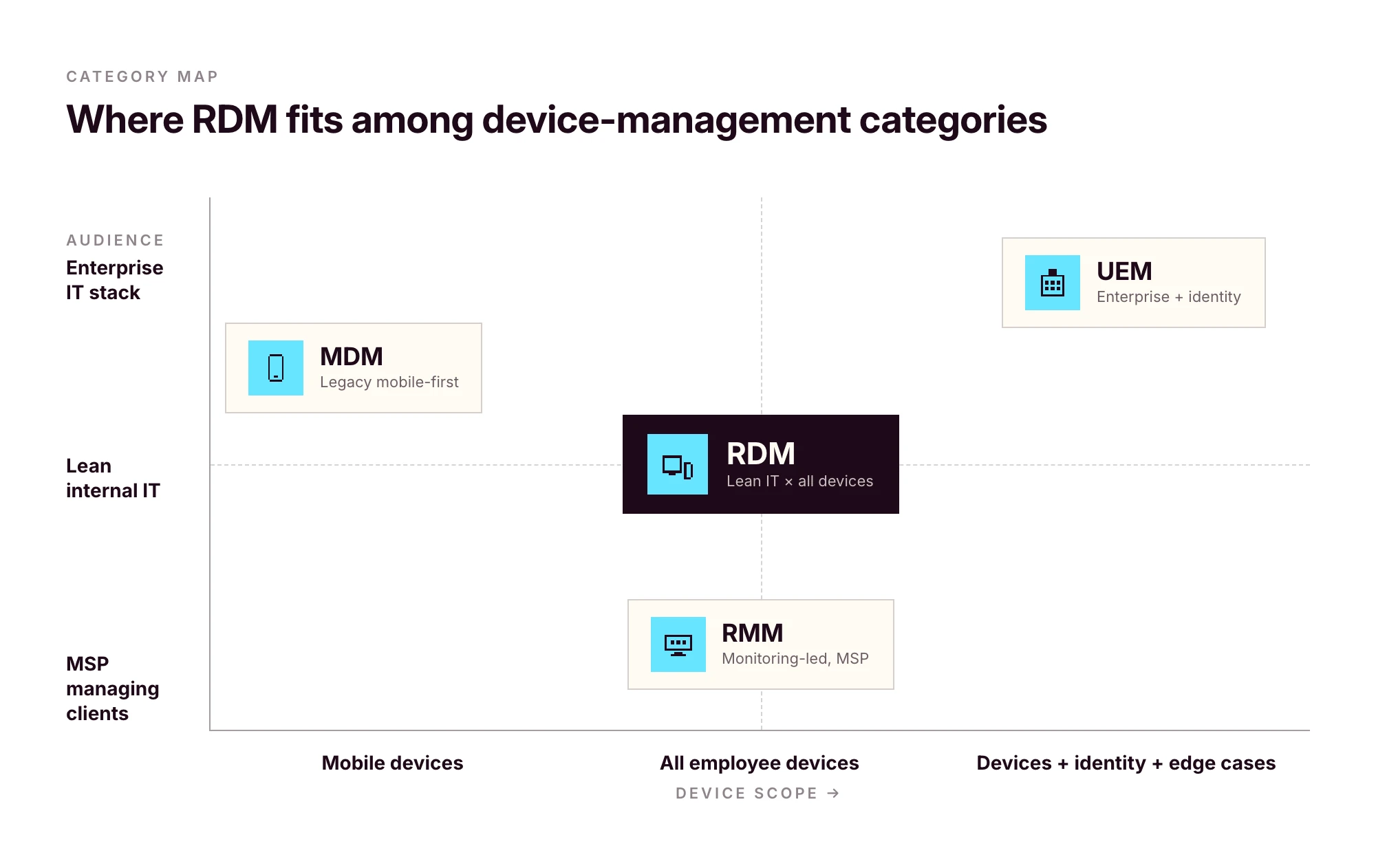
RDM vs MDM vs RMM vs UEM
The acronyms have drifted over the last decade. Vendors use them interchangeably; the original definitions still help.
In practice, most modern MDM platforms function as full RDM systems, and UEM has become a marketing label that often means "MDM plus identity." For an SMB, the practical question isn't the label — it's whether the platform covers every OS you run, integrates with your HRIS and identity provider, and handles the full device lifecycle.
If a vendor's "MDM" only covers Apple, it isn't RDM. If a vendor's "UEM" needs a six-month enterprise rollout, it isn't built for you.
What modern remote device management software actually does
A modern RDM platform should give you the following without third-party agents bolted on.
Remote view, with the user's consent
Screen sharing for support. Standard on macOS and Windows. Unattended remote control depends on OS permissions and consent prompts. iOS in particular restricts unattended control by design, and any platform claiming otherwise is overselling.
Remote scripting and terminal
Shell access (SSH on macOS/Linux, PowerShell on Windows) for diagnostics and remediation at scale. On Linux endpoints, this is also how most fleet management gets done in practice, scripts, inventory checks, configuration management, since GUI-driven control is OS-dependent.
Background telemetry
Hardware inventory, installed apps, OS version, encryption status, last seen, last user. Refreshed automatically. The first time a laptop goes missing or an auditor asks for an asset list, this data pays for itself.
Patch management
Automated OS and third-party app updates with deferral windows. A critical security patch can't be silently ignored. A non-critical update can't disrupt someone mid-customer-call.
Policy enforcement
Disk encryption (FileVault on macOS, BitLocker on Windows, LUKS on Linux), password complexity, idle-lock, firewall, USB restrictions. Pushed once, enforced everywhere.
Lock and wipe
Two flavours. Full wipe for company-owned devices being decommissioned. Selective approaches for BYOD: on macOS, Account-Driven User Enrollment cleans only managed data; on Windows, Intune App Protection Policies do similar work for managed apps; on Android, Work Profiles isolate corporate data so it can be removed without touching the personal side. The right pattern depends on ownership and OS — your RDM should support all of them.
Role-based access governance
A point most teams overlook until they hire their second IT admin. Strong RDM platforms enforce role-based access governance in two distinct places: across the SaaS apps the platform provisions, and on the management console itself. Primo states the first explicitly: "Role-Based Access Control (RBAC) across every app", with policies tied to roles instead of individuals. Confirm with any vendor that the same governance applies to who can wipe a device or run a remote script inside the admin console, not just to the apps the platform manages. SSO on the console matters for the same reason: when an admin leaves, their management access should die with their identity record.
Multi-OS coverage: the operating system matrix
This is where most vendors fall short. Apple-only platforms (Jamf, Mosyle) skip Windows and Linux. Windows-led platforms (Intune) treat Macs as second-class. The cost of stitching three tools together (three contracts, three consoles, policies that drift) stays invisible until you're the one keeping them in sync.
Sanity-check what's actually possible per OS before evaluating any platform.
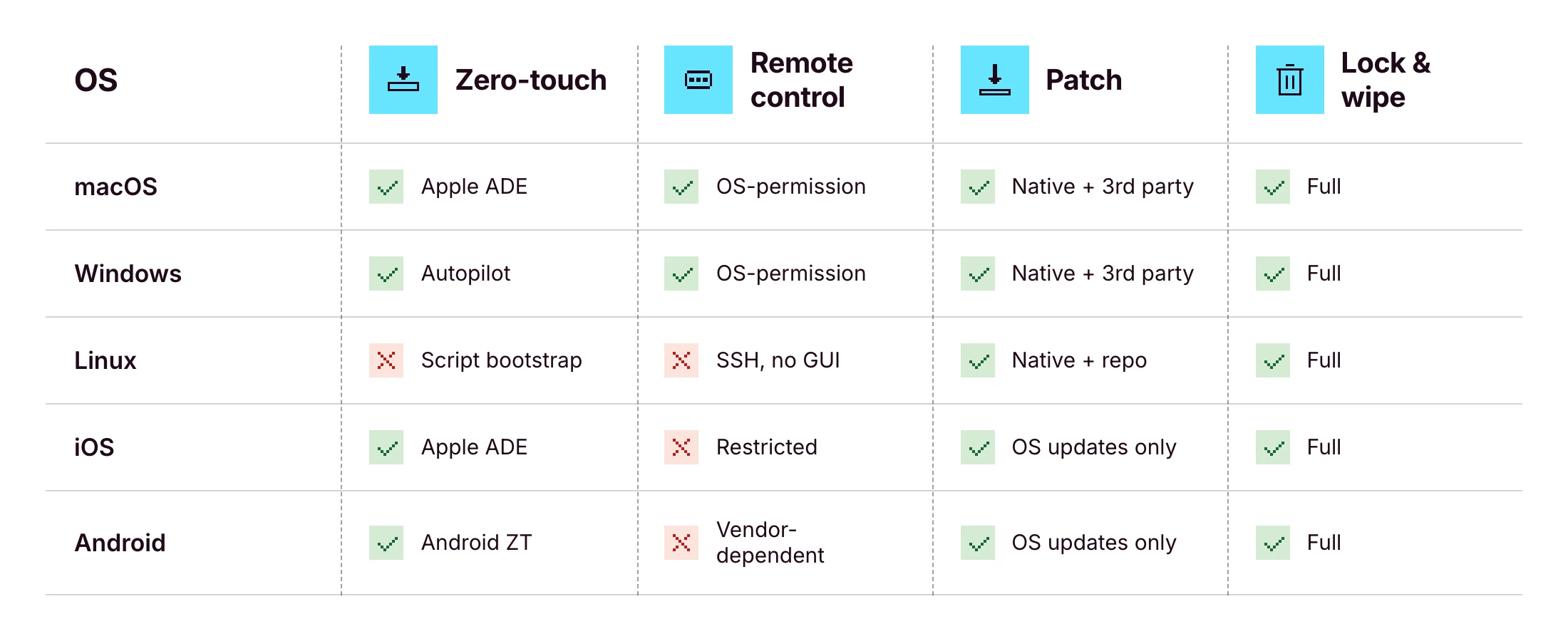
The honest answer: no platform delivers 100% of every cell. iOS unattended remote control is impossible by design. See the Apple Business Manager deployment guide for the underlying constraints, and Microsoft Intune device management docs for the Windows-side equivalents. What you should expect from a serious RDM platform is a unified console for all five operating systems, which Primo states as "Mac, Windows, Linux, iOS, and Android managed from a single interface" — and parity wherever the OS allows it.
The full remote device lifecycle: from procurement to retrieval
Most RDM guides start at enrollment and end at wipe. That's the part of the lifecycle that touches the management console. It's also only half of what IT actually owns.
The full picture:
1. Source: purchase from an authorized reseller that can pre-register hardware to the OEM portal
2. Ship: direct-to-employee, ideally with zero IT handling in between
3. Enroll: first power-on, the device finds its MDM through Apple Business Manager or Windows Autopilot
4. Manage: policies, apps, identity, telemetry
5. Patch: OS and app updates on a defined cadence
6. Lock and wipe: on request, on loss, or on exit
7. Retrieve: return label or pickup, ideally triggered automatically
8. Reassign or retire: back into stock for the next hire, or recycled responsibly
If your RDM tool only covers steps 3–6, you're stitching together couriers, OEM portals, reseller order forms and spreadsheets to handle the rest. That stitching is where lean IT teams burn the most time.
Procurement integration is the part most teams don't realize they're missing until they've lived without it. Primo's procurement workflow covers 60+ countries with delivery in around 5 business days, ships devices with apps and security settings pre-configured, and triggers returns and wipes automatically from your HR workflows. That removes steps 1, 2, 7 and 8 from your hands.
Why remote device management breaks at the HR-IT handoff
A new hire is created in your HRIS on Monday. They start three weeks later. Between those two dates, four to seven separate things have to happen on the IT side: order the laptop, create the IdP account, provision the right SaaS apps, assign role-based policies, ship the device, prepare the Day One guide.
If your only trigger is a Slack message from HR, something will slip. Usually not the laptop — laptops are visible. It's the seventh-tier SaaS app the new hire needs in week two, which nobody remembers exists until they ask for access.
Modern RDM treats the HRIS event as the source of truth, then fires the entire downstream workflow:
• HRIS creates the employee record →
• IdP account is provisioned →
• Role-based SaaS access is granted →
• Device is ordered and pre-registered →
• Zero-touch enrollment routes it to the MDM on first power-on →
• Policies and apps deploy automatically
This is the operating model behind Primo's IAM page summary: "HR triggers it. Primo executes it." and "Native integrations with 60+ HRIS, identity providers, and SaaS tools." For lean IT teams, that changes the job description: less ticket execution, more workflow design.
For the practical version of this (phased, role-by-role) read the IT onboarding checklist for lean teams.
A device is offboarded only when access is offboarded too
Wiping the laptop is the easy part.
What about Slack? Google Workspace? HubSpot? Notion? The shared 1Password vault? The GitHub org? The shared admin email for the payments processor?
A device wipe doesn't reclaim SaaS access. The two have to be handled together — and on lean teams, they almost never are. That's the gap that turns into an audit finding six months later: a leaver who still has access to a customer dataset because nobody owned step 4 of the offboarding flow.
Modern RDM platforms treat SaaS access revocation as inseparable from device offboarding. The HRIS exit event that triggers a remote wipe should also revoke IdP access (which cascades through every SSO-connected app), deactivate accounts on apps not behind SSO, reclaim licenses for cost control, and archive shared resources to the right owner. Deprovisioning is a first-class control in NIST SP 800-53 AC-2 (Account Management), not an afterthought.
Primo states this explicitly: "Revoked automatically on their last day to prevent security breach." Identity and device live in the same console, fired from the same HRIS event, on the same schedule — not in two parallel workflows that drift over time.
How to choose a remote device management platform for an SMB
The 10-point checklist that separates platforms built for SMBs from platforms scaled down from the enterprise:
1. Multi-OS coverage: macOS, Windows, Linux, iOS and Android in one console
2. RBAC on the admin console: at least three roles out of the box
3. SSO on the admin console: your IT team's access should die when their identity does
4. HRIS integration: events from systems like BambooHR, HiBob, Factorial, Eurécia, Deel, Dayforce, Charlie, ADP or Gusto trigger downstream workflows
5. Open API and webhooks: anything standard one quarter becomes custom the next
6. Automated patch management: OS and third-party, with deferral windows
7. Procurement integration: sourcing and shipping inside the same operating model
8. Clear vendor jurisdiction and data handling: EU-based vendor for European fleets is a real signal; data-residency claims should be checked in writing
9. Pricing transparency: per-device, monthly, visible without a sales call
10. Time-to-deploy in days, not quarters: if onboarding takes a quarter, it isn't lean-team-fit
Answer "yes" to all ten with the same vendor and you've found your remote device management software. Answer "yes" to nine, and the tenth is the one to negotiate hardest on.
Frequently asked questions
What is remote device management?
Remote device management is the practice of monitoring, configuring, and securing devices from a central console without physical access. IT teams use it to enroll laptops, phones and tablets, push software, enforce security policies, and lock or wipe devices remotely. It applies across macOS, Windows, Linux, iOS and Android.
What is the difference between RDM and MDM?
MDM (mobile device management) historically refers to managing smartphones and tablets. Remote device management is broader and covers any endpoint (laptops, desktops, mobile devices and increasingly IoT) operated remotely. In 2026 the terms overlap, and most modern MDM platforms function as full RDM systems.
How does remote device management work?
A device enrolls into the management platform either manually or through zero-touch deployment. The platform then pushes configuration profiles, apps, and security policies over the air. Admins can remotely view, patch, lock or wipe the device, subject to OS-level permission models. HRIS or IdP integrations can automate enrollment and access changes.
Can one platform manage Mac, Windows, Linux, iPhone and Android?
Yes, but coverage varies by vendor. Apple-only platforms (Jamf, Mosyle) skip Windows and Linux. Cross-platform vendors (Primo, JumpCloud, Intune, Hexnode) support multiple OSes from one console. Verify on the vendor's product page that all five OSes are managed natively, not via third-party agents.
How do you offboard a remote device securely?
Trigger the offboarding workflow from the HRIS. Lock the device, wipe corporate data (full wipe for company-owned, selective approaches for BYOD depending on OS), revoke SaaS and IdP access, send a return label or schedule pickup, then mark the asset for reassignment or retirement in inventory.
What should small businesses look for in remote device management software?
Multi-OS coverage, transparent SMB pricing, HRIS and IdP integrations, RBAC on the admin console, zero-touch deployment support, automated patch management, procurement and shipping integration, clear vendor jurisdiction and data-handling posture, and a time-to-deploy measured in days rather than months.
Is remote device management the same as MDM?
Not exactly. MDM is a subset of remote device management focused historically on mobile. RDM is the broader operational discipline that includes mobile, laptops, desktops, and the workflows around procurement and offboarding. Most modern platforms (UEM, MDM, RDM) functionally overlap.
Recommended articles
How to Create an Efficient IT Onboarding Process for New Employees
Starting a new job is equal parts exciting and nerve-wracking. No matter how many interviews and coffee chats a new team member did during the hiring process, they’re stepping into the unknown.
As a hiring manager or HR leader, your goal is to harness this energy and make them feel comfortable and fit in.
But very few experiences will burst their bubble like feeling forgotten about. Showing up for their first few days with no computer, no login, and nobody to help is immediately alienating. And it puts pressure on their new colleagues to help out.
Only 12% of employees believe their company does a good job of onboarding team members. And in our modern, digital-first work environments, this starts with IT.
This article explores the value of well-designed, efficient IT onboarding for new employees. And we also look at the keys to doing this well, without wasting time and effort.
What is IT onboarding?
IT onboarding is the process of getting new employees up and running with company information systems. These include computers, phones, and tablets, as well as user profiles, cybersecurity policies, and network access.
A fully onboarded employee:
• Has their own devices, including remote workers
• Can log in and use them safely
• Has access to the wi-fi network
• Can use communication channels like email, Slack, Microsoft Teams, and Zoom
• Knows where to look for more information should they need it
IT onboarding is arguably the very first thing a new employee needs to succeed. Before they can fully understand the company’s mission and cultural values, or even get to know their new team mates, they need IT access.
Typical challenges when onboarding new employees
For such a fundamental part of the hiring process, IT onboarding remains difficult. In fact, it may be harder today than in previous eras.
The cliché cubicle setup was simple. Everyone needed the same computer and phone on their desk, the same network access, with relatively few exceptions.
Today you have remote employees using a wide range of both hardware and software. A salesperson may need vastly different IT equipment from an engineer.
IT onboarding is challenging and often falls short for the following reasons:
• It’s time consuming: The average onboarding process involves around 50 administrative steps. IT setup alone can easily account for 20 or more of those, and will quickly become a bottleneck if your processes are inefficient.
• It’s increasingly personalized: Employees love to select their own hardware, and some have specific technical requirements. You may also have different nationalities, which means different keyboards and operating languages.
All of this means a one-size-fits-all IT setup won’t work.
• There are lots of moving parts: Between the devices themselves and the software setup required, you can have more than 10 IT vendors per employee. Which also means different timeframes—hardware orders may take days or weeks, while creating a user profile might only take a moment.
• Some technical skills are required: Corporate systems may not be as technical as they used to be, but HR and office managers may not feel well equipped to manage IT hardware. If you don’t have a dedicated IT expert on staff, you either need to lean on other skilled employees for support or bring in outside help to resolve issues. Both of which add time and complexity.
• Onboarding is cross-functional. Every employee needs onboarding, but it’s not always clear who should lead. The hiring manager, an HR person, the IT person, or someone else? This inbetween status can mean onboarding isn’t given the attention it deserves, and new employees are overlooked.
Whether you have a robust onboarding process or not, it’s a good time to look closely at your IT rollout. Ensure new employees get the smooth welcome they deserve.
8 IT onboarding best practices
A good employee onboarding process is the best way to overcome the common issues above. Here’s what should be in yours.
1. Prepare your pre-onboarding routine
Even if each onboarding may have its specificities, you want a repeatable, consistent approach for every new employee. Ideally, you’ll have a checklist to work through as soon as a work contract is signed.
This starts with hardware. Ensure all laptops, monitors, phones, and extras are delivered and ready to use before the person starts. That also means installing the necessary hardware and creating user permissions.
There’s a lot more work here than many admins anticipate. You have to order from several providers (such as Apple for the computer, Amazon for the hub and screen), and track to make sure everything arrives where and as intended.
You then have to configure these items by hand. Or ask your brand new employee to self-set up, which is not a great onboarding experience.
Your best option is to use a service like Primo with zero-touch deployment. Primo pre-configures devices to your specifications, so they arrive with new employees ready to use:

2. Provide secure access and credentials early
Start dates can shift and onboarding can throw up surprises, so it pays to prepare in advance. You can easily set up employee accounts and even share their email access ahead of time, so they’re ready to log in right away.
Send the new hire their login credentials for email and other key software prior to their start date. They don’t actually need to do anything with it, but it’s good to know it’s ready for them.
That includes security tools like password managers, and security protocols like two-factor authentication (2FA). Again, they don’t need to connect before day one, but they should have everything they need to get started right away.
Finally, ensure newcomers have access to all key business software: Google Suite or Microsoft Office, Notion or Asana, Slack, and more.
An IT operations system like Primo can also really help here. Primo lets you create new user profiles in just a few clicks, and automatically adds users to the tools they need in their specific role. The tools required can be job-dependent and vary hugely between users, so a one-size-fits-all software setup won’t work.
Done well, you don’t have to manually visit each individual platform. And you never forget anything important.

3. Document policies and create useful onboarding guides
Most young companies don’t have clearly-stated onboarding policies. This leaves it up to individual managers and admins to welcome employees on a case-by-case basis. That may work when you have the time to dedicate real attention to onboarding.
But as soon as your attention is elsewhere—or if you’re hiring very quickly—newcomers can be left behind. And more broadly, you want a consistent experience for all new employees. So a documented process and policy is best.
Include step-by-step guides for common tasks. Even better, prepare a 4-week onboarding template that any manager can quickly update and tailor to their roles.
That can start with IT. Provide easy-to-follow documentation, videos, or tutorials explaining how to use essential systems like email, project management tools, and key software.
Even if a new employee has used Notion, Slack, or Jira before, they may not use them your way.
4. Emphasize cybersecurity training
With the amount of digital connectivity and data access every company has today, security training is increasingly important. New hires need to know the importance of protecting customer data and avoiding scams.
Cybersecurity awareness and training should be one of the first steps in onboarding—as soon as possible after the employee has access to your systems. In fact, IT onboarding is now a core component of becoming compliant in many schemes. You must prove that employees know how to be safe and responsible with company data.
Train new employees on data protection policies, phishing risks, secure file sharing, and acceptable use of company systems.
Just as crucially, emphasize the cultural value you place on security (if indeed it is a value). Don’t assume that team members come from vigilant, security-conscious companies. Many will need to develop good habits, and it’s best to start immediately.
5. Use mobile device management systems
IT management involves so many different processes, hardware, and software. Teams are increasingly distributed, and your devices are traveling all over cities and countries every day.
This makes onboarding (and ongoing maintenance) really difficult. And it can be a major security risk.
Good mobile management brings all of your devices together into one system of record, accessible and manageable from anywhere in the world. You can access, lock, and wipe any device, no matter where it is. You can also create accounts, change passwords, and update software.
This software lets you confidently hand out devices on day one, including to remote employees. If they have any issues logging in or finding things, you can take control and help out.
This is obviously important for companies with remote staff. But even if your whole team is mostly on-site, in-office, modern employees have laptops and phones they take home with them. A centralized tool to track—and if necessary, access—these devices is paramount.
6. Automate key steps in the process
Even in small companies, employee onboarding is a major task. For fast-growing companies, it’s a major hurdle to scaling. And preparing the IT hardware and environment is often to blame for holdups.
Unless you automate. You shouldn’t have to manage onboarding on a 1:1 basis for each new employee. Good tools can manage the more manual, repetitive aspects.
Key steps to automate include:
• Ordering devices and having them delivered
• Pre-configuring the software and user profiles for these devices
• Creating accounts on all key tools, specific to each user’s role and responsibilities
• Guiding users to the right IT trainings for them
To do this, you need the right system.
7. Get feedback and ensure everything’s working
If possible, it pays to check in with new employees after a few days or weeks to make sure that everything’s working as they need. That could be a scheduled Slack message from the IT team, or a 10-minute Zoom call to show them a few advanced tips and tricks.
That’s also important for companies without dedicated IT support. Their onboarding manager or HR rep will doubtless schedule catch ups in the first few weeks. Make a specific point to check that they’re happy with their devices and aren’t getting lost in the company intranet or communication tools.
New employees are typically shy, and don’t want to admit when systems are confusing. But it’s perfectly normal to be confused, and a quick catch up should iron out any issues they’re having.
8. Streamline your IT onboarding process
Good onboarding can absolutely be the difference between companies with long-serving, happy teams, and those with high employee turnover. A negative onboarding experience is shown to cause employees to look for new opportunities in the near future.
And it doesn’t take a huge amount to deliver a good experience. While some companies offer extensive welcome packages and onboarding retreats, the most important is to make employees feel valued.
Show them that you’re excited to have them and have prepared for this moment. At the very least, that means having devices and accounts configured and ready to go.
And the best way to do this consistently is with good automation. For example, Primo helps companies manage IT onboarding in just minutes, without any team members specifically focused on this task. Devices are delivered anywhere pre-configured, and it only takes the IT or HR person responsible a few clicks. Which means every onboarding can be both easily personalized, and efficiently systematized.

That’s the beauty of automated solutions, they work every time and save countless hours.
Zero-touch deployment (ZTD) is automated device provisioning that requires no manual IT setup once the device is powered on. Hardware is registered to an OEM portal at purchase. On first power-on, the device checks in with that portal, gets routed to your MDM, and downloads the configuration profiles, apps and security policies tied to that user’s role.
Three prerequisites, the same on every OS:
- An authorized reseller that can pre-register the device to the relevant OEM portal
- The OEM portal itself: Apple Business Manager, Microsoft Autopilot, or Android Enterprise zero-touch
- An MDM/UEM platform wired into the portal
The OEM programs are free from Apple, Microsoft and Google. The MDM, procurement integration and rollout work are not. This article covers how the three OS programs work, what the out-of-box experience looks like, and how to roll zero-touch out on a 1–3 person IT team.
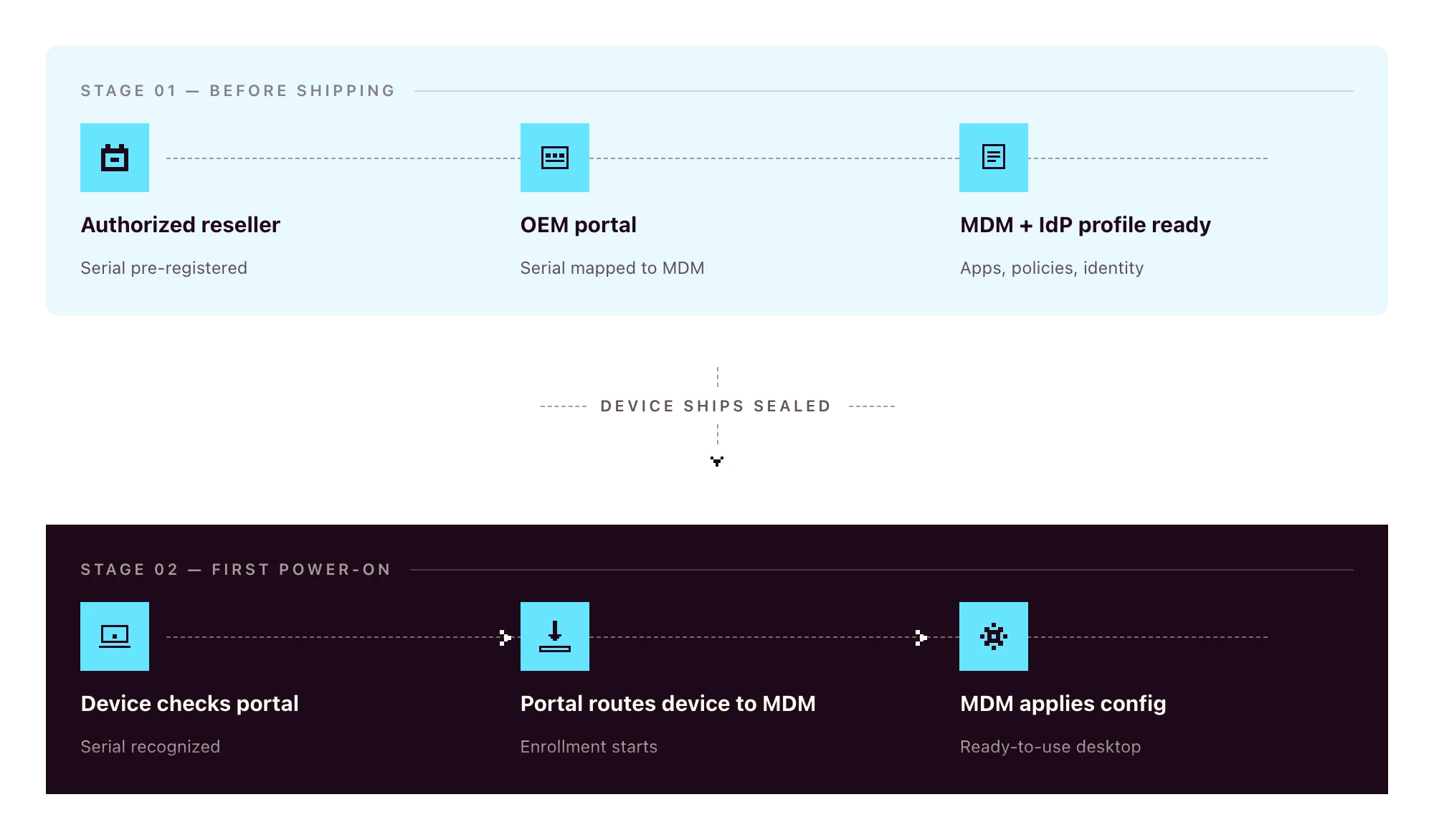
Zero-touch vs traditional manual deployment
The old way:
- Procure the device
- Receive it at the office (or the IT lead’s home)
- Image the OS
- Install management agents
- Configure policies and apps by hand
- Ship to the employee
- Walk the employee through plugging it in
- Manually enroll into the MDM during a video call
The zero-touch way:
- HR creates the new hire in the HRIS
- The device, ordered through a zero-touch-eligible channel, ships sealed directly to the employee and configures itself on first power-on
Eight steps to two. Even if your “old way” only takes 90 minutes per device, multiply that by 30 hires per quarter and you’ve burned a full work-week on a process that should have been automated.
The other win is consistency: every device gets the same baseline, regardless of who was on call when it shipped.
What zero-touch deployment looks like on each OS
Apple-only writers describe ADE in detail. Windows-only writers cover Autopilot. The reality for 2026 SMBs is mixed-OS fleets. You need all three to fit one workflow.
Apple: Apple Business Manager and Automated Device Enrollment (ADE)
Apple Business Manager (ABM) is the OEM portal for any organization buying Apple devices. For ABM to pre-register a device automatically, the hardware has to be purchased through Apple Business or an authorized Apple reseller enrolled in the program. Retail-channel devices are not auto-linked to ABM. They can be enrolled manually, but they don’t ride the zero-touch flow out of the box.
Automated Device Enrollment (ADE) is the mechanism inside ABM that routes a device to your MDM on first power-on. The device sees the ABM record, learns which MDM to talk to, and enrolls automatically. ADE is the current name for the program formerly known as the Device Enrollment Program (DEP). If a vendor’s docs still reference “DEP”, treat that as a freshness signal worth noting.
For BYOD or personally-owned devices, Apple offers Account-Driven User Enrollment, which is a separate flow keyed off Apple ID rather than serial number. Most company-owned deployments use ADE.
Windows: Microsoft Autopilot
The Windows zero-touch story has three moving parts that often get conflated:
- Microsoft Entra ID is the identity provider (formerly Azure AD)
- Microsoft Intune is Microsoft’s MDM
- Windows Autopilot is the zero-touch deployment service that ties hardware to Entra ID and routes the device to an MDM
Autopilot can route to Intune by default, or to a third-party MDM through partner integration. Hardware is registered through OEMs (Dell, Lenovo, HP, Microsoft Surface) using the device’s hardware hash. The hash can be uploaded manually for devices already in your possession, or pre-loaded by the reseller for new orders.
On first boot, the device authenticates against Entra ID and applies role-based configuration during the out-of-box experience (OOBE).
Android: Android Enterprise zero-touch enrollment
Android zero-touch enrollment is Google’s equivalent program. Devices purchased through a zero-touch reseller are linked to your organization’s zero-touch account at the moment of purchase.
When the device is powered on, it downloads the configured Device Policy Controller (DPC) from your MDM, applies the work profile or fully managed configuration, and is ready for the user. Works across major Android OEMs (Samsung, Google Pixel, Motorola, Sony, and others certified for Android Enterprise).
Cross-platform comparison
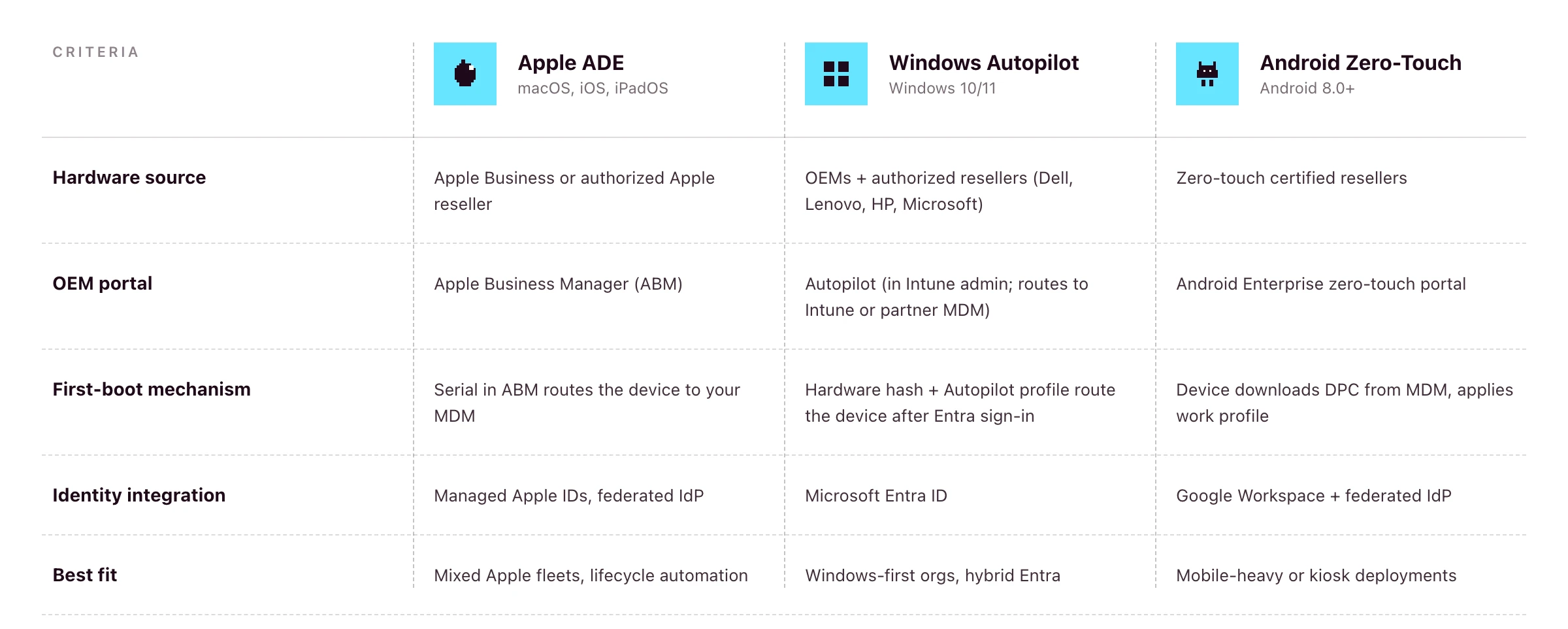
If you’re running a mixed fleet, the platform question becomes: does your MDM speak to all three of these portals from one console?
Primo states support for Apple Business Manager and Windows Autopilot on its procurement page. Android zero-touch is supported at the OS layer (Primo manages Android devices) but pre-registration of Android hardware to the zero-touch portal isn’t a publicly-claimed part of the procurement workflow as of writing. For Android-heavy fleets, confirm coverage during your demo.
The end-user out-of-box experience (OOBE)
Done well, this is what the new hire actually sees:
- Sealed box arrives at the new hire’s address, two to three days before start date
- On Day One, they unbox, plug in, power on, connect to Wi-Fi
- The device asks them to sign in with their work credentials
- They authenticate through your IdP (with MFA)
- They wait while policies, apps and configurations install — this often takes 15–30 minutes, depending on the apps in the role profile, network speed and policy payload
- They land on a ready-to-use desktop with email, chat, calendar and role-based apps already signed in
No download links. No “install this then install that”. No screen-share with IT to fix the SSO loop. If the new hire is offline during this window, the device waits patiently. The flow resumes the moment they connect to Wi-Fi.
HR-triggered zero-touch onboarding in practice
Zero-touch on the device is one half. The trigger upstream is the other half.
- HR creates the new hire in an HRIS such as BambooHR, HiBob, Factorial, Eurécia, Deel, Dayforce, Charlie, ADP or Gusto
- The HRIS event fires into your remote device management platform
- The platform places the hardware order with the reseller, including pre-registration to the OEM portal where supported
- The device ships to the new hire’s address
- The platform provisions the IdP account and role-based SaaS access in parallel
- On Day One, the employee powers on, authenticates through the IdP, and lands on a fully configured machine
Primo states this directly: “HR triggers it. Primo executes it.” and the procurement workflow runs returns and wipes from the same HR events. So the same trigger that fires onboarding also fires offboarding, and parity stays intact.
For the full operational playbook around steps 1, 5 and the Day One experience, see the IT onboarding checklist for lean IT teams.
The procurement layer most zero-touch guides ignore
This is the part that gets glossed over in vendor docs, and the part that quietly breaks zero-touch in practice.
For ADE, Autopilot or Android zero-touch to work, the hardware has to be ordered through a reseller that supports OEM pre-registration. Retail or consumer-channel devices generally aren’t auto-linked to your OEM portal. You’d have to enroll them manually after the fact, which costs most of the zero-touch benefit.
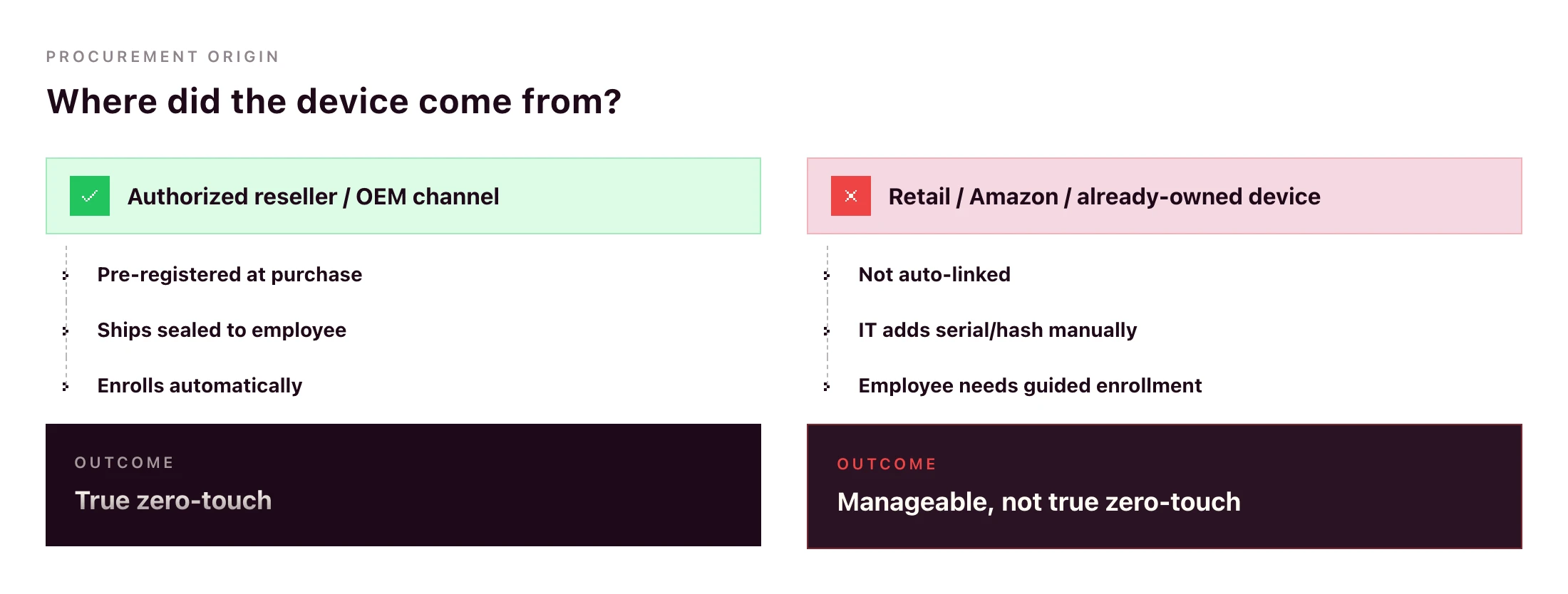
What goes wrong without procurement integration:
- IT manually uploads hardware hashes for Windows devices after they arrive
- IT manually adds serials to ABM after delivery (and hopes the device hasn’t already been set up)
- International orders get stuck in customs because the reseller doesn’t ship to the destination country
- Devices arrive with the wrong OS image, language or region
Primo’s procurement workflow handles this end-to-end: sourcing through authorized resellers (“partners with manufacturers and authorized repair centers”), shipping to 60+ countries in around 5 business days, configuring apps and security before the device leaves the warehouse, and triggering returns automatically from your HR workflows.
A zero-touch deployment rollout plan for SMB IT teams
If you’re going from manual to zero-touch this quarter, here’s the rollout sequence that won’t break your live onboarding flow.
- Standardize role-to-device-profile mapping. Designer → MacBook Pro M-series with design tools. Sales Rep → MacBook Air or comparable Windows laptop with the sales stack. Define this once.
- Connect the HRIS. Pipe the new-hire event from your HR system into your RDM platform.
- Configure the OEM portals you need. ABM if you’re on Apple. Autopilot if you have Windows. Android zero-touch if mobile is in scope. Most teams don’t need all three on day one.
- Define MDM configuration profiles per role. Encryption, password policy, app baseline, restrictions, idle-lock. Test one role end-to-end before duplicating.
- Pilot with one department. A team of 5–10 hires per quarter is ideal. Watch what breaks.
- Extend to all hires. Once the pilot runs for a month without IT intervention, roll out the same flow to everyone.
- Set up the reverse workflow for offboarding. Same RDM, same HRIS trigger, mirror actions: remote wipe, return label, SaaS access revocation.
Timelines vary by team and platform. For a 1–3 person IT team with a single primary OS, a few weeks of focused work is realistic; multi-OS rollouts with custom configuration profiles take longer. Anything that needs a multi-quarter rollout suggests the platform is too heavy for the team running it.
Can you do zero-touch deployment without Intune?
Yes — and for most SMBs, it’s the more practical path.
Microsoft Autopilot is the zero-touch deployment service. Intune is Microsoft’s MDM. The two are often bundled in Microsoft’s documentation, but Autopilot supports partner MDM integration, meaning third-party MDMs can receive devices from Autopilot in the same OOBE flow.
The trade-offs:
- With Intune: tightest integration, single Microsoft admin surface, full feature parity with Microsoft’s roadmap. Strong fit if your stack is already Microsoft-led (Entra ID, Microsoft 365, Defender).
- With a partner MDM: single console across macOS, Windows, Linux, iOS and Android, lighter to deploy, often a better fit for mixed-OS SMB fleets where Microsoft isn’t already the centre of gravity.
Autopilot itself depends on Microsoft Entra ID plus an MDM service to receive the device. A platform like Primo enrolls in that MDM-service role: your Windows devices ride the Autopilot flow into Primo’s console, where they’re managed alongside Mac, Linux, iOS and Android. Confirm exact Entra/Autopilot licensing requirements with Microsoft for your stack. They vary by edition.
Zero-touch offboarding and access cleanup
Zero-touch shouldn’t end at first login. The same automation should run in reverse on exit.
When the HRIS marks the employee as terminated, the RDM platform should:
- Trigger a remote wipe (full or selective depending on ownership)
- Generate a return label and email it to the employee
- Revoke IdP access (which cascades through every SSO-connected app)
- Deactivate accounts on apps not behind SSO
- Mark the asset for reassignment or retirement in inventory
Same workflow, same trigger, opposite direction. Primo states this directly: “Revoked automatically on their last day to prevent security breach.” and “Returns, wipes, and reassignments triggered automatically by your HR workflows.”
A device wipe alone isn’t offboarding — identity cleanup is the other half. Pick a platform where both live in the same console.
Frequently asked questions
What is zero-touch deployment?
Zero-touch deployment is an automated method for provisioning devices without manual IT setup. When a new device is powered on and connected to the internet, it identifies itself to the organization’s MDM platform via an OEM portal (Apple Business Manager, Windows Autopilot, or Android Enterprise), then automatically downloads configurations, apps and security policies.
How does zero-touch deployment work?
The device’s hardware identifier (serial number or hardware hash) is registered with the OEM portal at purchase through an authorized reseller. When the employee powers on the device, it checks in with the OEM portal, which routes it to the organization’s MDM. The MDM applies role-based configuration profiles automatically.
What is the difference between zero-touch deployment and zero-touch enrollment?
Zero-touch enrollment is the enrollment step. The device automatically joins the MDM. Zero-touch deployment is the full workflow, which also includes pushing apps, security policies, and identity configuration so the device is ready to use. Enrollment is one piece of deployment.
What is Apple Automated Device Enrollment (ADE)?
Automated Device Enrollment is Apple’s mechanism for zero-touch deployment of Macs, iPhones, iPads and Apple TVs. Devices bought through Apple Business or an authorized Apple reseller enrolled in the program are automatically linked to the organization’s Apple Business Manager account and routed to the configured MDM on first power-on. ADE replaced the legacy Device Enrollment Program (DEP).
What is Windows Autopilot?
Windows Autopilot is Microsoft’s zero-touch deployment service for Windows devices. It registers devices with Microsoft Entra ID and routes them to Intune or a partner MDM, then applies role-based configuration on first boot. Devices can be sourced through OEMs that pre-register hardware hashes, or hashes can be uploaded manually.
Can you do zero-touch deployment without Intune?
Autopilot itself requires Microsoft Entra ID and an MDM service to route the device to. Intune is Microsoft’s MDM, but Autopilot also supports partner MDM integration, meaning a third-party MDM enrolled in the Autopilot partner programme can play that role for mixed-OS SMB fleets that don’t want a separate Microsoft-only console. Confirm exact Entra and Autopilot licensing requirements with Microsoft.
What is Android Enterprise zero-touch enrollment?
Android zero-touch enrollment is Google’s program for automatic Android device deployment. Devices purchased from a zero-touch reseller are pre-registered to the organization’s account. On first boot, the device downloads the configured device policy controller (DPC) from the MDM and applies all required policies.
Is zero-touch deployment only for large enterprises?
No. Apple Business Manager, Windows Autopilot and Android Enterprise zero-touch are free programs from the OEMs — the cost is the MDM platform and the procurement workflow that pre-registers hardware. The main prerequisite is buying hardware through an authorized reseller that supports zero-touch registration.
The benefits of automation are well known to modern businesses. For decades, companies have found ways to turn slow, repetitive processes into efficient, self-executing systems. Which lets teams focus on impact, rather than repeating the same low-value tasks.
Onboarding and offboarding are both high-value processes made up of low-impact touchpoints. Getting team members up to speed quickly really matters. How you create their email account or reset security permissions doesn’t.
Which is why automating these manual steps makes such a big difference. Automated onboarding and offboarding takes low-value work off your plate, and lets you focus on what is important. It also makes both processes faster, easier, and eliminates basic errors.
In this article, we look at how automation can improve your onboarding and offboarding processes—particularly for IT operations. Then we meet two companies who successfully automated their own IT onboarding, and saw tangible benefits.
What are employee onboarding and offboarding processes?
Onboarding and offboarding are the practical, functional, and cultural processes associated with welcoming and farewelling company employees. Onboarding typically includes teaching new hires about the company culture, training in your specific ways of working, and giving them the hardware and software tools they need to execute.
Offboarding is the change process at the end of an employee’s time with your company. This can include exit interviews, farewell celebrations, and regaining possession of company property like computers, phones, and access cards.
Key steps in IT onboarding
The IT onboarding process is often slower than you’d like. It involves numerous distinct steps, which can really add up if handled individually and manually. These include:
- Setting up user profiles and permissions
- Ordering new devices
- Configuring applications, software, and security updates on these devices
- Delivering devices to new employees
- Training employees on compliance, cybersecurity, and optimal use
- Monitoring device performance and troubleshooting issues
IT is just one aspect of an employee’s onboarding, and can be taken for granted by hiring managers. Your goal is to make all of the above happen smoothly, quickly, and with no extra work for yourself or the new hire.
For help, see our short checklist for efficient IT onboarding.
What IT offboarding involves
While the IT onboarding process may be neglected, offboarding is often overlooked altogether. Retrieving devices from departing employees is essential both for asset management and security.
Key steps include:
• Locking devices the moment employees no longer need them
• Wiping personal data or returning devices to factory settings
• Returning physical devices to the office or supplier
• Checking a device’s state for reuse
• Preparing devices to be redeployed
All of this adds up, and is always more complicated with remote or distributed teams. In a traditional office setting, it’s pretty simple to have an employee hand in their devices on their last day. It’s more challenging if that employee is in another city, state, or country.
Why automate employee onboarding and offboarding?
In general, the best processes to automate involve a number of manual steps and little added value from having people handle each one.
Key benefits of automating your IT onboarding and offboarding include:
• Time saved for IT teams and hiring managers, who no longer need to manually work through each of those steps we saw above.
• Faster onboarding for new employees, who don’t need to wait for people to set up their profiles or order devices.
• Near-instant offboarding, because devices can be locked or wiped immediately with a simple click.
• Fewer errors, including skipped or forgotten steps, faulty devices, or losing track of devices when an employee leaves.
• More consistent experiences, as every employee follows the same automated process at the beginning and end of employment.
Overall, automation creates more streamlined and efficient internal processes. And for something as common and recurring as onboarding and offboarding, efficiency gains can really add up.
How modern SMBs automate onboarding and offboarding — and why it works
To illustrate with tangible examples, let’s take a look at two companies that prioritize automation in the onboarding and offboarding process.
Like many growing companies, both faced real challenges in scaling IT operations. Even as modern tech companies, they had few resources specifically for IT operations. They needed to create efficient, easily-replicable processes to get new employees up and running, and to smoothly offboard team members at the end of their work.
Best modern SMBs have understood that a great onboarding experience comes from the collaboration between HR and IT teams — and these two companies made that alignment a core part of their approach. As we’ll see, the secret to success lay in choosing the right tools and partners to take the weight off their very busy leaders.
Faume: Near-instant IT operations for a distributed workforce
Founded in 2020, Faume is a technical logistics solution that lets brands create resale services for their products. Faume works with world-famous logos like Hugo Boss, The Kooples, Aigle, and Bash to bring second lives to items and make consumer commerce more sustainable.
Faume’s 30-person team includes remote staff across France. CTO and Co-founder Jocelyn Kerbouc’h needed a simple way to deploy and manage devices for this distributed workforce ahead of scaling post-Series A.
Before: False starts with IT providers
Faume initially leased computers in the hopes of getting additional support and a streamlined service. But this was far more expensive than the cost of buying—they were asked to pay up to €2,500 for a €1,200 computer. And worse, they still regularly encountered malfunctioning devices and frustrating errors.
They pivoted to buying from Apple directly, tracking devices manually in a Notion doc. This was certainly more cost effective, but added more administrative effort to the onboarding process.
As a co-founder wearing multiple hats, Jocelyn couldn’t afford this extra admin. Faume needed a more robust IT operations solution that could deliver devices at the right price, while also tracking their use and ensuring security.
Today: Centralized IT onboarding & offboarding
The big switch was finding an IT operations provider that lets Jocelyn order, configure, and deliver employee devices in a few clicks. Using Primo, Jocelyn sets password rules and updates, and pre-configures applications so that computers arrive ready to use.
“Thanks to Primo, onboarding new employees now takes us half the time it used to,” says Jocelyn.
Faume has essentially automated the onboarding process, and offboarding is just as simple. When an employee leaves, Jocelyn can lock and wipe their computer remotely. Departing employees receive a shipping box and can easily return computers from anywhere.
The result is a more efficient, secure IT environment for Faume. And Jocelyn can put all his energy into building and leading his business.
Read the full Faume story here.
Dalma: Efficient operations with no IT team
Dalma is France’s fastest-growing pet health insurance company. Its tech-enabled platform already insures more than 40,000 European cats and dogs, with no signs of slowing down.
Founded in 2021, the 70-strong team has grown quickly to deliver this popular and worthwhile service. While that’s good for business (and for our pets), it put pressure on former Head of People Claire Maarek.
With IT onboarding just a small portion of her role, Claire didn’t have the time or technical expertise to build a comprehensive program from scratch.
Before: Poor leasing experience
Like Faume, Dalma also tried leasing as a (theoretically) efficient way to manage IT operations. But Claire explains that the downsides were obvious right away. “Our leasing experience was disappointing, offering minimal service and reliability with poor customer support.”
It was a maddening mix of high prices and low-quality service. For an HR leader like Claire—not an IT pro by trade—this wasn’t a tenable situation.
Today: IT onboarding in seconds
Since switching to Primo, the results are night and day. IT onboarding takes mere seconds, and Dalma can secure hardware at competitive prices, configured and delivered for when the person arrives. All of this with no deep IT procurement knowledge or dedicated technical experts.
Most importantly for HR professionals, Primo integrates with Payfit (alongside other HR platforms). Dalma adds a new employee in Payfit, and most of the process is automated from there. Devices arrive on time, whether new hires are in France or Germany.
When an employee leaves, Primo makes it easy to retrieve or reassign devices elsewhere, or simply resell them. Which makes both onboarding and offboarding as easy as can be.
Read the full Dalma story here.
Make IT onboarding and offboarding a breeze
Both IT onboarding and offboarding are relatively simple processes, made difficult by manual steps and a need for technical expertise. Particularly for growing companies without IT teams or paid external consultants, key steps can fall through the cracks.
That’s how you end up with security risks, sluggish processes, and frustrated team members — right when first impressions matter most.
The best way to streamline IT onboarding and offboarding is with one central solution. And as both Faume and Dalma showed, it’s even better when that solution integrates with your HR systems and company tools. This lets HR leaders and hiring managers—often “accidental IT managers”—keep control and ensure each step is completed efficiently.
Primo provides exactly that: an all-in-one IT management system for faster onboarding and offboarding. You can easily automate virtually all of your IT operations, without paying huge fees to managed providers.