Remote Device Management for SMBs: Every OS, One Workflow
Remote device management (RDM) is the practice of monitoring, configuring and securing devices from a central console without physical access. Lean IT teams use it to enroll laptops, phones and tablets across macOS, Windows, Linux, iOS and Android, push software and policies, automate patching, and lock or wipe devices remotely — all without sending an IT lead to a desk.
This is the operating model that makes distributed teams possible. Below: what RDM covers in 2026, how it relates to MDM, RMM and UEM, and how to evaluate a platform when you're running IT for a 50–2,000 employee company.
What remote device management covers
The six core pillars:
• Provisioning: enrolling a device and pushing a baseline configuration
• Telemetry: inventory, health and compliance data collected in the background
• Remote access: viewing or controlling a device, where the OS allows it, with the user's consent
• Patch management: keeping the OS and apps up to date on a defined cadence
• Policy enforcement: encryption, password rules, firewall, conditional access
• Lock and wipe: recovering or destroying data on a lost, stolen or returned device
A serious RDM platform delivers all six in one console, not split across three vendors. That single-console claim is what separates platforms built for the SMB operator from enterprise tools that scale down poorly.
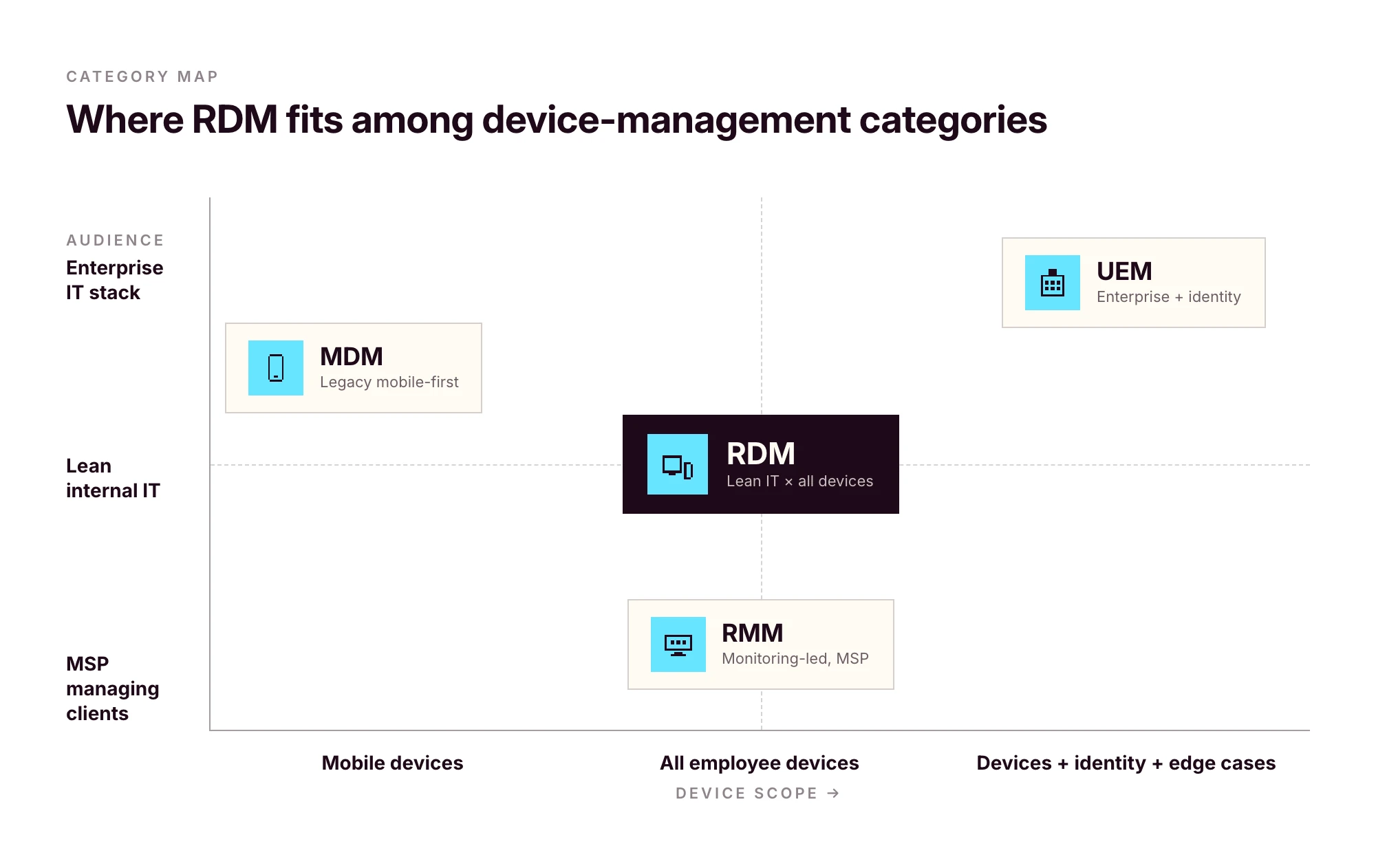
RDM vs MDM vs RMM vs UEM
The acronyms have drifted over the last decade. Vendors use them interchangeably; the original definitions still help.
In practice, most modern MDM platforms function as full RDM systems, and UEM has become a marketing label that often means "MDM plus identity." For an SMB, the practical question isn't the label — it's whether the platform covers every OS you run, integrates with your HRIS and identity provider, and handles the full device lifecycle.
If a vendor's "MDM" only covers Apple, it isn't RDM. If a vendor's "UEM" needs a six-month enterprise rollout, it isn't built for you.
What modern remote device management software actually does
A modern RDM platform should give you the following without third-party agents bolted on.
Remote view, with the user's consent
Screen sharing for support. Standard on macOS and Windows. Unattended remote control depends on OS permissions and consent prompts. iOS in particular restricts unattended control by design, and any platform claiming otherwise is overselling.
Remote scripting and terminal
Shell access (SSH on macOS/Linux, PowerShell on Windows) for diagnostics and remediation at scale. On Linux endpoints, this is also how most fleet management gets done in practice, scripts, inventory checks, configuration management, since GUI-driven control is OS-dependent.
Background telemetry
Hardware inventory, installed apps, OS version, encryption status, last seen, last user. Refreshed automatically. The first time a laptop goes missing or an auditor asks for an asset list, this data pays for itself.
Patch management
Automated OS and third-party app updates with deferral windows. A critical security patch can't be silently ignored. A non-critical update can't disrupt someone mid-customer-call.
Policy enforcement
Disk encryption (FileVault on macOS, BitLocker on Windows, LUKS on Linux), password complexity, idle-lock, firewall, USB restrictions. Pushed once, enforced everywhere.
Lock and wipe
Two flavours. Full wipe for company-owned devices being decommissioned. Selective approaches for BYOD: on macOS, Account-Driven User Enrollment cleans only managed data; on Windows, Intune App Protection Policies do similar work for managed apps; on Android, Work Profiles isolate corporate data so it can be removed without touching the personal side. The right pattern depends on ownership and OS — your RDM should support all of them.
Role-based access governance
A point most teams overlook until they hire their second IT admin. Strong RDM platforms enforce role-based access governance in two distinct places: across the SaaS apps the platform provisions, and on the management console itself. Primo states the first explicitly: "Role-Based Access Control (RBAC) across every app", with policies tied to roles instead of individuals. Confirm with any vendor that the same governance applies to who can wipe a device or run a remote script inside the admin console, not just to the apps the platform manages. SSO on the console matters for the same reason: when an admin leaves, their management access should die with their identity record.
Multi-OS coverage: the operating system matrix
This is where most vendors fall short. Apple-only platforms (Jamf, Mosyle) skip Windows and Linux. Windows-led platforms (Intune) treat Macs as second-class. The cost of stitching three tools together (three contracts, three consoles, policies that drift) stays invisible until you're the one keeping them in sync.
Sanity-check what's actually possible per OS before evaluating any platform.
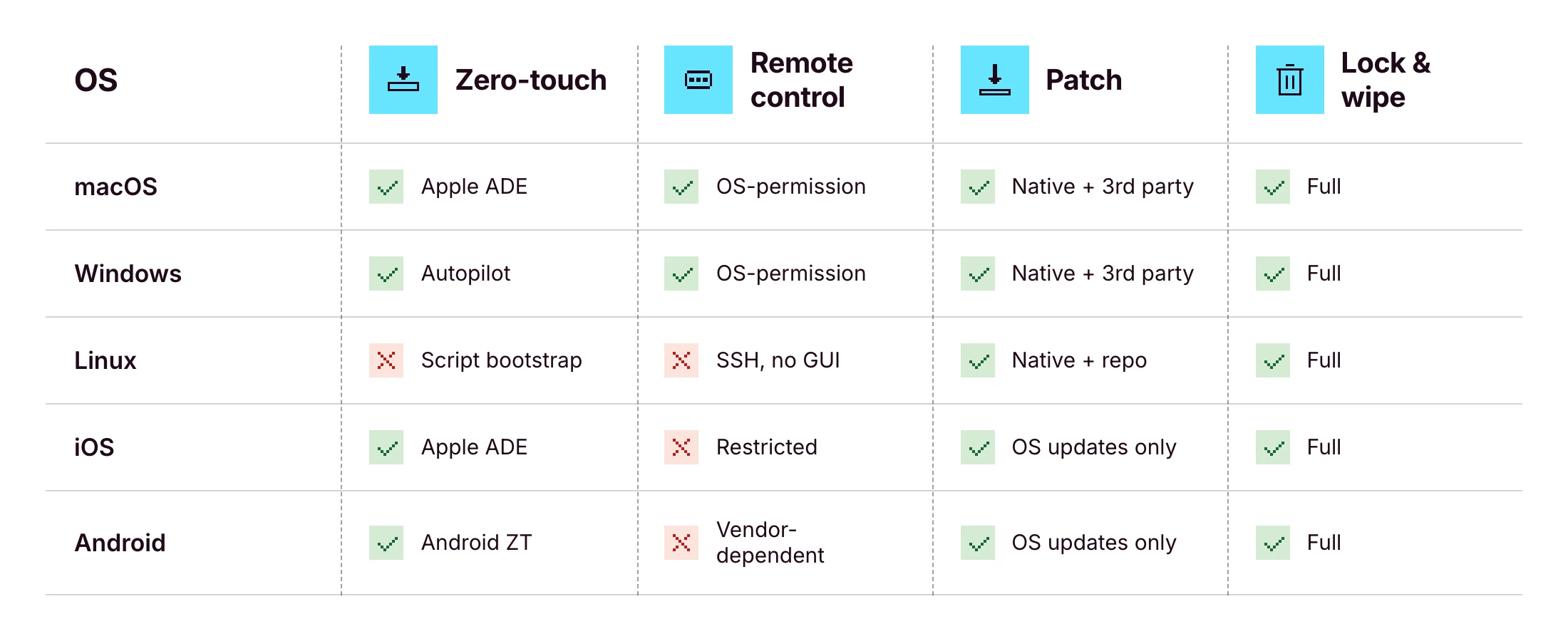
The honest answer: no platform delivers 100% of every cell. iOS unattended remote control is impossible by design. See the Apple Business Manager deployment guide for the underlying constraints, and Microsoft Intune device management docs for the Windows-side equivalents. What you should expect from a serious RDM platform is a unified console for all five operating systems, which Primo states as "Mac, Windows, Linux, iOS, and Android managed from a single interface" — and parity wherever the OS allows it.
The full remote device lifecycle: from procurement to retrieval
Most RDM guides start at enrollment and end at wipe. That's the part of the lifecycle that touches the management console. It's also only half of what IT actually owns.
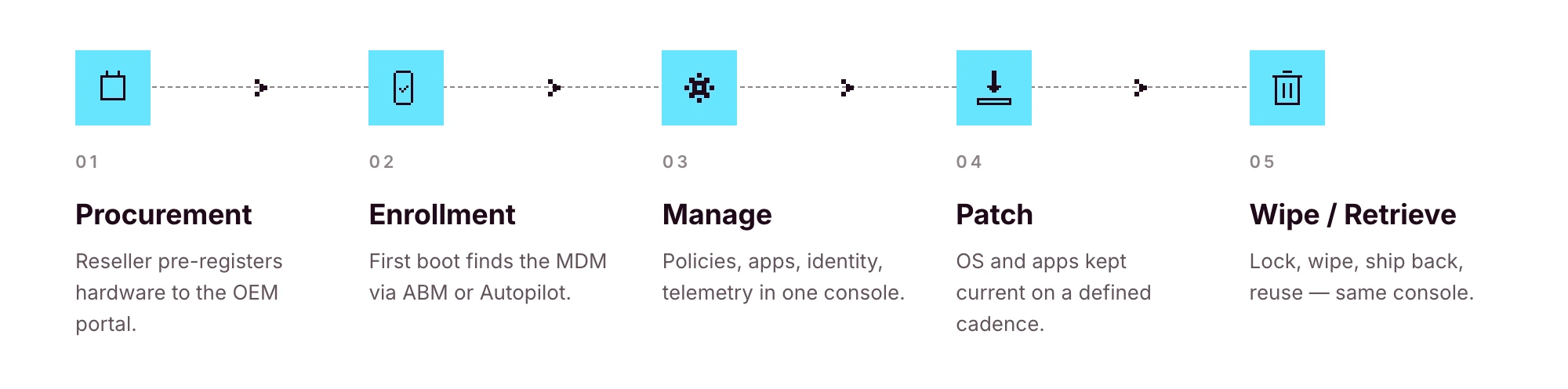
The full picture:
1. Source: purchase from an authorized reseller that can pre-register hardware to the OEM portal
2. Ship: direct-to-employee, ideally with zero IT handling in between
3. Enroll: first power-on, the device finds its MDM through Apple Business Manager or Windows Autopilot
4. Manage: policies, apps, identity, telemetry
5. Patch: OS and app updates on a defined cadence
6. Lock and wipe: on request, on loss, or on exit
7. Retrieve: return label or pickup, ideally triggered automatically
8. Reassign or retire: back into stock for the next hire, or recycled responsibly
If your RDM tool only covers steps 3–6, you're stitching together couriers, OEM portals, reseller order forms and spreadsheets to handle the rest. That stitching is where lean IT teams burn the most time.
Procurement integration is the part most teams don't realize they're missing until they've lived without it. Primo's procurement workflow covers 60+ countries with delivery in around 5 business days, ships devices with apps and security settings pre-configured, and triggers returns and wipes automatically from your HR workflows. That removes steps 1, 2, 7 and 8 from your hands.
Why remote device management breaks at the HR-IT handoff
A new hire is created in your HRIS on Monday. They start three weeks later. Between those two dates, four to seven separate things have to happen on the IT side: order the laptop, create the IdP account, provision the right SaaS apps, assign role-based policies, ship the device, prepare the Day One guide.
If your only trigger is a Slack message from HR, something will slip. Usually not the laptop — laptops are visible. It's the seventh-tier SaaS app the new hire needs in week two, which nobody remembers exists until they ask for access.
Modern RDM treats the HRIS event as the source of truth, then fires the entire downstream workflow:
• HRIS creates the employee record →
• IdP account is provisioned →
• Role-based SaaS access is granted →
• Device is ordered and pre-registered →
• Zero-touch enrollment routes it to the MDM on first power-on →
• Policies and apps deploy automatically
This is the operating model behind Primo's IAM page summary: "HR triggers it. Primo executes it." and "Native integrations with 60+ HRIS, identity providers, and SaaS tools." For lean IT teams, that changes the job description: less ticket execution, more workflow design.
For the practical version of this (phased, role-by-role) read the IT onboarding checklist for lean teams.
A device is offboarded only when access is offboarded too
Wiping the laptop is the easy part.
What about Slack? Google Workspace? HubSpot? Notion? The shared 1Password vault? The GitHub org? The shared admin email for the payments processor?
A device wipe doesn't reclaim SaaS access. The two have to be handled together — and on lean teams, they almost never are. That's the gap that turns into an audit finding six months later: a leaver who still has access to a customer dataset because nobody owned step 4 of the offboarding flow.
Modern RDM platforms treat SaaS access revocation as inseparable from device offboarding. The HRIS exit event that triggers a remote wipe should also revoke IdP access (which cascades through every SSO-connected app), deactivate accounts on apps not behind SSO, reclaim licenses for cost control, and archive shared resources to the right owner. Deprovisioning is a first-class control in NIST SP 800-53 AC-2 (Account Management), not an afterthought.
Primo states this explicitly: "Revoked automatically on their last day to prevent security breach." Identity and device live in the same console, fired from the same HRIS event, on the same schedule — not in two parallel workflows that drift over time.
How to choose a remote device management platform for an SMB
The 10-point checklist that separates platforms built for SMBs from platforms scaled down from the enterprise:
1. Multi-OS coverage: macOS, Windows, Linux, iOS and Android in one console
2. RBAC on the admin console: at least three roles out of the box
3. SSO on the admin console: your IT team's access should die when their identity does
4. HRIS integration: events from systems like BambooHR, HiBob, Factorial, Eurécia, Deel, Dayforce, Charlie, ADP or Gusto trigger downstream workflows
5. Open API and webhooks: anything standard one quarter becomes custom the next
6. Automated patch management: OS and third-party, with deferral windows
7. Procurement integration: sourcing and shipping inside the same operating model
8. Clear vendor jurisdiction and data handling: EU-based vendor for European fleets is a real signal; data-residency claims should be checked in writing
9. Pricing transparency: per-device, monthly, visible without a sales call
10. Time-to-deploy in days, not quarters: if onboarding takes a quarter, it isn't lean-team-fit
Answer "yes" to all ten with the same vendor and you've found your remote device management software. Answer "yes" to nine, and the tenth is the one to negotiate hardest on.
Frequently asked questions
What is remote device management?
Remote device management is the practice of monitoring, configuring, and securing devices from a central console without physical access. IT teams use it to enroll laptops, phones and tablets, push software, enforce security policies, and lock or wipe devices remotely. It applies across macOS, Windows, Linux, iOS and Android.
What is the difference between RDM and MDM?
MDM (mobile device management) historically refers to managing smartphones and tablets. Remote device management is broader and covers any endpoint (laptops, desktops, mobile devices and increasingly IoT) operated remotely. In 2026 the terms overlap, and most modern MDM platforms function as full RDM systems.
How does remote device management work?
A device enrolls into the management platform either manually or through zero-touch deployment. The platform then pushes configuration profiles, apps, and security policies over the air. Admins can remotely view, patch, lock or wipe the device, subject to OS-level permission models. HRIS or IdP integrations can automate enrollment and access changes.
Can one platform manage Mac, Windows, Linux, iPhone and Android?
Yes, but coverage varies by vendor. Apple-only platforms (Jamf, Mosyle) skip Windows and Linux. Cross-platform vendors (Primo, JumpCloud, Intune, Hexnode) support multiple OSes from one console. Verify on the vendor's product page that all five OSes are managed natively, not via third-party agents.
How do you offboard a remote device securely?
Trigger the offboarding workflow from the HRIS. Lock the device, wipe corporate data (full wipe for company-owned, selective approaches for BYOD depending on OS), revoke SaaS and IdP access, send a return label or schedule pickup, then mark the asset for reassignment or retirement in inventory.
What should small businesses look for in remote device management software?
Multi-OS coverage, transparent SMB pricing, HRIS and IdP integrations, RBAC on the admin console, zero-touch deployment support, automated patch management, procurement and shipping integration, clear vendor jurisdiction and data-handling posture, and a time-to-deploy measured in days rather than months.
Is remote device management the same as MDM?
Not exactly. MDM is a subset of remote device management focused historically on mobile. RDM is the broader operational discipline that includes mobile, laptops, desktops, and the workflows around procurement and offboarding. Most modern platforms (UEM, MDM, RDM) functionally overlap.
Recommended articles
Zero-touch deployment (ZTD) is automated device provisioning that requires no manual IT setup once the device is powered on. Hardware is registered to an OEM portal at purchase. On first power-on, the device checks in with that portal, gets routed to your MDM, and downloads the configuration profiles, apps and security policies tied to that user’s role.
Three prerequisites, the same on every OS:
- An authorized reseller that can pre-register the device to the relevant OEM portal
- The OEM portal itself: Apple Business Manager, Microsoft Autopilot, or Android Enterprise zero-touch
- An MDM/UEM platform wired into the portal
The OEM programs are free from Apple, Microsoft and Google. The MDM, procurement integration and rollout work are not. This article covers how the three OS programs work, what the out-of-box experience looks like, and how to roll zero-touch out on a 1–3 person IT team.
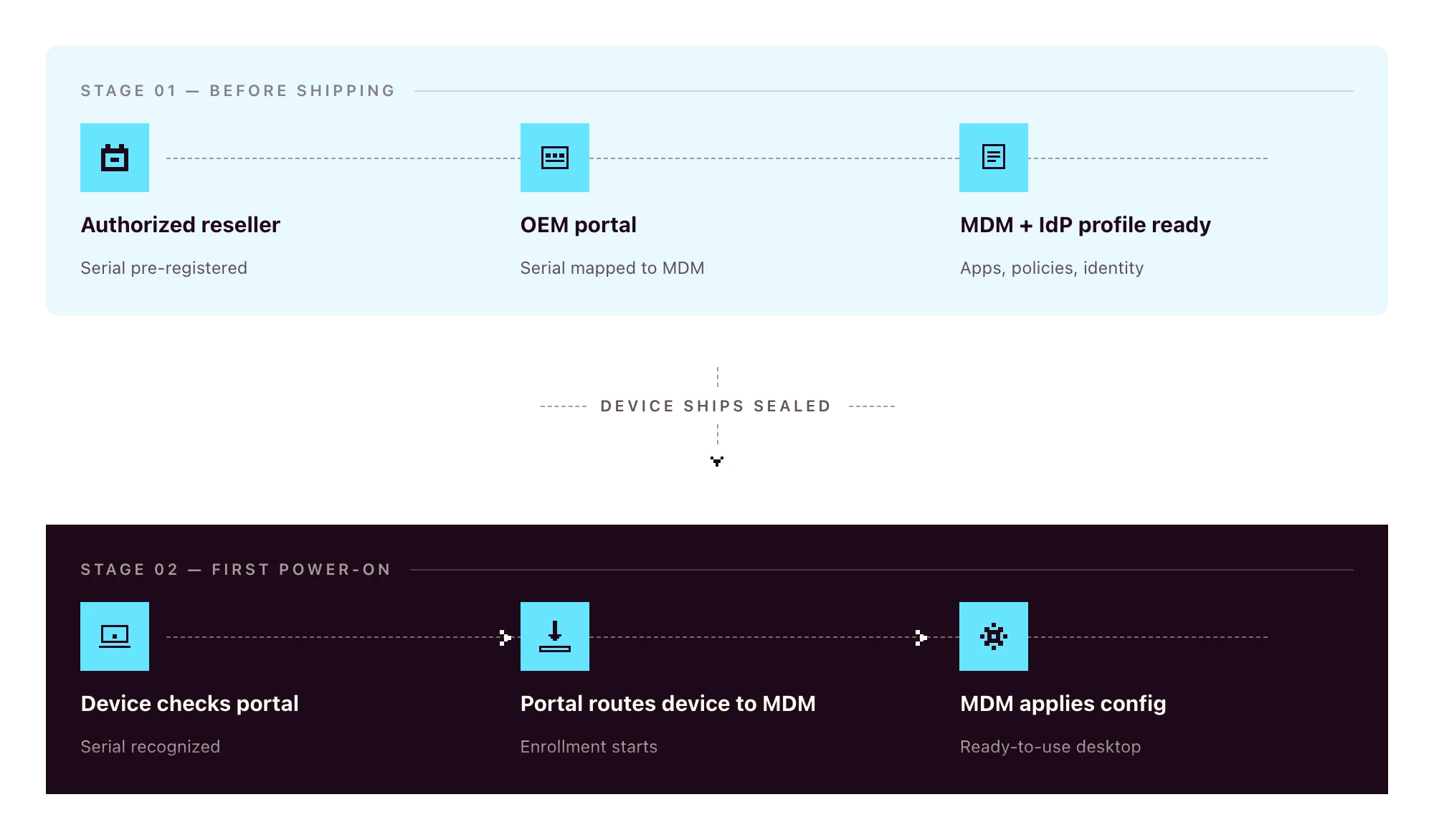
Zero-touch vs traditional manual deployment
The old way:
- Procure the device
- Receive it at the office (or the IT lead’s home)
- Image the OS
- Install management agents
- Configure policies and apps by hand
- Ship to the employee
- Walk the employee through plugging it in
- Manually enroll into the MDM during a video call
The zero-touch way:
- HR creates the new hire in the HRIS
- The device, ordered through a zero-touch-eligible channel, ships sealed directly to the employee and configures itself on first power-on
Eight steps to two. Even if your “old way” only takes 90 minutes per device, multiply that by 30 hires per quarter and you’ve burned a full work-week on a process that should have been automated.
The other win is consistency: every device gets the same baseline, regardless of who was on call when it shipped.
What zero-touch deployment looks like on each OS
Apple-only writers describe ADE in detail. Windows-only writers cover Autopilot. The reality for 2026 SMBs is mixed-OS fleets. You need all three to fit one workflow.
Apple: Apple Business Manager and Automated Device Enrollment (ADE)
Apple Business Manager (ABM) is the OEM portal for any organization buying Apple devices. For ABM to pre-register a device automatically, the hardware has to be purchased through Apple Business or an authorized Apple reseller enrolled in the program. Retail-channel devices are not auto-linked to ABM. They can be enrolled manually, but they don’t ride the zero-touch flow out of the box.
Automated Device Enrollment (ADE) is the mechanism inside ABM that routes a device to your MDM on first power-on. The device sees the ABM record, learns which MDM to talk to, and enrolls automatically. ADE is the current name for the program formerly known as the Device Enrollment Program (DEP). If a vendor’s docs still reference “DEP”, treat that as a freshness signal worth noting.
For BYOD or personally-owned devices, Apple offers Account-Driven User Enrollment, which is a separate flow keyed off Apple ID rather than serial number. Most company-owned deployments use ADE.
Windows: Microsoft Autopilot
The Windows zero-touch story has three moving parts that often get conflated:
- Microsoft Entra ID is the identity provider (formerly Azure AD)
- Microsoft Intune is Microsoft’s MDM
- Windows Autopilot is the zero-touch deployment service that ties hardware to Entra ID and routes the device to an MDM
Autopilot can route to Intune by default, or to a third-party MDM through partner integration. Hardware is registered through OEMs (Dell, Lenovo, HP, Microsoft Surface) using the device’s hardware hash. The hash can be uploaded manually for devices already in your possession, or pre-loaded by the reseller for new orders.
On first boot, the device authenticates against Entra ID and applies role-based configuration during the out-of-box experience (OOBE).
Android: Android Enterprise zero-touch enrollment
Android zero-touch enrollment is Google’s equivalent program. Devices purchased through a zero-touch reseller are linked to your organization’s zero-touch account at the moment of purchase.
When the device is powered on, it downloads the configured Device Policy Controller (DPC) from your MDM, applies the work profile or fully managed configuration, and is ready for the user. Works across major Android OEMs (Samsung, Google Pixel, Motorola, Sony, and others certified for Android Enterprise).
Cross-platform comparison
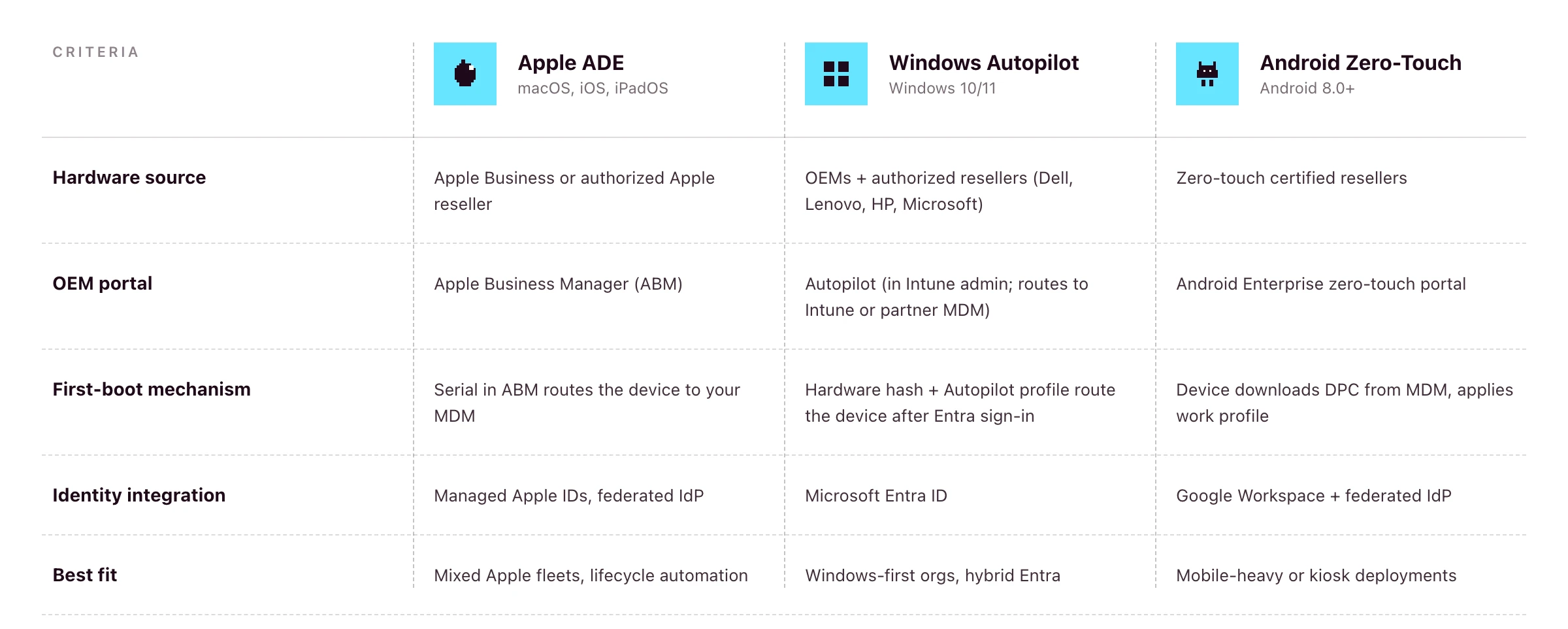
If you’re running a mixed fleet, the platform question becomes: does your MDM speak to all three of these portals from one console?
Primo states support for Apple Business Manager and Windows Autopilot on its procurement page. Android zero-touch is supported at the OS layer (Primo manages Android devices) but pre-registration of Android hardware to the zero-touch portal isn’t a publicly-claimed part of the procurement workflow as of writing. For Android-heavy fleets, confirm coverage during your demo.
The end-user out-of-box experience (OOBE)
Done well, this is what the new hire actually sees:
- Sealed box arrives at the new hire’s address, two to three days before start date
- On Day One, they unbox, plug in, power on, connect to Wi-Fi
- The device asks them to sign in with their work credentials
- They authenticate through your IdP (with MFA)
- They wait while policies, apps and configurations install — this often takes 15–30 minutes, depending on the apps in the role profile, network speed and policy payload
- They land on a ready-to-use desktop with email, chat, calendar and role-based apps already signed in
No download links. No “install this then install that”. No screen-share with IT to fix the SSO loop. If the new hire is offline during this window, the device waits patiently. The flow resumes the moment they connect to Wi-Fi.
HR-triggered zero-touch onboarding in practice
Zero-touch on the device is one half. The trigger upstream is the other half.
- HR creates the new hire in an HRIS such as BambooHR, HiBob, Factorial, Eurécia, Deel, Dayforce, Charlie, ADP or Gusto
- The HRIS event fires into your remote device management platform
- The platform places the hardware order with the reseller, including pre-registration to the OEM portal where supported
- The device ships to the new hire’s address
- The platform provisions the IdP account and role-based SaaS access in parallel
- On Day One, the employee powers on, authenticates through the IdP, and lands on a fully configured machine
Primo states this directly: “HR triggers it. Primo executes it.” and the procurement workflow runs returns and wipes from the same HR events. So the same trigger that fires onboarding also fires offboarding, and parity stays intact.
For the full operational playbook around steps 1, 5 and the Day One experience, see the IT onboarding checklist for lean IT teams.
The procurement layer most zero-touch guides ignore
This is the part that gets glossed over in vendor docs, and the part that quietly breaks zero-touch in practice.
For ADE, Autopilot or Android zero-touch to work, the hardware has to be ordered through a reseller that supports OEM pre-registration. Retail or consumer-channel devices generally aren’t auto-linked to your OEM portal. You’d have to enroll them manually after the fact, which costs most of the zero-touch benefit.
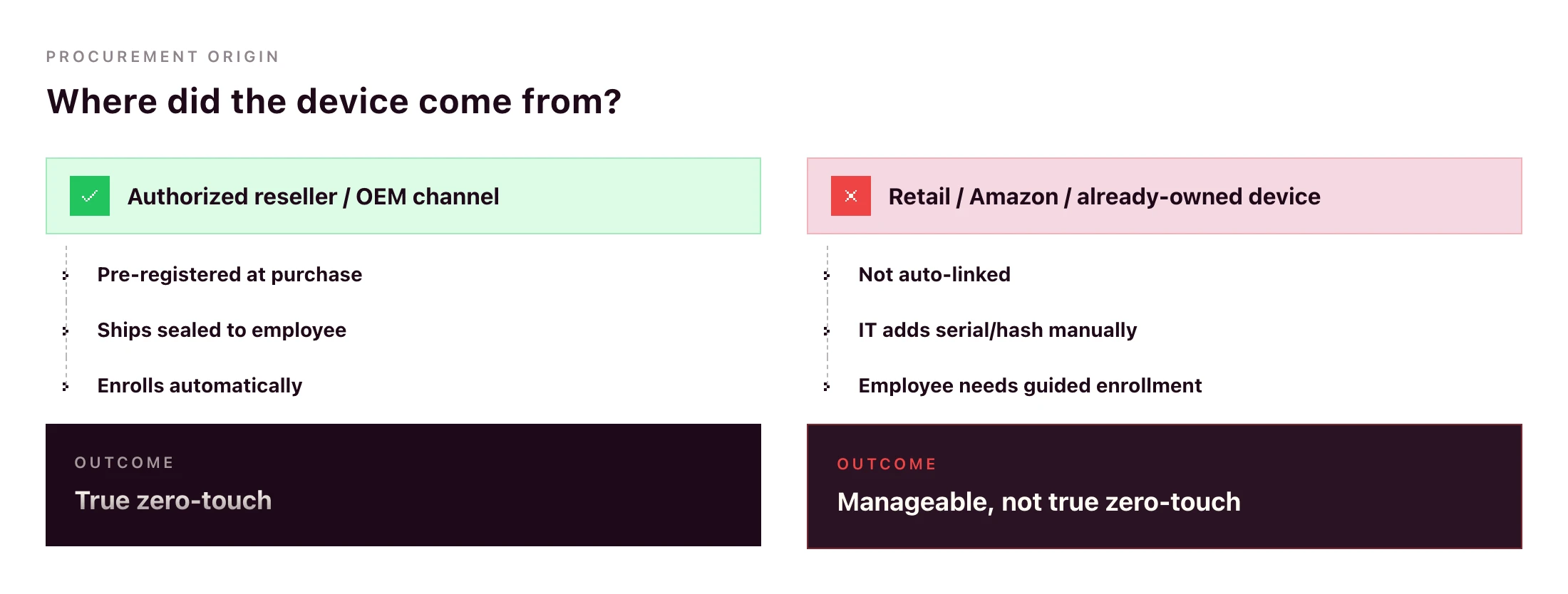
What goes wrong without procurement integration:
- IT manually uploads hardware hashes for Windows devices after they arrive
- IT manually adds serials to ABM after delivery (and hopes the device hasn’t already been set up)
- International orders get stuck in customs because the reseller doesn’t ship to the destination country
- Devices arrive with the wrong OS image, language or region
Primo’s procurement workflow handles this end-to-end: sourcing through authorized resellers (“partners with manufacturers and authorized repair centers”), shipping to 60+ countries in around 5 business days, configuring apps and security before the device leaves the warehouse, and triggering returns automatically from your HR workflows.
A zero-touch deployment rollout plan for SMB IT teams
If you’re going from manual to zero-touch this quarter, here’s the rollout sequence that won’t break your live onboarding flow.
- Standardize role-to-device-profile mapping. Designer → MacBook Pro M-series with design tools. Sales Rep → MacBook Air or comparable Windows laptop with the sales stack. Define this once.
- Connect the HRIS. Pipe the new-hire event from your HR system into your RDM platform.
- Configure the OEM portals you need. ABM if you’re on Apple. Autopilot if you have Windows. Android zero-touch if mobile is in scope. Most teams don’t need all three on day one.
- Define MDM configuration profiles per role. Encryption, password policy, app baseline, restrictions, idle-lock. Test one role end-to-end before duplicating.
- Pilot with one department. A team of 5–10 hires per quarter is ideal. Watch what breaks.
- Extend to all hires. Once the pilot runs for a month without IT intervention, roll out the same flow to everyone.
- Set up the reverse workflow for offboarding. Same RDM, same HRIS trigger, mirror actions: remote wipe, return label, SaaS access revocation.
Timelines vary by team and platform. For a 1–3 person IT team with a single primary OS, a few weeks of focused work is realistic; multi-OS rollouts with custom configuration profiles take longer. Anything that needs a multi-quarter rollout suggests the platform is too heavy for the team running it.
Can you do zero-touch deployment without Intune?
Yes — and for most SMBs, it’s the more practical path.
Microsoft Autopilot is the zero-touch deployment service. Intune is Microsoft’s MDM. The two are often bundled in Microsoft’s documentation, but Autopilot supports partner MDM integration, meaning third-party MDMs can receive devices from Autopilot in the same OOBE flow.
The trade-offs:
- With Intune: tightest integration, single Microsoft admin surface, full feature parity with Microsoft’s roadmap. Strong fit if your stack is already Microsoft-led (Entra ID, Microsoft 365, Defender).
- With a partner MDM: single console across macOS, Windows, Linux, iOS and Android, lighter to deploy, often a better fit for mixed-OS SMB fleets where Microsoft isn’t already the centre of gravity.
Autopilot itself depends on Microsoft Entra ID plus an MDM service to receive the device. A platform like Primo enrolls in that MDM-service role: your Windows devices ride the Autopilot flow into Primo’s console, where they’re managed alongside Mac, Linux, iOS and Android. Confirm exact Entra/Autopilot licensing requirements with Microsoft for your stack. They vary by edition.
Zero-touch offboarding and access cleanup
Zero-touch shouldn’t end at first login. The same automation should run in reverse on exit.
When the HRIS marks the employee as terminated, the RDM platform should:
- Trigger a remote wipe (full or selective depending on ownership)
- Generate a return label and email it to the employee
- Revoke IdP access (which cascades through every SSO-connected app)
- Deactivate accounts on apps not behind SSO
- Mark the asset for reassignment or retirement in inventory
Same workflow, same trigger, opposite direction. Primo states this directly: “Revoked automatically on their last day to prevent security breach.” and “Returns, wipes, and reassignments triggered automatically by your HR workflows.”
A device wipe alone isn’t offboarding — identity cleanup is the other half. Pick a platform where both live in the same console.
Frequently asked questions
What is zero-touch deployment?
Zero-touch deployment is an automated method for provisioning devices without manual IT setup. When a new device is powered on and connected to the internet, it identifies itself to the organization’s MDM platform via an OEM portal (Apple Business Manager, Windows Autopilot, or Android Enterprise), then automatically downloads configurations, apps and security policies.
How does zero-touch deployment work?
The device’s hardware identifier (serial number or hardware hash) is registered with the OEM portal at purchase through an authorized reseller. When the employee powers on the device, it checks in with the OEM portal, which routes it to the organization’s MDM. The MDM applies role-based configuration profiles automatically.
What is the difference between zero-touch deployment and zero-touch enrollment?
Zero-touch enrollment is the enrollment step. The device automatically joins the MDM. Zero-touch deployment is the full workflow, which also includes pushing apps, security policies, and identity configuration so the device is ready to use. Enrollment is one piece of deployment.
What is Apple Automated Device Enrollment (ADE)?
Automated Device Enrollment is Apple’s mechanism for zero-touch deployment of Macs, iPhones, iPads and Apple TVs. Devices bought through Apple Business or an authorized Apple reseller enrolled in the program are automatically linked to the organization’s Apple Business Manager account and routed to the configured MDM on first power-on. ADE replaced the legacy Device Enrollment Program (DEP).
What is Windows Autopilot?
Windows Autopilot is Microsoft’s zero-touch deployment service for Windows devices. It registers devices with Microsoft Entra ID and routes them to Intune or a partner MDM, then applies role-based configuration on first boot. Devices can be sourced through OEMs that pre-register hardware hashes, or hashes can be uploaded manually.
Can you do zero-touch deployment without Intune?
Autopilot itself requires Microsoft Entra ID and an MDM service to route the device to. Intune is Microsoft’s MDM, but Autopilot also supports partner MDM integration, meaning a third-party MDM enrolled in the Autopilot partner programme can play that role for mixed-OS SMB fleets that don’t want a separate Microsoft-only console. Confirm exact Entra and Autopilot licensing requirements with Microsoft.
What is Android Enterprise zero-touch enrollment?
Android zero-touch enrollment is Google’s program for automatic Android device deployment. Devices purchased from a zero-touch reseller are pre-registered to the organization’s account. On first boot, the device downloads the configured device policy controller (DPC) from the MDM and applies all required policies.
Is zero-touch deployment only for large enterprises?
No. Apple Business Manager, Windows Autopilot and Android Enterprise zero-touch are free programs from the OEMs — the cost is the MDM platform and the procurement workflow that pre-registers hardware. The main prerequisite is buying hardware through an authorized reseller that supports zero-touch registration.
Primo now has an MCP server.
A device gets flagged. You need to know who it's assigned to, when it was last active, whether there's an open ticket on it, and what access that employee currently has.
You open Primo. You look up the device. You check the employee profile. You cross-reference the ticket queue. You piece it together.
That's four steps for a question that should take one.
Here's the same thing with Primo's MCP server connected to your AI assistant: you type "what's going on with this device?" and get back the device details, the assigned employee, their onboarding status, and any related tickets. One prompt. Full context. No tab-switching.
That's what we shipped.
MCP: Model Context Protocol
MCP (Model Context Protocol) is an open standard that lets AI assistants like Claude, ChatGPT, or Cursor connect directly to external tools. Instead of answering from training data, your AI queries your actual systems in real time.
With Primo's MCP server, that means your AI assistant can talk directly to your IT fleet. Devices, employees, accessories, tickets: all accessible from the AI tools you already have open.
Why it hits differently with Primo
Most IT tools that support MCP give you access to records. Primo gives you access to a connected data model.
Because Primo ties devices, employee lifecycle, SaaS access, and ticketing into one operational system, a single prompt can cross all of those layers at once. When you ask about a device, it comes back linked to an identity. When you ask about an employee, you get their full IT footprint: what they have, what they can access, what's pending.
That's the difference between querying isolated records and querying a unified IT operations platform.
It also means you can get a compliance-ready view of your entire fleet in one prompt. Preparing for an ISO 27001 audit and need to know which devices aren't enrolled or which employees still have active access after offboarding? That's a question your AI can now answer across your whole fleet, not just device by device.
A few things you can do from a single prompt today:
• Pull a device's full IT history (enrollment date, successive assignments) alongside the employee it's assigned to ;
• List all open tickets filtered by status, priority, or assignee ;
• Check which employees joined this month and whether their devices are provisioned ;
• Spot accessories that are unassigned or overdue for return ;
• Search across your entire fleet without opening a single filter.
And when you're ready to move beyond read-only, write access lets you create tickets, add comments, update status and assignee, and perform device actions like locking or wiping directly from your AI client.
What your AI can do in Primo
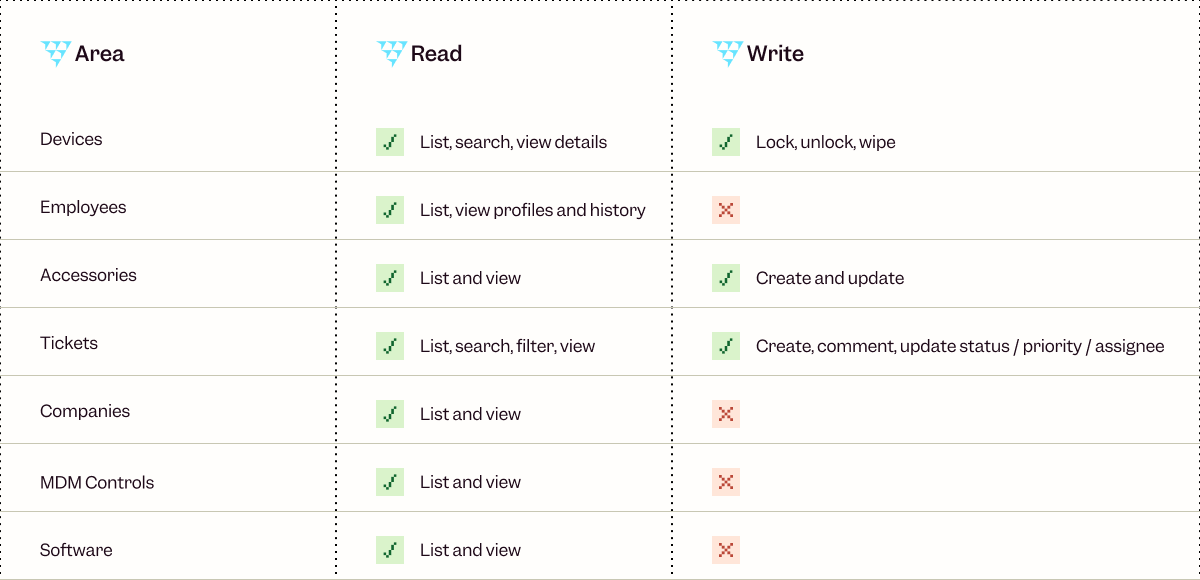
One note on device actions: locking and wiping are irreversible. Write mode is there for teams who want speed, but it's worth confirming before you act.
Getting connected
Authentication runs through OAuth. No API key to generate or manage, you sign in with your existing Primo account and you're done.
The server URL is https://api.getprimo.com/mcp. By default it runs in read-only mode. To enable write access, use https://api.getprimo.com/mcp?readOnly=false.
Setup is the same across clients: go to the MCP Servers section in your settings, add the URL, and complete the OAuth flow. Full instructions for Claude, ChatGPT, and Cursor are in the Primo help center.
A good place to start
Read-only prompts are the fastest way to build trust in the workflow before moving into writes. Try these:
"Show me all devices that haven't been active in the last 30 days."
"What open tickets are currently unassigned?"
"List employees who joined this month and check whether their devices have been provisioned."
Once that feels natural, write access opens up the rest.
The MCP server is live now. Get started at https://api.getprimo.com/mcp, or head to the help center if you want step-by-step setup instructions for your AI client.

The modern office has seen a significant transformation, with hybrid and remote work becoming the norm. Employees expect and thrive with the flexibility to work from anywhere—whether it’s the office, home, or the road.
But with this newfound freedom comes a critical challenge: ensuring that devices, data, and workflows remain secure and efficient across distributed teams.
That’s where mobile device management (MDM) tools are essential. These solutions let IT teams and HR managers manage devices, enforce security policies, and provide seamless support, all from a centralized platform.
In this article, we’ll explore six of the best MDM tools for SMBs, helping you unlock the full potential of a modern, flexible workforce.
What is mobile device management (MDM)?
Mobile device management is a particular class of software that lets IT managers and admins connect and control company devices from anywhere. This is particularly important in modern, hybrid work environments where laptops, mobile phones, and tablets travel all over the world.
A good MDM tool enforces your security policies, configures devices, manages apps, and tracks device statuses across your entire fleet.
This is a crucial element of remote device management, the broader set of processes and philosophies a company uses to manage remote devices. MDM is perhaps the most important aspect of this process, and is usually the starting point.
In practice, companies use MDM to set password rules and security policies, keep devices updated, and have quick access should an administrator need to take control.
Why is MDM important for small businesses?
The modern workforce has changed fundamentally from even a few years ago. Desktop PCs have largely given way to laptops, most of which go home with employees at the end of each day.
Staff are also far more likely to work from home a few days each week, if not full time. And more employees travel between offices than in previous eras.
The result is more mobile devices, and less direct oversight over where they go. Meanwhile, cyber risks like phishing attacks and unwanted entry have exploded in recent years. With more devices connecting to insecure networks or simply stolen, SMBs have real reason to be wary.
A hack could expose personal customer information, your strategies, and even your company bank accounts.
To track mobile devices and keep a secure fleet, MDM software helps you:
• Increase security: You can ensure that devices are always updated with the required security systems, and are quickly retrieved if lost.
• Stay compliant: Particularly for certain industries and business models, you need to be extra vigilant over hacks and lost data. But there’s really never a good time for a data breach.
• Save money: It’s surprisingly common for devices to get misplaced or forgotten as employees come and go. As part of a robust remote device management plan, MDM keeps track of devices and ensures they’re returned when people leave.
• Work efficiently: Small businesses don’t have time to waste on manual device tracking. An MDM tool avoids the need for messy spreadsheets or endless back and forth between colleagues. All the information you need—and the ability to solve common issues—is available in one place.
• Allows flexibility: Some businesses use a one-size-fits-all IT approach for simplicity. But with the right tools and efficient processes, you can still have personalized hardware and software, without it becoming unwieldy.
Key MDM features to look for
There are a range of tools available, as well as broader remote device management platforms that include MDM. So it can be hard to know the specific features to look for when considering your mobile device management software.
While every platform has its strengths and weakness, good MDM software should include:
• Device tracking. Know where each company device is, and monitor performance where required.
• Remote control. If necessary, an admin can take over and “drive” a device, no matter where it is.
• System updates. Update individual devices on a case-by-case basis, and schedule company-wide updates to software and security protocols.
• Usage policies. If necessary, admins can restrict the use of certain websites, apps, or device features.
• Security monitoring. Spot security threats across the whole network, manage antivirus software, and roll out fixes to known security issues.
• Identity management. This is not actually a core MDM feature, but the best MDMs integrate with identity management providers. This lets you control user access with via single sign-on (SSO), multifactor authentication and role-based access.
With these features in mind, let’s look now at some of the best MDM systems available. All of these tools do the above essentials well, so we’ll focus on the aspects that set them apart.
6 best mobile device management systems
If you’re eager to implement mobile device management in your business, these are the tools we recommend.
1. Primo
Primo has all of the above features (and more) to track, update, and optimize remote devices. As an MDM tool, it gives you the security and control you need to manage distributed teams and modern work environments.
But Primo goes beyond mobile device management as an all-in-one IT operations platform. You can easily source and distribute new devices, create company-wide security protocols, deliver compliance training, and keep track of a growing hardware fleet.
This is ideal for busy IT teams who want to make all of their operational work efficient and smooth. But it’s also perfect for “accidental” IT managers, often in HR or office management, who may not have the time or technical expertise to manage devices effectively. Primo takes care of every time-consuming task they could have, so they can focus on what they were hired to do.
Primo works across brands, so you have good MDM tools whether you use Mac, Windows, or other operating systems. You can also source devices directly from Apple, Dell, Lenovo, and Backmarket, among others.
Ultimately, Primo lets you manage all key IT processes in one smooth system, and avoid the technical challenges that plague most businesses.
Key features
• Buy and ship new devices within five days
• Track, update, optimize, and wipe devices remotely
• High-level cybersecurity identifies ransomware and undoes any damage caused
• Integrate your HR system for automated onboarding and offboarding processes
Best fit for
• Growing SMBs (50-500 FTEs) that need lean, effective IT processes
• Companies which use both Apple and Windows devices, as Primo works across operating systems and hardware providers
Not a great fit for
• Large companies with existing IT processes that only need MDM solutions
2. Microsoft Intune
Intune is Microsoft’s MDM solution, for companies already using its networking products and suite of tools. It helps network admins manage user access and device settings, and is predominantly for enterprise-level companies. This includes mobile devices, desktops, and virtual endpoints.
As you would expect, Intune is a popular option among IT professionals who set up Microsoft environments for clients. These are often larger, more traditional office settings, where Outlook and Excel are commonplace. The platform lets you create and standardize specific security settings, zero-trust rules, and set the kinds of usage limits larger companies often require.
Windows Autopilot also promises to be increasingly useful in managing IT. Intune already uses this AI tool to help deploy operating systems and provision new devices, and the use cases are sure to expand quickly.
Key features
• Broad range of native Microsoft integrations
• Custom roles and policies for enhanced security
• Mobile threat detection and defense services
• Can be used for BYOD or company-owned devices
Best for
• Larger enterprise businesses already using and familiar with the Microsoft suite of tools
Not a great fit for
• SMBs or fast-growing companies that want to manage IT in house with minimal delays and setup costs
3. Jamf Pro
Jamf is known as perhaps the market leader in mobile device management for Apple devices. Whether your business uses iPhones, iPads, Mac computers, Mac OS devices, or Apple TVs, Jamf has the features to manage them centrally and keep them secure.
Jamf Pro offers zero touch deployment if you buy Apple devices through their B2B providers. It then makes it easy to find, monitor, and update those devices as required during their lifecycles.
Jamf has a few price points and packages to consider, including those for very small companies with no dedicated IT support. But Jamf Pro is its true MDM product, aimed at larger businesses and higher education providers, with a more complete feature set.
Jamf Pro is at the more expensive end of the pricing scale for MDM providers. Some SMBs don’t need a solution at this robust price point.
Customers love the fact that Jamf is so focused and committed to Apple products. This allows them to be at the cutting edge of innovation and adapt quickly to the slightest changes released by Apple.
Key features
• Application management and consolidation
• Remote wipe and device tracking
• Strong security features
• User-friendly experience for teams with limited technical expertise
Best fit for
• Larger companies and universities with a fleet of Apple devices
• SMBs that exclusively use Apple products
Not a great fit for
• SMBs with a significant mix of non-Apple and Apple devices
• Budget-conscious companies
4. Kandji
Kandji is another Apple specialist. In fact, it markets itself as “the Apple device management and security platform.” This focus gives you the confidence that these are dedicated experts who “know the Apple ecosystem inside and out.”
As an administrator, you create “blueprints” with all the common settings and apps every employee needs. The platform provides a library of 150+ ready-to-use apps, including all the most common tools most businesses use. This makes setting up your working environment simple and scalable.
Its support team is made up of experienced systems administrators who understand the common problems most IT managers face. They’re known for being particularly helpful in solving issues, which are already few and far between.
Customers include Allbirds, Demandbase, and Sisense, among a range of other tech-enabled growing businesses. For companies with Apple-heavy IT requirements, Kandji may be the perfect solution.
Key features
• Automated software updates to keep all devices on the same version
• AI assistant that delivers insights and tips for better device management
• Migration agent tool to switch easily from your current MDM provider
• Active and responsive support team, especially during setup
Best fit for
• Growing businesses with almost exclusively Apple devices
Not a great fit for
• SMBs with a significant mix of non-Apple and Apple devices
5. Miradore
Miradore is a low-cost MDM software that does the basics well. And that’s more than enough for some small businesses. The tool is particularly useful for companies with hundreds or even thousands of devices to monitor, but a small team and low IT budget.
You can monitor and manage your fleet easily, and enforce compliance and security protocols. You can also check that operating systems and software are up to date, when the device was last used, and where it is at any given time.
Miradore secures both company-owned and personal devices across Android, iOS, macOS, and Windows. And for many small businesses, there’s just the right level of security and control, without becoming overly complex.
Key features
• Device inventory management
• Application and patch management
• Configuration, restriction, and device tracking
• Automation for a range of IT tasks
Best fit for
• Companies with basic MDM needs and low budgets
Not a great fit for
• SMBs that need all-in-one IT management, including sourcing, onboarding and offboarding devices, or want MDM customization
6. JumpCloud
JumpCloud is perhaps the most technical platform on this list, best suited to advanced IT teams with high levels of expertise. It’s an incredibly open and customizable solution, which is exactly what some businesses need.
JumpCloud manages Windows, MacOS, Linux, Android, iOS and iPadOS devices, unlike the Apple-specific tools above. This lets IT managers create policies and protocols that apply across all of these devices, rather than managing them separately.
It also lets you limit the installation of unapproved software, also known as “shadow IT.” Coupled with zero-trust policies that protects users, devices, applications, files, and networks, it’s one of the best solutions for security-obsessed organizations.
It may not be the simplest platform on this list, but JumpCloud is a very powerful, dedicated MDM solution.
Key features
• JumpCloud Go provides strong multi-factor authentication and password settings
• Zero-trust policies for devices and networks
• Open directory platform that integrates with your existing IT stack
• SaaS management to oversee your tools and optimize licenses
Best fit for
• Companies with established IT teams and support that want to tailor MDM to their exact specifications
Not a great fit for
• SMBs that need user-friendly, ready-to-use tools
Find the ideal MDM for your SMB
Corporate devices have taken on an interesting status in recent years. For most employees, their phone or computer is theirs, with use extending far outside office hours. Of course, IT leaders have a different view, and (rightly) see devices as company property.
But just because devices go everywhere with employees, that doesn’t mean they can’t be secure and tracked efficiently. The platforms above make this a reality.
No matter what size your company is, or the industry you serve, you almost certainly need MDM software. The real question is: which is right for you?
Hopefully the breakdowns above help you make your choice. And for more help, talk to us. We’ll gladly help you figure out whether Primo or one of the other excellent providers on this list is right for you.