IT Onboarding Process: How to Manage Tools & Software for New Employees
How to Create an Efficient IT Onboarding Process for New Employees
Starting a new job is equal parts exciting and nerve-wracking. No matter how many interviews and coffee chats a new team member did during the hiring process, they’re stepping into the unknown.
As a hiring manager or HR leader, your goal is to harness this energy and make them feel comfortable and fit in.
But very few experiences will burst their bubble like feeling forgotten about. Showing up for their first few days with no computer, no login, and nobody to help is immediately alienating. And it puts pressure on their new colleagues to help out.
Only 12% of employees believe their company does a good job of onboarding team members. And in our modern, digital-first work environments, this starts with IT.
This article explores the value of well-designed, efficient IT onboarding for new employees. And we also look at the keys to doing this well, without wasting time and effort.
What is IT onboarding?
IT onboarding is the process of getting new employees up and running with company information systems. These include computers, phones, and tablets, as well as user profiles, cybersecurity policies, and network access.
A fully onboarded employee:
• Has their own devices, including remote workers
• Can log in and use them safely
• Has access to the wi-fi network
• Can use communication channels like email, Slack, Microsoft Teams, and Zoom
• Knows where to look for more information should they need it
IT onboarding is arguably the very first thing a new employee needs to succeed. Before they can fully understand the company’s mission and cultural values, or even get to know their new team mates, they need IT access.
Typical challenges when onboarding new employees
For such a fundamental part of the hiring process, IT onboarding remains difficult. In fact, it may be harder today than in previous eras.
The cliché cubicle setup was simple. Everyone needed the same computer and phone on their desk, the same network access, with relatively few exceptions.
Today you have remote employees using a wide range of both hardware and software. A salesperson may need vastly different IT equipment from an engineer.
IT onboarding is challenging and often falls short for the following reasons:
• It’s time consuming: The average onboarding process involves around 50 administrative steps. IT setup alone can easily account for 20 or more of those, and will quickly become a bottleneck if your processes are inefficient.
• It’s increasingly personalized: Employees love to select their own hardware, and some have specific technical requirements. You may also have different nationalities, which means different keyboards and operating languages.
All of this means a one-size-fits-all IT setup won’t work.
• There are lots of moving parts: Between the devices themselves and the software setup required, you can have more than 10 IT vendors per employee. Which also means different timeframes—hardware orders may take days or weeks, while creating a user profile might only take a moment.
• Some technical skills are required: Corporate systems may not be as technical as they used to be, but HR and office managers may not feel well equipped to manage IT hardware. If you don’t have a dedicated IT expert on staff, you either need to lean on other skilled employees for support or bring in outside help to resolve issues. Both of which add time and complexity.
• Onboarding is cross-functional. Every employee needs onboarding, but it’s not always clear who should lead. The hiring manager, an HR person, the IT person, or someone else? This inbetween status can mean onboarding isn’t given the attention it deserves, and new employees are overlooked.
Whether you have a robust onboarding process or not, it’s a good time to look closely at your IT rollout. Ensure new employees get the smooth welcome they deserve.
Lorem ipsum
Lorem ipsum
Lorem ipsum
Lorem ipsum
8 IT onboarding best practices
A good employee onboarding process is the best way to overcome the common issues above. Here’s what should be in yours.
1. Prepare your pre-onboarding routine
Even if each onboarding may have its specificities, you want a repeatable, consistent approach for every new employee. Ideally, you’ll have a checklist to work through as soon as a work contract is signed.
This starts with hardware. Ensure all laptops, monitors, phones, and extras are delivered and ready to use before the person starts. That also means installing the necessary hardware and creating user permissions.
There’s a lot more work here than many admins anticipate. You have to order from several providers (such as Apple for the computer, Amazon for the hub and screen), and track to make sure everything arrives where and as intended.
You then have to configure these items by hand. Or ask your brand new employee to self-set up, which is not a great onboarding experience.
Your best option is to use a service like Primo with zero-touch deployment. Primo pre-configures devices to your specifications, so they arrive with new employees ready to use:

2. Provide secure access and credentials early
Start dates can shift and onboarding can throw up surprises, so it pays to prepare in advance. You can easily set up employee accounts and even share their email access ahead of time, so they’re ready to log in right away.
Send the new hire their login credentials for email and other key software prior to their start date. They don’t actually need to do anything with it, but it’s good to know it’s ready for them.
That includes security tools like password managers, and security protocols like two-factor authentication (2FA). Again, they don’t need to connect before day one, but they should have everything they need to get started right away.
Finally, ensure newcomers have access to all key business software: Google Suite or Microsoft Office, Notion or Asana, Slack, and more.
An IT operations system like Primo can also really help here. Primo lets you create new user profiles in just a few clicks, and automatically adds users to the tools they need in their specific role. The tools required can be job-dependent and vary hugely between users, so a one-size-fits-all software setup won’t work.
Done well, you don’t have to manually visit each individual platform. And you never forget anything important.

3. Document policies and create useful onboarding guides
Most young companies don’t have clearly-stated onboarding policies. This leaves it up to individual managers and admins to welcome employees on a case-by-case basis. That may work when you have the time to dedicate real attention to onboarding.
But as soon as your attention is elsewhere—or if you’re hiring very quickly—newcomers can be left behind. And more broadly, you want a consistent experience for all new employees. So a documented process and policy is best.
Include step-by-step guides for common tasks. Even better, prepare a 4-week onboarding template that any manager can quickly update and tailor to their roles.
That can start with IT. Provide easy-to-follow documentation, videos, or tutorials explaining how to use essential systems like email, project management tools, and key software.
Even if a new employee has used Notion, Slack, or Jira before, they may not use them your way.
4. Emphasize cybersecurity training
With the amount of digital connectivity and data access every company has today, security training is increasingly important. New hires need to know the importance of protecting customer data and avoiding scams.
Cybersecurity awareness and training should be one of the first steps in onboarding—as soon as possible after the employee has access to your systems. In fact, IT onboarding is now a core component of becoming compliant in many schemes. You must prove that employees know how to be safe and responsible with company data.
Train new employees on data protection policies, phishing risks, secure file sharing, and acceptable use of company systems.
Just as crucially, emphasize the cultural value you place on security (if indeed it is a value). Don’t assume that team members come from vigilant, security-conscious companies. Many will need to develop good habits, and it’s best to start immediately.
5. Use mobile device management systems
IT management involves so many different processes, hardware, and software. Teams are increasingly distributed, and your devices are traveling all over cities and countries every day.
This makes onboarding (and ongoing maintenance) really difficult. And it can be a major security risk.
Good mobile management brings all of your devices together into one system of record, accessible and manageable from anywhere in the world. You can access, lock, and wipe any device, no matter where it is. You can also create accounts, change passwords, and update software.
This software lets you confidently hand out devices on day one, including to remote employees. If they have any issues logging in or finding things, you can take control and help out.
This is obviously important for companies with remote staff. But even if your whole team is mostly on-site, in-office, modern employees have laptops and phones they take home with them. A centralized tool to track—and if necessary, access—these devices is paramount.
6. Automate key steps in the process
Even in small companies, employee onboarding is a major task. For fast-growing companies, it’s a major hurdle to scaling. And preparing the IT hardware and environment is often to blame for holdups.
Unless you automate. You shouldn’t have to manage onboarding on a 1:1 basis for each new employee. Good tools can manage the more manual, repetitive aspects.
Key steps to automate include:
• Ordering devices and having them delivered
• Pre-configuring the software and user profiles for these devices
• Creating accounts on all key tools, specific to each user’s role and responsibilities
• Guiding users to the right IT trainings for them
To do this, you need the right system.
7. Get feedback and ensure everything’s working
If possible, it pays to check in with new employees after a few days or weeks to make sure that everything’s working as they need. That could be a scheduled Slack message from the IT team, or a 10-minute Zoom call to show them a few advanced tips and tricks.
That’s also important for companies without dedicated IT support. Their onboarding manager or HR rep will doubtless schedule catch ups in the first few weeks. Make a specific point to check that they’re happy with their devices and aren’t getting lost in the company intranet or communication tools.
New employees are typically shy, and don’t want to admit when systems are confusing. But it’s perfectly normal to be confused, and a quick catch up should iron out any issues they’re having.
8. Streamline your IT onboarding process
Good onboarding can absolutely be the difference between companies with long-serving, happy teams, and those with high employee turnover. A negative onboarding experience is shown to cause employees to look for new opportunities in the near future.
And it doesn’t take a huge amount to deliver a good experience. While some companies offer extensive welcome packages and onboarding retreats, the most important is to make employees feel valued.
Show them that you’re excited to have them and have prepared for this moment. At the very least, that means having devices and accounts configured and ready to go.
And the best way to do this consistently is with good automation. For example, Primo helps companies manage IT onboarding in just minutes, without any team members specifically focused on this task. Devices are delivered anywhere pre-configured, and it only takes the IT or HR person responsible a few clicks. Which means every onboarding can be both easily personalized, and efficiently systematized.

That’s the beauty of automated solutions, they work every time and save countless hours.
Recommended articles

A new hire’s Day One says everything about how your company runs. If their laptop is on the table, configured, logged in, with the right apps installed — they feel set up. If the laptop is still in a courier’s warehouse and IT is scrambling to provision SSO — they feel like an afterthought, in their first six hours.
This is the IT onboarding checklist lean teams actually use. Five phases, RACI ownership, HRIS-triggered, mirrored for offboarding. Use it as your operating playbook, not a static doc.

The five phases, at a glance
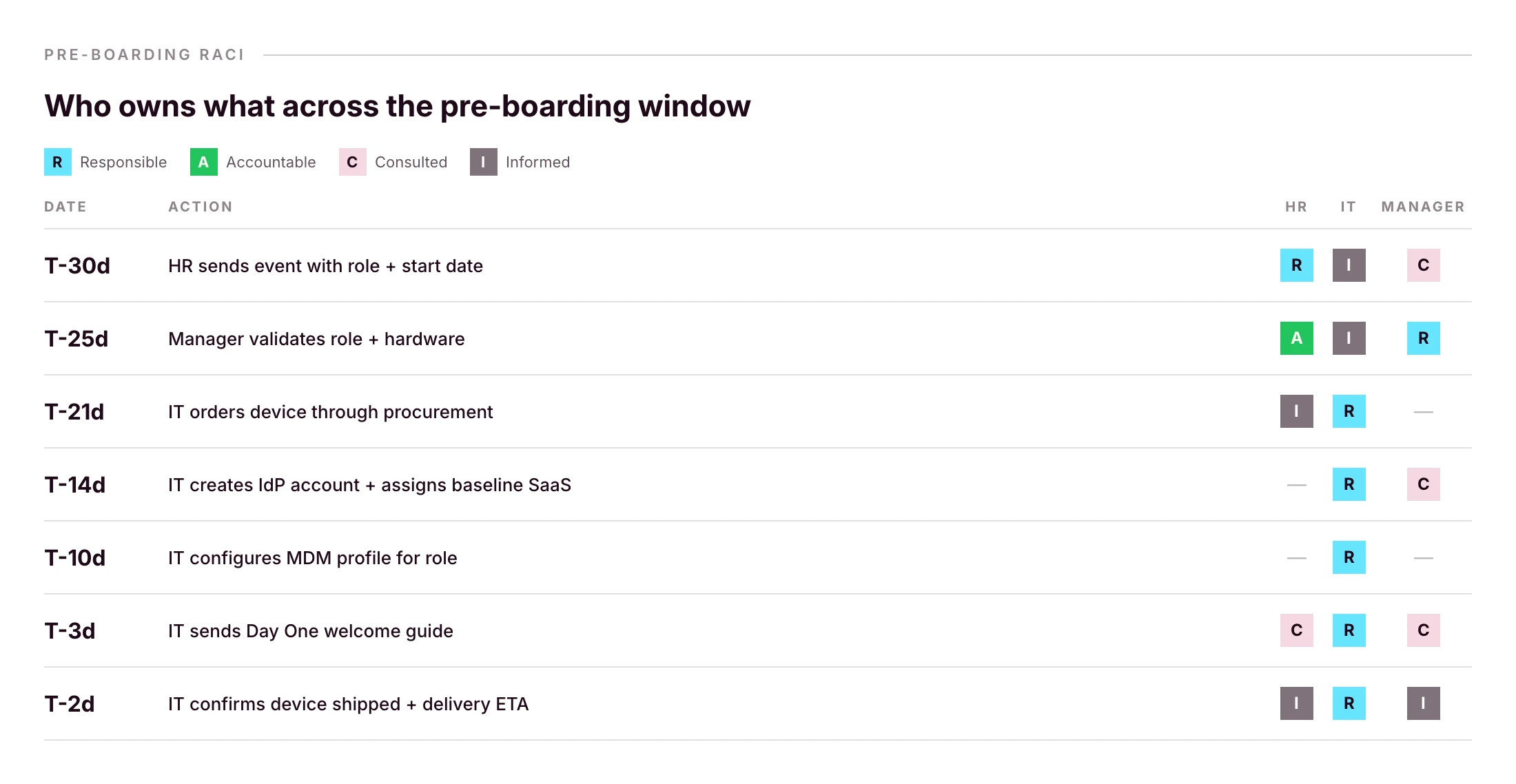
- Pre-boarding (weeks -4 to -1): order the device, create the IdP account, provision baseline SaaS by role, configure the device for delivery.
- Day One: device delivery, SSO login, MFA enrollment, EDR check, Acceptable Use Policy signature.
- Week One: verify every tool works, complete cybersecurity training, schedule first manager check-in.
- First 30 days: audit installed apps against role profile, document additional access requests, validate everything still works.
- Offboarding parity: set up the reverse workflow on Day One, not on exit day.
Each phase has owners, a timeline, and a measurable outcome. Done well, the whole flow runs in the background of an HRIS event. IT only gets pinged on exceptions.
Phase 1: Pre-boarding (weeks -4 to -1)
Most IT onboarding problems are pre-boarding problems. If the laptop is ordered late, Day One can’t be saved. If the IdP account is missing, the SSO chain breaks on first login.
HR-to-IT handoff (intake trigger)
The trigger should be the HRIS event, not a Slack message, not a calendar invite. The minimum payload IT needs to act:
- Full legal name and preferred name
- Start date and timezone
- Role and department
- Manager
- Work location and shipping address
- Hardware preference (if you offer choice)
If you’re capturing this in a Notion form or a Slack thread, you’re one departing teammate away from a gap. Make the HRIS the source of truth and pipe events into your IT workflow tool.
Order the device for direct-to-employee delivery
The window from order to first power-on is the most expensive part of IT onboarding when it goes wrong. Lead times for the EU vary by hardware and reseller; for international hires, add a week for customs.
The right pattern: order through a procurement workflow that ships the device pre-configured directly to the employee. If your platform supports zero-touch deployment, through Apple Business Manager or Windows Autopilot, the device finds your MDM automatically on first power-on, with no IT touch between order and Day One. Primo’s procurement workflow covers 60+ countries with delivery in around 5 business days, with apps and security pre-configured before shipping.
Create the user record in your IdP
Identity is the spine of everything that follows. The IdP account (Microsoft Entra ID, Google Workspace, JumpCloud, your federated IdP of choice) is what every SSO-enabled app will check against. Create it as soon as the HRIS event fires, not on Day One morning.
Provision baseline SaaS access by role
Group memberships in your IdP should map to roles, not individuals. “Designer” gets Figma, Notion, Slack, the design Drive. “Sales Rep” gets HubSpot, Gong, Slack, the sales Drive. Maintain the matrix once; reuse it for every hire.
Phase 2: Day One
A well-run Day One feels boring to IT and magical to the new hire. That’s the goal.
Device delivery and unboxing
If pre-boarding was done right, the new hire receives a sealed box, powers it on, connects to Wi-Fi, and watches the device configure itself. No IT presence required. This is the payoff of zero-touch deployment, and it’s the single most visible signal that your company runs operationally.
First login and SSO verification
The first login should be against your IdP. The new hire enters their company email, completes the IdP flow, and lands on a configured desktop. If they have to type a separate password into anything besides the IdP, your SSO chain has a gap. Fix it before Day One, not after.
MFA enrollment
Enroll the new hire into MFA during the first session. Use a phishing-resistant method (passkey, hardware key, or platform authenticator) wherever your IdP supports it. SMS-based MFA is below the line in 2026. Keep it as a fallback for account recovery only.
EDR agent and security policy check
Endpoint Detection and Response (EDR) should be installed by your MDM as part of the configuration push, not by the user. Verify in the admin console that the agent is reporting healthy before the new hire opens their first customer call. While you’re there, confirm disk encryption (FileVault, BitLocker), firewall, and idle-lock are all green.
Acceptable Use Policy signature
Push the AUP as part of the Day One flow, captured digitally with timestamp. Same for the phishing-awareness module assignment. This is the boring half of compliance, and the half that pays back during your next audit.
Phase 3: Week One and first 30 days
The first week is verification. The next 30 days is calibration.
In Week One, confirm every tool the new hire needs actually works: VPN, conferencing, email signature, calendar permissions, shared drive access, and the second-tier apps that came through the role profile. Schedule the first manager check-in for end-of-week-one, not later. Complete the cybersecurity training module.
In the first 30 days, audit the installed apps against the role profile and document every additional access request that came in. If a single role is generating 10+ ad-hoc access tickets in month one, the role profile is wrong, not the workflow. Fix the profile, not the ticket.
Use your HRIS as the trigger, not a spreadsheet
The single biggest upgrade you can make to IT onboarding isn’t a better checklist. It’s connecting your HRIS so the checklist runs itself.
When a new hire is created in an HRIS like BambooHR, HiBob, Factorial, Eurécia, Deel, Dayforce, Charlie, ADP or Gusto, the right remote device management platform should:
- Create the IdP account
- Order the device through the procurement workflow
- Pre-register the device to the OEM portal where supported
- Assign role-based MDM and SaaS policies
- Send the Day One welcome guide
- Alert IT only if something needs human intervention
This is the model behind Primo’s IAM page summary: “HR triggers it. Primo executes it.” Events flow from HR’s source of truth straight into device, identity and access workflows.
The win isn’t only speed. It’s parity: every new hire gets the same baseline, regardless of whether IT was busy that week.
Provision software and access by role, not app by app
If you’re provisioning SaaS access one app at a time, per hire, you’ve already lost the next ten hours.
The discipline that scales: define role profiles once, then map every new hire to a role. The role determines the apps, the permissions inside those apps, and the IdP groups they belong to.
Apply the Principle of Least Privilege as defined by NIST: each role gets only what’s needed to do the job. Run access reviews quarterly to catch role drift.
A minimal role-profile matrix:
- Designer: Figma, Notion, Slack, Drive. Editor on design assets, viewer elsewhere.
- Sales Rep: HubSpot, Gong, Slack, Drive. CRM rep view + own pipeline.
- Engineer: GitHub, Linear, Slack, Drive, AWS. Repo write on owned projects, AWS dev only.
Role profiles also make offboarding meaningful — you know exactly what to revoke, because you defined it once when you hired the role. Primo surfaces this directly as “Role-Based Access Control (RBAC) across every app”.
Procurement is part of onboarding
This is the part of IT onboarding most checklists skip, and most lean IT teams quietly burn weekend hours on.
A flawless Day One can’t recover from a laptop that arrives late, arrives unconfigured, or arrives at the wrong address. Procurement isn’t a separate vertical. It’s the first stage of onboarding.
For a lean IT team in 2026, procurement should cover:
- Sourcing through authorized resellers (so OEM zero-touch works where supported)
- International shipping with customs handled
- Pre-configuration before the box ships
- Asset tracking from purchase order through delivery
- Return labels generated automatically for the eventual offboarding
If your current setup is “IT lead orders devices manually, ships from home, types serial numbers into a spreadsheet” — that’s the part of the workflow with the highest return on automation. Primo’s procurement workflow handles this end-to-end: “From order to delivery, Primo ships, configures, and tracks every device automatically.”
Build one checklist for onboarding and offboarding
The most expensive part of offboarding isn’t the wipe. It’s the SaaS account nobody owned that quietly retains access for six months.
Every line on your onboarding checklist needs a mirror on your offboarding checklist. Build them at the same time, not on exit day.
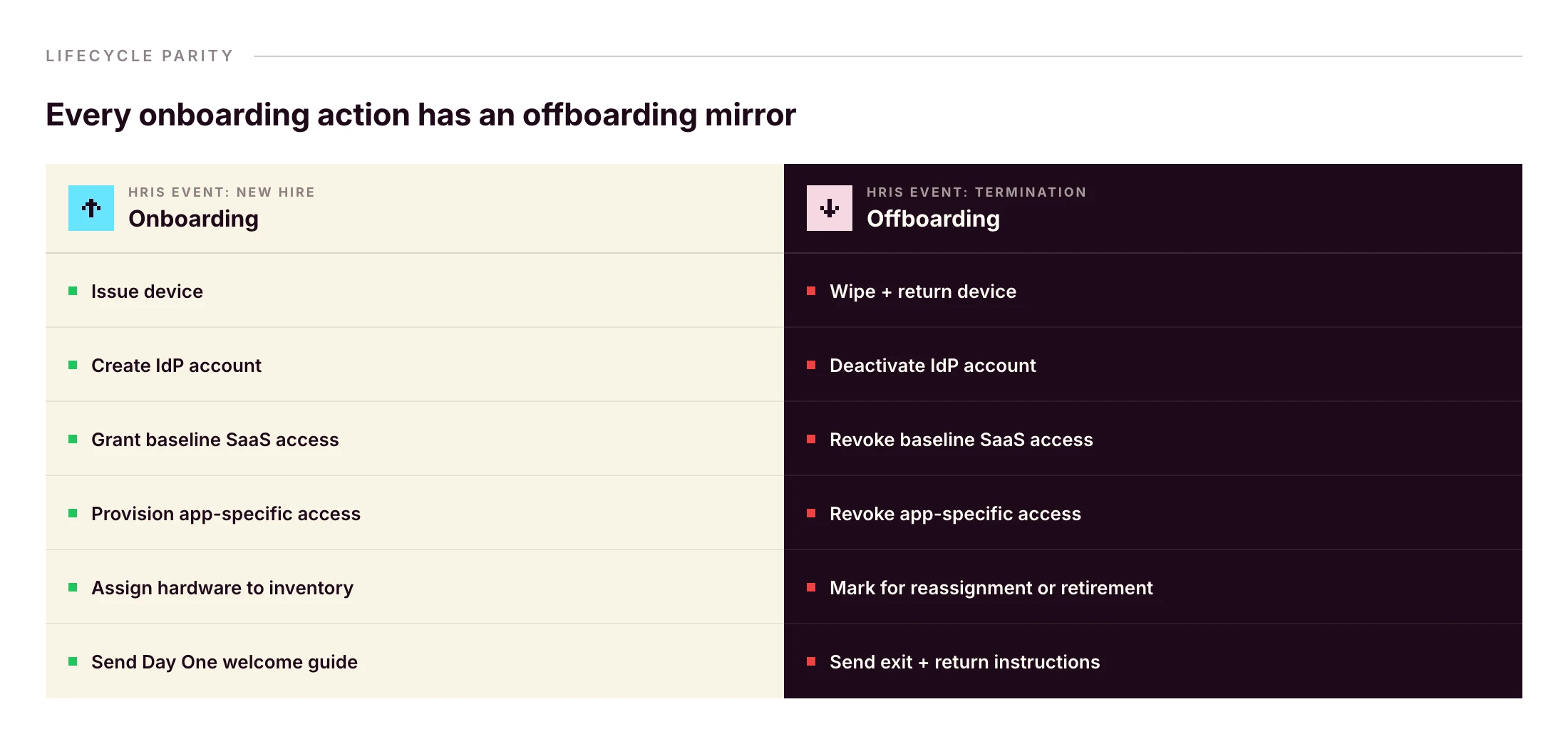
The same HRIS event that started onboarding can fire offboarding. Primo runs this as “Zero forgotten access. Ever. From first day to last, every account, seat, and permission is managed automatically.” and “Revoked automatically on their last day to prevent security breach.”
Without that pattern, a wiped laptop doesn’t reclaim Slack, Google Workspace, HubSpot, or Stripe. Identity and device have to be revoked together — same workflow, same trigger.
Frequently asked questions
What should be on an IT onboarding checklist?
A complete IT onboarding checklist covers pre-boarding (hardware ordering, account creation in the HRIS and IdP, baseline SaaS provisioning), Day One (device delivery, SSO login, MFA setup, EDR install, acceptable use policy signature), and the first 30 days (training, tool verification, access audits). It should also establish offboarding parity from day one.
What is the difference between IT onboarding and HR onboarding?
HR onboarding covers contracts, payroll, benefits, culture and orientation. IT onboarding covers everything the new hire needs to work on Day One: hardware, accounts, applications, security setup and policies. In practice the two should be triggered from the same HRIS event so they stay in sync.
When should IT onboarding start?
IT onboarding should start at least two to four weeks before the new hire’s first day. That window covers hardware ordering and shipping, account creation in the IdP, baseline SaaS provisioning, and any zero-touch deployment configuration. For remote international hires, add another one to two weeks for customs and delivery.
What does a new hire need on Day One?
A configured laptop, working SSO login, MFA enrolled, email and chat access, calendar synced, role-based app access, an installed EDR agent, and a signed acceptable use policy. They also need a working manager check-in and a help channel for IT issues.
How do you onboard a remote employee?
Ship a pre-configured device using zero-touch deployment. Trigger account creation from the HRIS so credentials are ready on Day One. Provide a written Day One guide. Schedule a video onboarding call with IT and the manager. Verify SSO, VPN and MFA remotely. Set up a clear escalation channel for first-week issues.
How long should IT onboarding take?
Pre-boarding spans two to four weeks. Day One setup should take under an hour for the employee if zero-touch deployment is in place. The full onboarding cycle, including training, access audits and role validation, typically runs 30 days. Anything longer suggests manual handoffs in the IT-HR workflow.
Who is responsible for IT onboarding?
On lean teams responsibility is shared: HR or the hiring manager triggers the workflow, IT executes provisioning, and the manager validates role-specific access. A RACI matrix prevents gaps. On smaller teams without a dedicated IT person, an HR or office operations lead often owns the IT onboarding workflow.
See an HRIS-triggered onboarding flow that handles device, identity and access from one console, with offboarding parity built in.
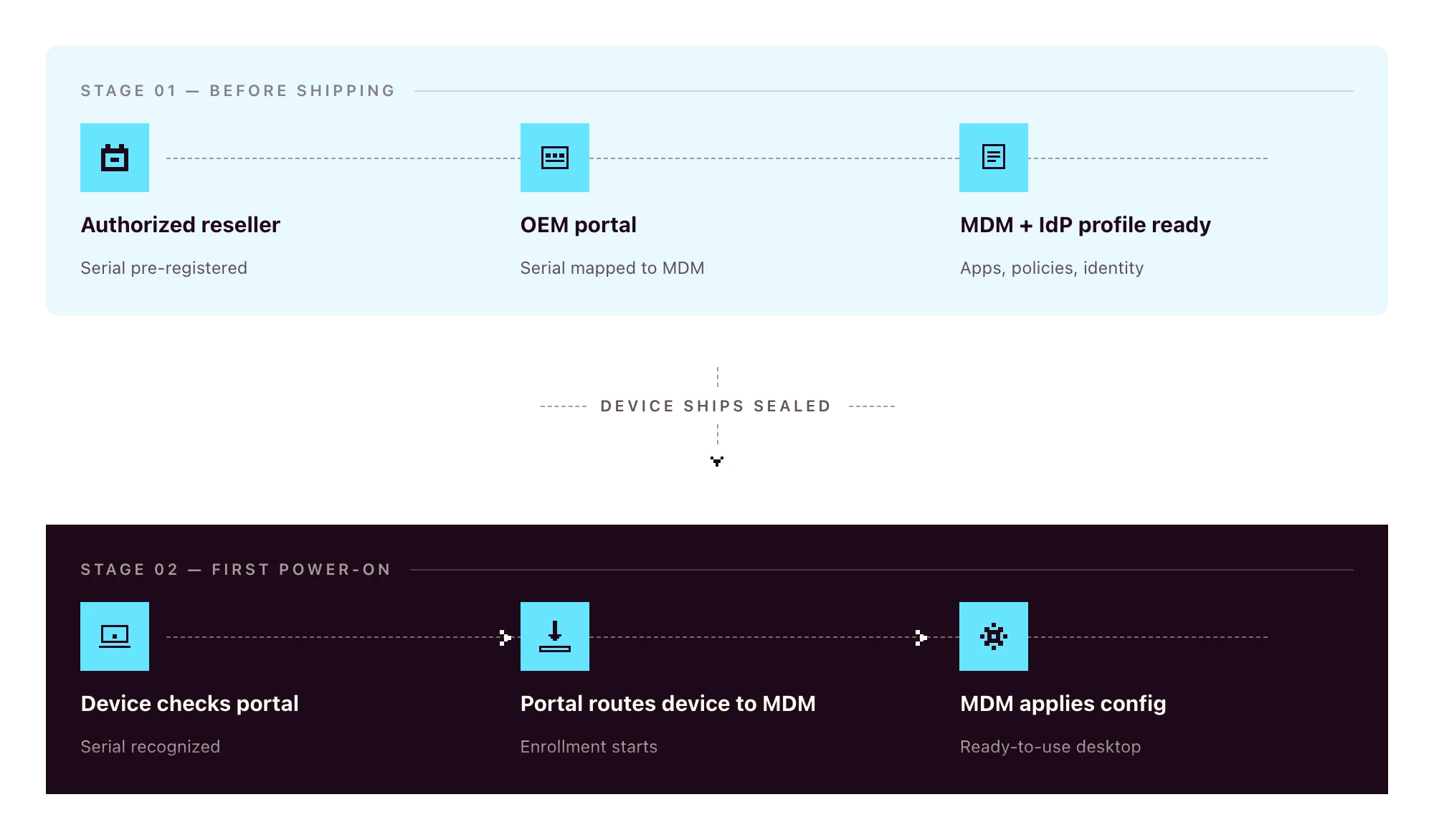
Zero-touch deployment (ZTD) is automated device provisioning that requires no manual IT setup once the device is powered on. Hardware is registered to an OEM portal at purchase. On first power-on, the device checks in with that portal, gets routed to your MDM, and downloads the configuration profiles, apps and security policies tied to that user’s role.
Three prerequisites, the same on every OS:
- An authorized reseller that can pre-register the device to the relevant OEM portal
- The OEM portal itself: Apple Business Manager, Microsoft Autopilot, or Android Enterprise zero-touch
- An MDM/UEM platform wired into the portal
The OEM programs are free from Apple, Microsoft and Google. The MDM, procurement integration and rollout work are not. This article covers how the three OS programs work, what the out-of-box experience looks like, and how to roll zero-touch out on a 1–3 person IT team.
Zero-touch vs traditional manual deployment
The old way:
- Procure the device
- Receive it at the office (or the IT lead’s home)
- Image the OS
- Install management agents
- Configure policies and apps by hand
- Ship to the employee
- Walk the employee through plugging it in
- Manually enroll into the MDM during a video call
The zero-touch way:
- HR creates the new hire in the HRIS
- The device, ordered through a zero-touch-eligible channel, ships sealed directly to the employee and configures itself on first power-on
Eight steps to two. Even if your “old way” only takes 90 minutes per device, multiply that by 30 hires per quarter and you’ve burned a full work-week on a process that should have been automated.
The other win is consistency: every device gets the same baseline, regardless of who was on call when it shipped.
What zero-touch deployment looks like on each OS
Apple-only writers describe ADE in detail. Windows-only writers cover Autopilot. The reality for 2026 SMBs is mixed-OS fleets. You need all three to fit one workflow.
Apple: Apple Business Manager and Automated Device Enrollment (ADE)
Apple Business Manager (ABM) is the OEM portal for any organization buying Apple devices. For ABM to pre-register a device automatically, the hardware has to be purchased through Apple Business or an authorized Apple reseller enrolled in the program. Retail-channel devices are not auto-linked to ABM. They can be enrolled manually, but they don’t ride the zero-touch flow out of the box.
Automated Device Enrollment (ADE) is the mechanism inside ABM that routes a device to your MDM on first power-on. The device sees the ABM record, learns which MDM to talk to, and enrolls automatically. ADE is the current name for the program formerly known as the Device Enrollment Program (DEP). If a vendor’s docs still reference “DEP”, treat that as a freshness signal worth noting.
For BYOD or personally-owned devices, Apple offers Account-Driven User Enrollment, which is a separate flow keyed off Apple ID rather than serial number. Most company-owned deployments use ADE.
Windows: Microsoft Autopilot
The Windows zero-touch story has three moving parts that often get conflated:
- Microsoft Entra ID is the identity provider (formerly Azure AD)
- Microsoft Intune is Microsoft’s MDM
- Windows Autopilot is the zero-touch deployment service that ties hardware to Entra ID and routes the device to an MDM
Autopilot can route to Intune by default, or to a third-party MDM through partner integration. Hardware is registered through OEMs (Dell, Lenovo, HP, Microsoft Surface) using the device’s hardware hash. The hash can be uploaded manually for devices already in your possession, or pre-loaded by the reseller for new orders.
On first boot, the device authenticates against Entra ID and applies role-based configuration during the out-of-box experience (OOBE).
Android: Android Enterprise zero-touch enrollment
Android zero-touch enrollment is Google’s equivalent program. Devices purchased through a zero-touch reseller are linked to your organization’s zero-touch account at the moment of purchase.
When the device is powered on, it downloads the configured Device Policy Controller (DPC) from your MDM, applies the work profile or fully managed configuration, and is ready for the user. Works across major Android OEMs (Samsung, Google Pixel, Motorola, Sony, and others certified for Android Enterprise).
Cross-platform comparison
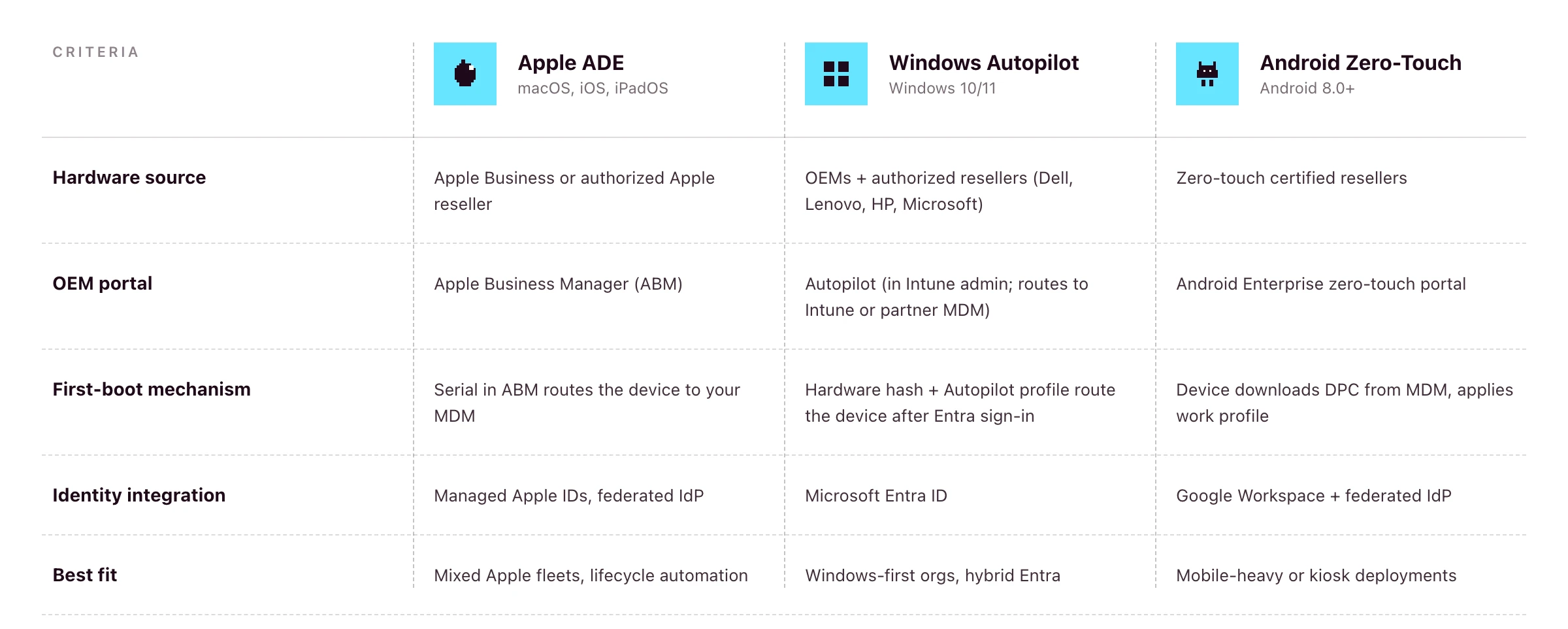
If you’re running a mixed fleet, the platform question becomes: does your MDM speak to all three of these portals from one console?
Primo states support for Apple Business Manager and Windows Autopilot on its procurement page. Android zero-touch is supported at the OS layer (Primo manages Android devices) but pre-registration of Android hardware to the zero-touch portal isn’t a publicly-claimed part of the procurement workflow as of writing. For Android-heavy fleets, confirm coverage during your demo.
The end-user out-of-box experience (OOBE)
Done well, this is what the new hire actually sees:
- Sealed box arrives at the new hire’s address, two to three days before start date
- On Day One, they unbox, plug in, power on, connect to Wi-Fi
- The device asks them to sign in with their work credentials
- They authenticate through your IdP (with MFA)
- They wait while policies, apps and configurations install — this often takes 15–30 minutes, depending on the apps in the role profile, network speed and policy payload
- They land on a ready-to-use desktop with email, chat, calendar and role-based apps already signed in
No download links. No “install this then install that”. No screen-share with IT to fix the SSO loop. If the new hire is offline during this window, the device waits patiently. The flow resumes the moment they connect to Wi-Fi.
HR-triggered zero-touch onboarding in practice
Zero-touch on the device is one half. The trigger upstream is the other half.
- HR creates the new hire in an HRIS such as BambooHR, HiBob, Factorial, Eurécia, Deel, Dayforce, Charlie, ADP or Gusto
- The HRIS event fires into your remote device management platform
- The platform places the hardware order with the reseller, including pre-registration to the OEM portal where supported
- The device ships to the new hire’s address
- The platform provisions the IdP account and role-based SaaS access in parallel
- On Day One, the employee powers on, authenticates through the IdP, and lands on a fully configured machine
Primo states this directly: “HR triggers it. Primo executes it.” and the procurement workflow runs returns and wipes from the same HR events. So the same trigger that fires onboarding also fires offboarding, and parity stays intact.
For the full operational playbook around steps 1, 5 and the Day One experience, see the IT onboarding checklist for lean IT teams.
The procurement layer most zero-touch guides ignore
This is the part that gets glossed over in vendor docs, and the part that quietly breaks zero-touch in practice.
For ADE, Autopilot or Android zero-touch to work, the hardware has to be ordered through a reseller that supports OEM pre-registration. Retail or consumer-channel devices generally aren’t auto-linked to your OEM portal. You’d have to enroll them manually after the fact, which costs most of the zero-touch benefit.
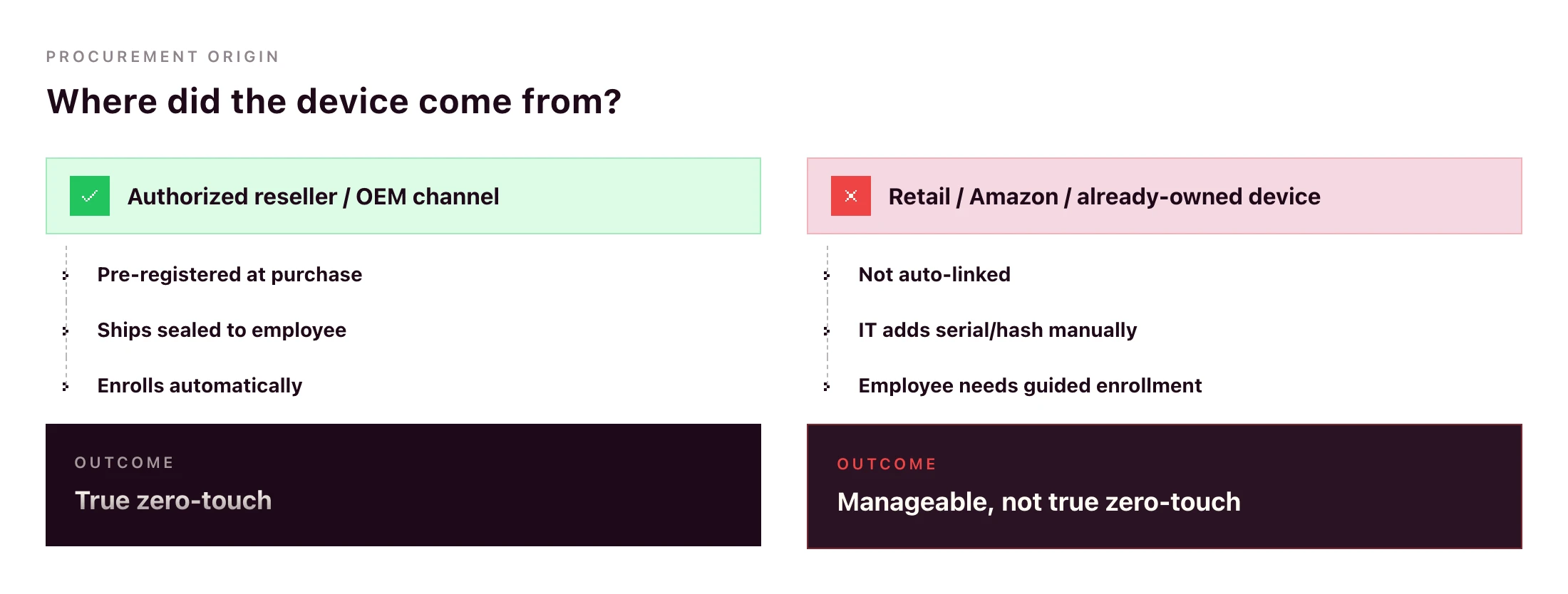
What goes wrong without procurement integration:
- IT manually uploads hardware hashes for Windows devices after they arrive
- IT manually adds serials to ABM after delivery (and hopes the device hasn’t already been set up)
- International orders get stuck in customs because the reseller doesn’t ship to the destination country
- Devices arrive with the wrong OS image, language or region
Primo’s procurement workflow handles this end-to-end: sourcing through authorized resellers (“partners with manufacturers and authorized repair centers”), shipping to 60+ countries in around 5 business days, configuring apps and security before the device leaves the warehouse, and triggering returns automatically from your HR workflows.
A zero-touch deployment rollout plan for SMB IT teams
If you’re going from manual to zero-touch this quarter, here’s the rollout sequence that won’t break your live onboarding flow.
- Standardize role-to-device-profile mapping. Designer → MacBook Pro M-series with design tools. Sales Rep → MacBook Air or comparable Windows laptop with the sales stack. Define this once.
- Connect the HRIS. Pipe the new-hire event from your HR system into your RDM platform.
- Configure the OEM portals you need. ABM if you’re on Apple. Autopilot if you have Windows. Android zero-touch if mobile is in scope. Most teams don’t need all three on day one.
- Define MDM configuration profiles per role. Encryption, password policy, app baseline, restrictions, idle-lock. Test one role end-to-end before duplicating.
- Pilot with one department. A team of 5–10 hires per quarter is ideal. Watch what breaks.
- Extend to all hires. Once the pilot runs for a month without IT intervention, roll out the same flow to everyone.
- Set up the reverse workflow for offboarding. Same RDM, same HRIS trigger, mirror actions: remote wipe, return label, SaaS access revocation.
Timelines vary by team and platform. For a 1–3 person IT team with a single primary OS, a few weeks of focused work is realistic; multi-OS rollouts with custom configuration profiles take longer. Anything that needs a multi-quarter rollout suggests the platform is too heavy for the team running it.
Can you do zero-touch deployment without Intune?
Yes — and for most SMBs, it’s the more practical path.
Microsoft Autopilot is the zero-touch deployment service. Intune is Microsoft’s MDM. The two are often bundled in Microsoft’s documentation, but Autopilot supports partner MDM integration, meaning third-party MDMs can receive devices from Autopilot in the same OOBE flow.
The trade-offs:
- With Intune: tightest integration, single Microsoft admin surface, full feature parity with Microsoft’s roadmap. Strong fit if your stack is already Microsoft-led (Entra ID, Microsoft 365, Defender).
- With a partner MDM: single console across macOS, Windows, Linux, iOS and Android, lighter to deploy, often a better fit for mixed-OS SMB fleets where Microsoft isn’t already the centre of gravity.
Autopilot itself depends on Microsoft Entra ID plus an MDM service to receive the device. A platform like Primo enrolls in that MDM-service role: your Windows devices ride the Autopilot flow into Primo’s console, where they’re managed alongside Mac, Linux, iOS and Android. Confirm exact Entra/Autopilot licensing requirements with Microsoft for your stack. They vary by edition.
Zero-touch offboarding and access cleanup
Zero-touch shouldn’t end at first login. The same automation should run in reverse on exit.
When the HRIS marks the employee as terminated, the RDM platform should:
- Trigger a remote wipe (full or selective depending on ownership)
- Generate a return label and email it to the employee
- Revoke IdP access (which cascades through every SSO-connected app)
- Deactivate accounts on apps not behind SSO
- Mark the asset for reassignment or retirement in inventory
Same workflow, same trigger, opposite direction. Primo states this directly: “Revoked automatically on their last day to prevent security breach.” and “Returns, wipes, and reassignments triggered automatically by your HR workflows.”
A device wipe alone isn’t offboarding — identity cleanup is the other half. Pick a platform where both live in the same console.
Frequently asked questions
What is zero-touch deployment?
Zero-touch deployment is an automated method for provisioning devices without manual IT setup. When a new device is powered on and connected to the internet, it identifies itself to the organization’s MDM platform via an OEM portal (Apple Business Manager, Windows Autopilot, or Android Enterprise), then automatically downloads configurations, apps and security policies.
How does zero-touch deployment work?
The device’s hardware identifier (serial number or hardware hash) is registered with the OEM portal at purchase through an authorized reseller. When the employee powers on the device, it checks in with the OEM portal, which routes it to the organization’s MDM. The MDM applies role-based configuration profiles automatically.
What is the difference between zero-touch deployment and zero-touch enrollment?
Zero-touch enrollment is the enrollment step. The device automatically joins the MDM. Zero-touch deployment is the full workflow, which also includes pushing apps, security policies, and identity configuration so the device is ready to use. Enrollment is one piece of deployment.
What is Apple Automated Device Enrollment (ADE)?
Automated Device Enrollment is Apple’s mechanism for zero-touch deployment of Macs, iPhones, iPads and Apple TVs. Devices bought through Apple Business or an authorized Apple reseller enrolled in the program are automatically linked to the organization’s Apple Business Manager account and routed to the configured MDM on first power-on. ADE replaced the legacy Device Enrollment Program (DEP).
What is Windows Autopilot?
Windows Autopilot is Microsoft’s zero-touch deployment service for Windows devices. It registers devices with Microsoft Entra ID and routes them to Intune or a partner MDM, then applies role-based configuration on first boot. Devices can be sourced through OEMs that pre-register hardware hashes, or hashes can be uploaded manually.
Can you do zero-touch deployment without Intune?
Autopilot itself requires Microsoft Entra ID and an MDM service to route the device to. Intune is Microsoft’s MDM, but Autopilot also supports partner MDM integration, meaning a third-party MDM enrolled in the Autopilot partner programme can play that role for mixed-OS SMB fleets that don’t want a separate Microsoft-only console. Confirm exact Entra and Autopilot licensing requirements with Microsoft.
What is Android Enterprise zero-touch enrollment?
Android zero-touch enrollment is Google’s program for automatic Android device deployment. Devices purchased from a zero-touch reseller are pre-registered to the organization’s account. On first boot, the device downloads the configured device policy controller (DPC) from the MDM and applies all required policies.
Is zero-touch deployment only for large enterprises?
No. Apple Business Manager, Windows Autopilot and Android Enterprise zero-touch are free programs from the OEMs — the cost is the MDM platform and the procurement workflow that pre-registers hardware. The main prerequisite is buying hardware through an authorized reseller that supports zero-touch registration.
Primo now has an MCP server.
A device gets flagged. You need to know who it's assigned to, when it was last active, whether there's an open ticket on it, and what access that employee currently has.
You open Primo. You look up the device. You check the employee profile. You cross-reference the ticket queue. You piece it together.
That's four steps for a question that should take one.
Here's the same thing with Primo's MCP server connected to your AI assistant: you type "what's going on with this device?" and get back the device details, the assigned employee, their onboarding status, and any related tickets. One prompt. Full context. No tab-switching.
That's what we shipped.
MCP: Model Context Protocol
MCP (Model Context Protocol) is an open standard that lets AI assistants like Claude, ChatGPT, or Cursor connect directly to external tools. Instead of answering from training data, your AI queries your actual systems in real time.
With Primo's MCP server, that means your AI assistant can talk directly to your IT fleet. Devices, employees, accessories, tickets: all accessible from the AI tools you already have open.
Why it hits differently with Primo
Most IT tools that support MCP give you access to records. Primo gives you access to a connected data model.
Because Primo ties devices, employee lifecycle, SaaS access, and ticketing into one operational system, a single prompt can cross all of those layers at once. When you ask about a device, it comes back linked to an identity. When you ask about an employee, you get their full IT footprint: what they have, what they can access, what's pending.
That's the difference between querying isolated records and querying a unified IT operations platform.
It also means you can get a compliance-ready view of your entire fleet in one prompt. Preparing for an ISO 27001 audit and need to know which devices aren't enrolled or which employees still have active access after offboarding? That's a question your AI can now answer across your whole fleet, not just device by device.
A few things you can do from a single prompt today:
• Pull a device's full IT history (enrollment date, successive assignments) alongside the employee it's assigned to ;
• List all open tickets filtered by status, priority, or assignee ;
• Check which employees joined this month and whether their devices are provisioned ;
• Spot accessories that are unassigned or overdue for return ;
• Search across your entire fleet without opening a single filter.
And when you're ready to move beyond read-only, write access lets you create tickets, add comments, update status and assignee, and perform device actions like locking or wiping directly from your AI client.
What your AI can do in Primo
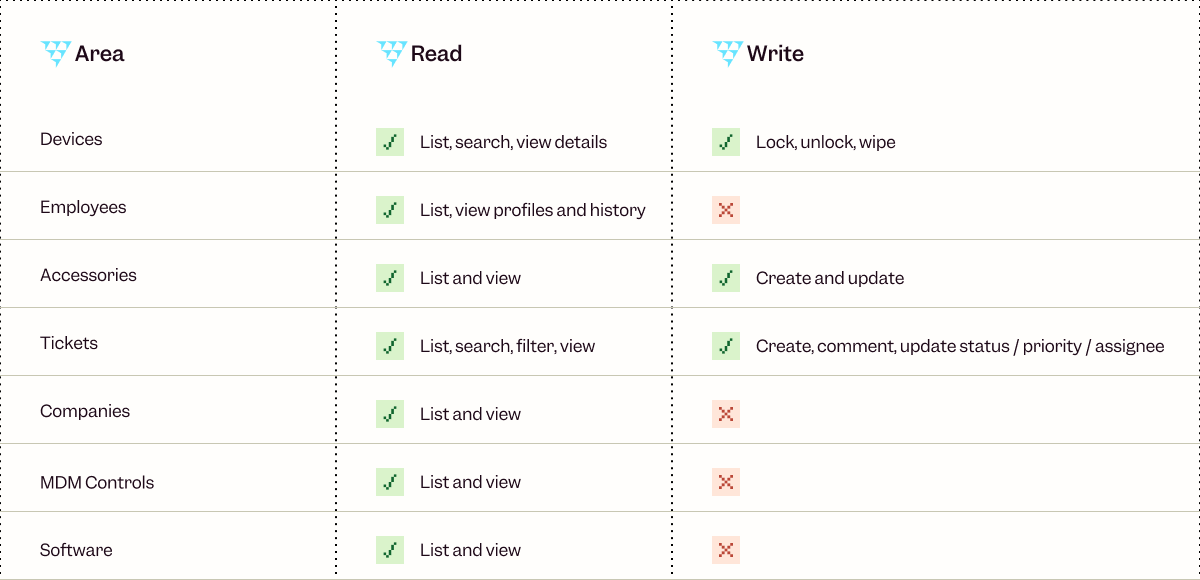
One note on device actions: locking and wiping are irreversible. Write mode is there for teams who want speed, but it's worth confirming before you act.
Getting connected
Authentication runs through OAuth. No API key to generate or manage, you sign in with your existing Primo account and you're done.
The server URL is https://api.getprimo.com/mcp. By default it runs in read-only mode. To enable write access, use https://api.getprimo.com/mcp?readOnly=false.
Setup is the same across clients: go to the MCP Servers section in your settings, add the URL, and complete the OAuth flow. Full instructions for Claude, ChatGPT, and Cursor are in the Primo help center.
A good place to start
Read-only prompts are the fastest way to build trust in the workflow before moving into writes. Try these:
"Show me all devices that haven't been active in the last 30 days."
"What open tickets are currently unassigned?"
"List employees who joined this month and check whether their devices have been provisioned."
Once that feels natural, write access opens up the rest.
The MCP server is live now. Get started at https://api.getprimo.com/mcp, or head to the help center if you want step-by-step setup instructions for your AI client.